Getting Started
Getting Started: Viewer
Your job is staying current — knowing what's happening in your jurisdiction, finding what you need fast, and catching anything relevant to your active cases. Here's what the Viewer role gives you to do that.
What you can do as a Viewer
Viewers receive, search, and act on bulletins. Your Local Feed gives you an automatic start-of-shift briefing. Subscriptions watch your active cases for you. And when you need to find something specific, text and map-based search put it in reach.
- See recent bulletins for your agency, county, state, or a custom map region via the Local Feed
- Receive bulletins matched to your interests — preferences set during onboarding but can be updated anytime in Settings > Tags
- Search bulletins by keyword, location, tag, case detail, and bulletin type
- Search by area — search, center, and zoom the map to find bulletins in any jurisdiction
- Run a Photo Search to identify a subject or object (e.g. vehicle, graffiti, weapon) against existing bulletins
- Set up subscriptions that notify you when a new bulletin matches your criteria
- Save bulletins from active cases to your Saved tab for fast retrieval
- Control your feed with Clutter Controls — reduce bulletin types that don't apply to your work
- Set notification preferences by bulletin type, channel (SMS, email, push), and frequency
- Mark bulletins Interested or Not Interested — feedback that helps the author and tailors what reaches you
First things to do after logging in
Your first login walks you through a setup wizard for notifications, alert filters, and tag interests. Once that's complete, do these five things.
- 1
Check your Local Feed
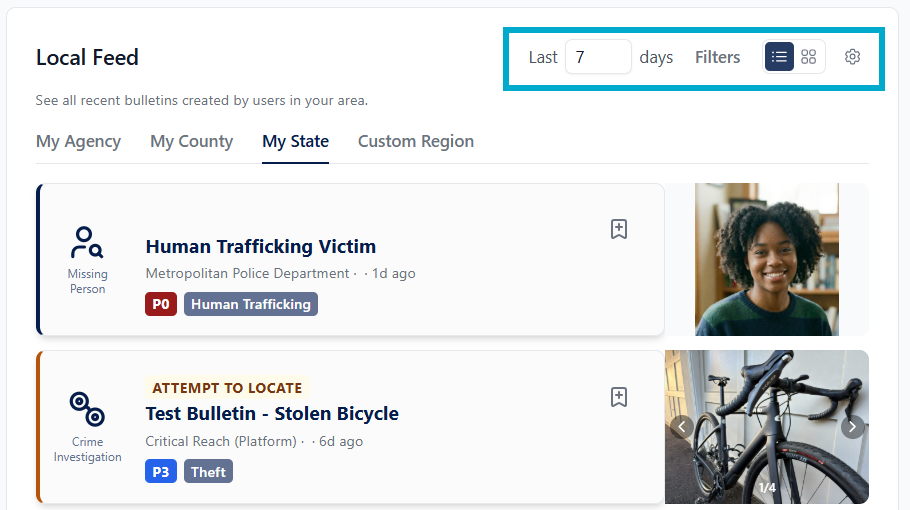
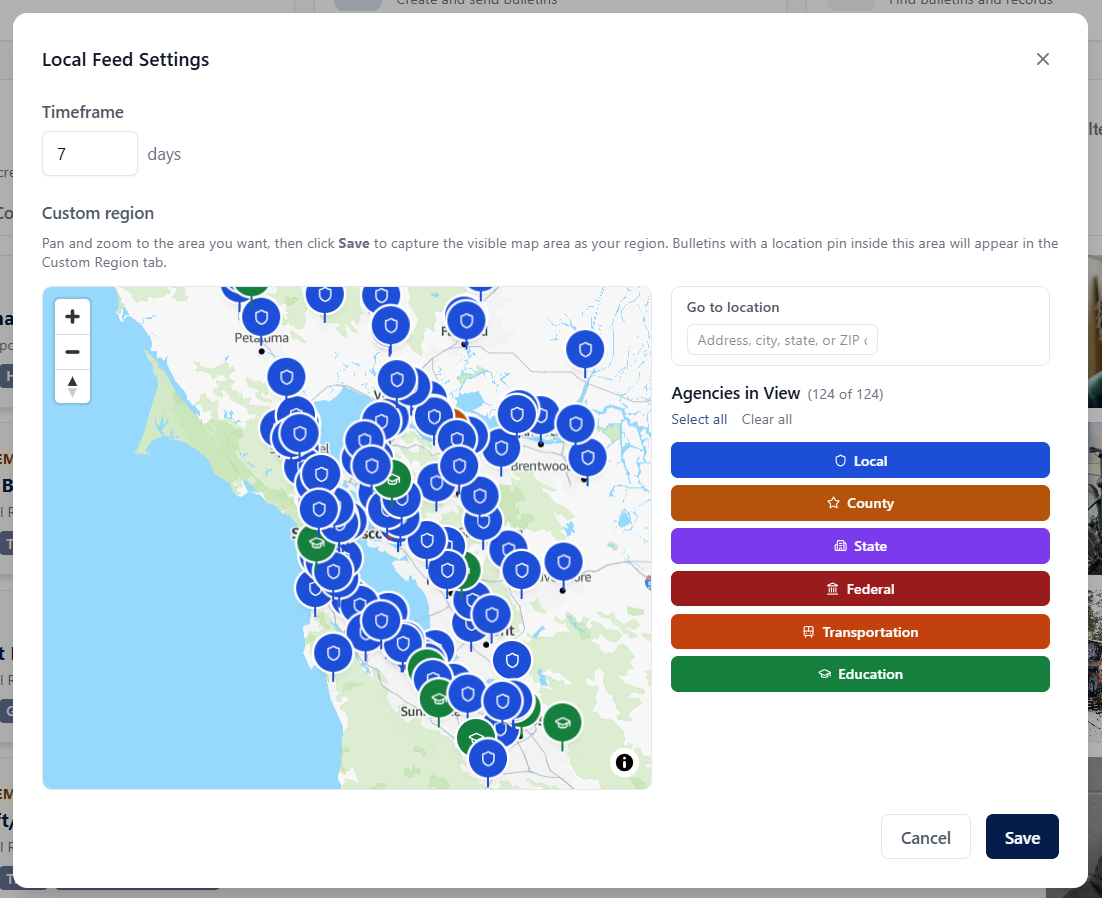
Find the Local Feed tab on the home page. Confirm My Agency, My County, and My State all look right for your area — these three work automatically, no setup needed. Use the gear icon to set a custom region of interest and get a feed of all bulletins created by agencies in that area. You can also adjust the timeframe — want to see what happened since yesterday? Set it to 1 day. This is your start-of-shift briefing, updated in real time.
- 2
Set your notification preferences
Click your name in the upper right and select Settings > Notifications. Configure which bulletin types notify you by SMS, email, or push — and at what frequency. Preferences can be customized by category: high-priority bulletins, bulletins sent by others, subscriptions, and Collaboration Group activity.
- 3
Set up subscriptions for your active cases
Open the Received tab and create subscriptions for anything you're actively watching — a license plate, a physical description, a specific location. Subscriptions alert you when new bulletins are created by others, even if you're not on the distribution — set them up now to get intelligence that matters to you.
- 4
Try a map-based search
Open Search and select Map View. Search, center, and zoom to a location you care about and see what bulletins come back. Map search is your tool when you need bulletins from a specific area — not just your Local Feed tabs. Get familiar with it before you need it in the field.
- 5
Learn your inbox tabs
Your inbox has five tabs: Received, Sent, Saved, Messages, and Feed. Spend two minutes clicking through each one. Understanding the structure now saves you from hunting later.
Your five essential how-to guides
These are the guides most relevant to your first week. Bookmark them — you'll come back to them.
Understanding Your Inbox
Learn the five inbox tabs — Received, Sent, Saved, Messages, and Feed — and how they work together.
Read the guide →
Map-Based Bulletin Search
Search for bulletins using the map — search, center, and zoom to the area you want, and see what bulletins are there.
Read the guide →
Setting Up Subscriptions
Get notified automatically when a bulletin matching your criteria enters the system — by license plate, case type, location, and more.
Read the guide →
Saving & Finding Bookmarked Bulletins
Save bulletins from active cases to your Saved tab so they're always one tap away — no searching required.
Read the guide →
Setting Your Notification Preferences
Control which bulletin types notify you, by which channel, and how often — so you get what matters without the noise.
Read the guide →
Tips for Viewers
A few habits that make the platform more useful once you're up and running.
Use the Local Feed as your start-of-shift briefing
The Local Feed's My Agency, My County, My State, and Custom Region tabs show recent bulletins automatically — no searching required. Make it the first thing you check when you start a shift.
Keep your tags current
Authors can send bulletins to users whose tags match the bulletin — so only relevant users receive it. Tags are by crime type (homicide, fraud, missing persons, and more). The tags you selected during onboarding determine which tag-filtered bulletins reach you. If they don't reflect the crime types you actually work, you may miss bulletins that matter — update them anytime in Settings > Tags.
Let subscriptions watch your active cases for you
Set a subscription for a license plate, a physical description, or a case-relevant location. APBnet™ alerts you when a matching bulletin arrives — you don't have to keep checking manually.
Use Clutter Controls to reduce feed noise
If certain bulletin types rarely apply to your work, use Clutter Controls to keep them out of your main feed. They're still searchable — they just won't clutter your daily view.
Save bulletins from active cases
Tap the Save icon (bookmark) on any bulletin to add it to your Saved tab. When you're working a case and need to pull up a BOLO or missing person bulletin fast, it'll be there.
Map search for a one-off area, Custom Region for a recurring one
Need bulletins from a specific block or area just this once? Use map-based search. Need to keep an eye on that same area every day? Set it up as your Local Feed's Custom Region instead — it's a saved view, not a repeated search.
Mark every bulletin — don't leave it Pending
Every bulletin starts out Pending until you respond. Marking it Interested or Not Interested only takes a second, and it does real work: it gives the author feedback on whether their bulletin reached the right audience, and it helps tailor which bulletins reach you going forward. Try not to leave bulletins sitting Pending.