How-To Guides
Map-Based Bulletin Search
How to find bulletins from a specific geographic area — search, center, and zoom the map to cover the region you need. Bulletins from agencies visible in the map window appear automatically.
Before you start
- Map-based search is available to all Creators and Viewers.
- Know the general area you want to search — a city, county, corridor, or region. You don't need to know exact agency names.
Steps
- 1
Open Search from the main navigation and switch to Map View.
Search opens in list view by default. Select the Map View toggle to switch to the geographic interface.
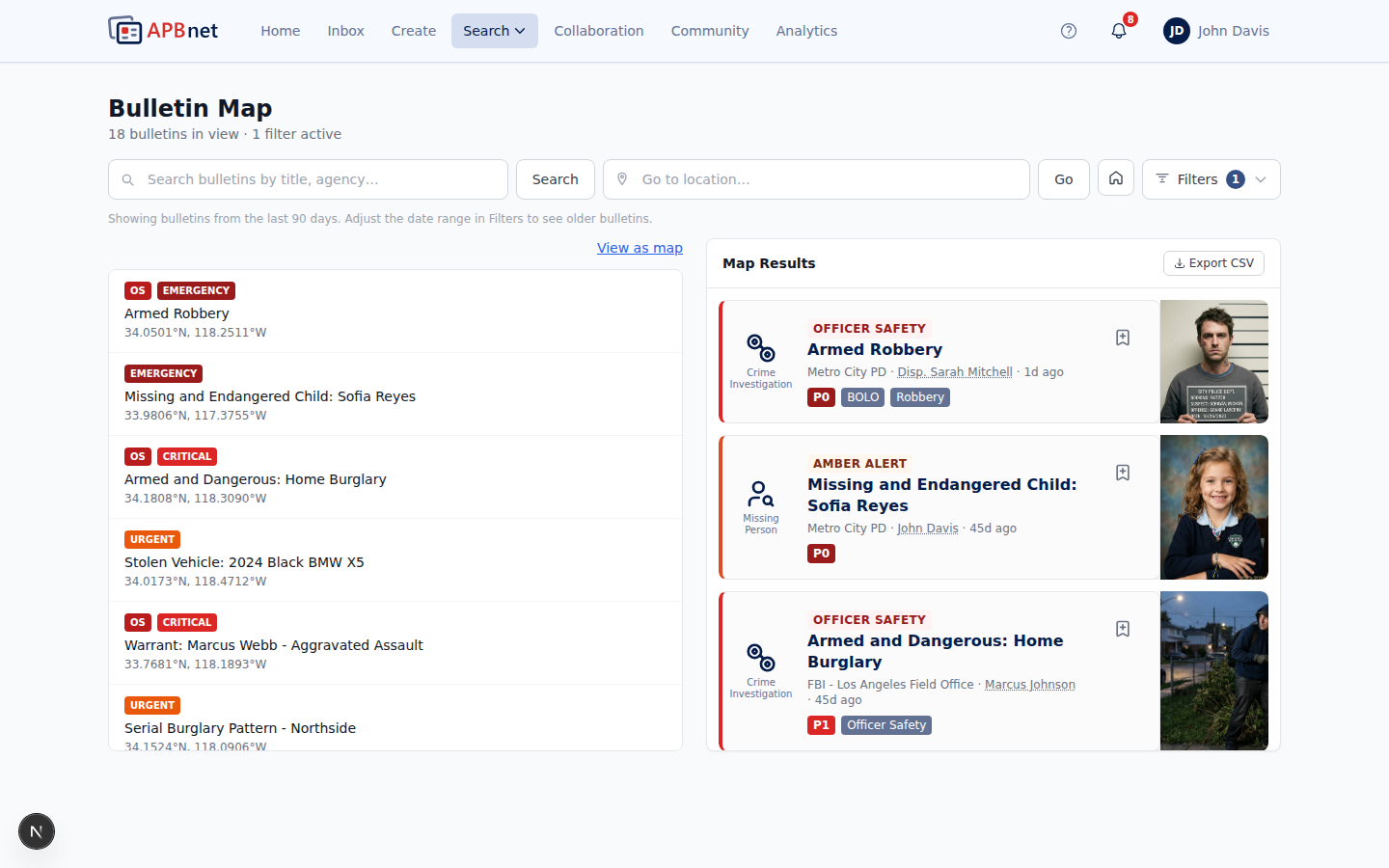
Search page with Map View selected, showing the full-width map interface with the results panel alongside - 2
Use the search bar above the map to navigate to your target area.
Enter a city, county, address, or intersection. The map centers on that location. This is faster than panning manually when you're looking at an area outside your jurisdiction.
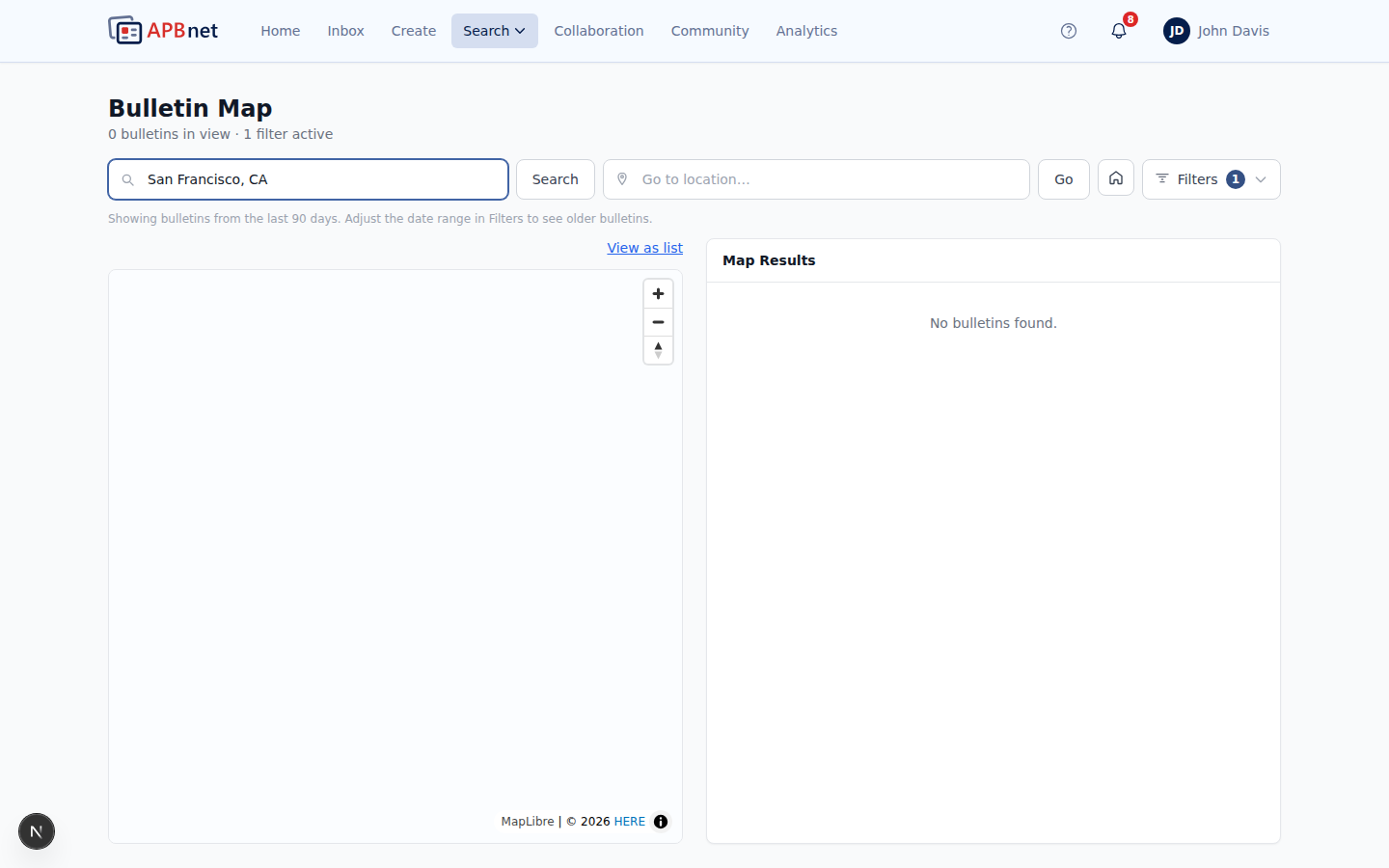
Map-Based Search — search bar above the map with a location entered, map centered on the result - 3
Zoom and pan until the area you want to search fills the window.
Use the + and − controls to zoom in or out. Click and drag to pan. The bulletins from agencies visible in your map window are the bulletins that appear in results — there's no separate selection step. What you see is what gets searched.
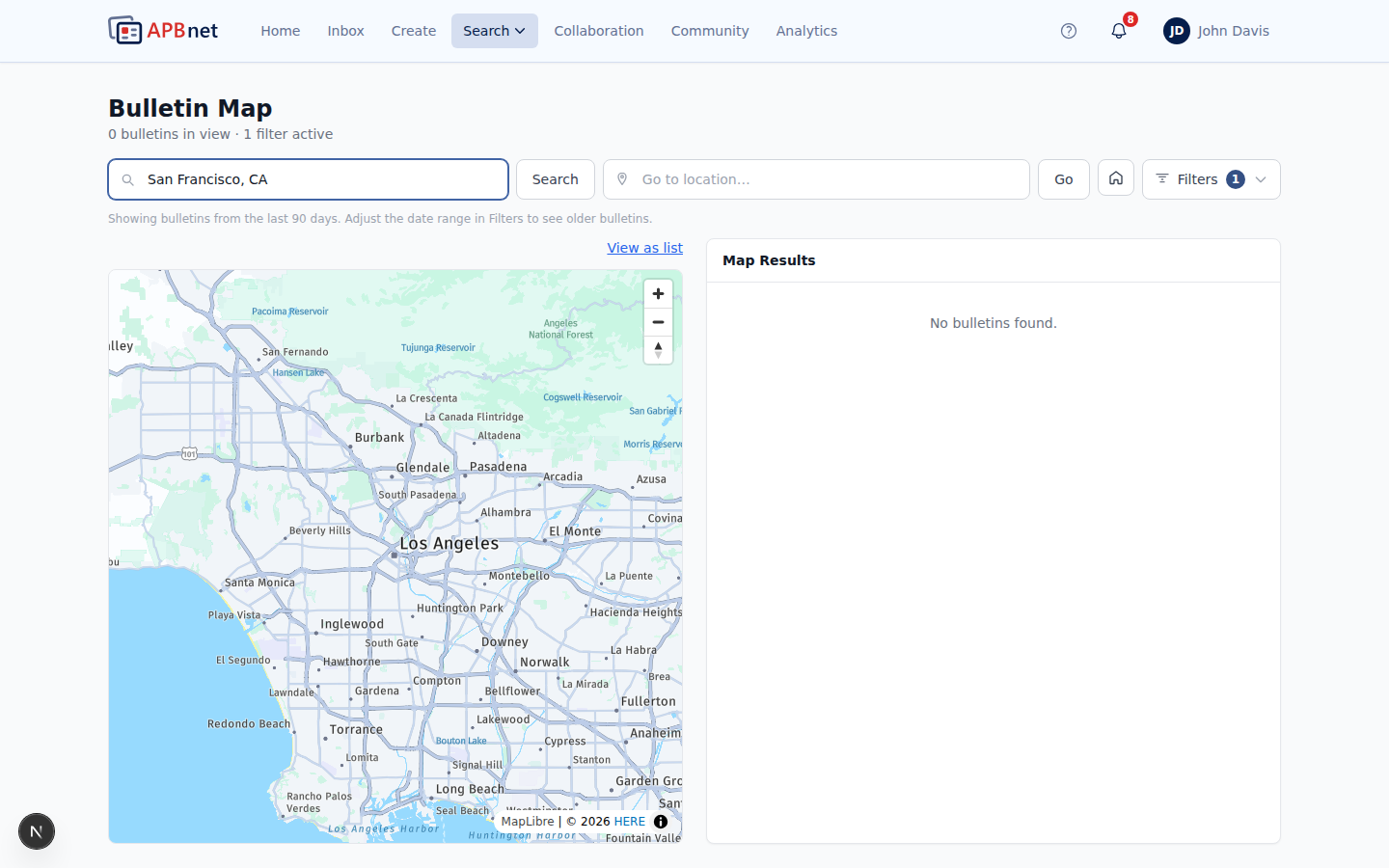
Map-Based Search — map zoomed to show a multi-county area, with bulletin result count updating in the panel - 4
Review the bulletin results in the panel alongside the map.
Results update as you adjust the map. Each result shows the bulletin type, subject summary, sending agency, and date. If you need to narrow results further, apply keyword or date filters — they work alongside the map view.
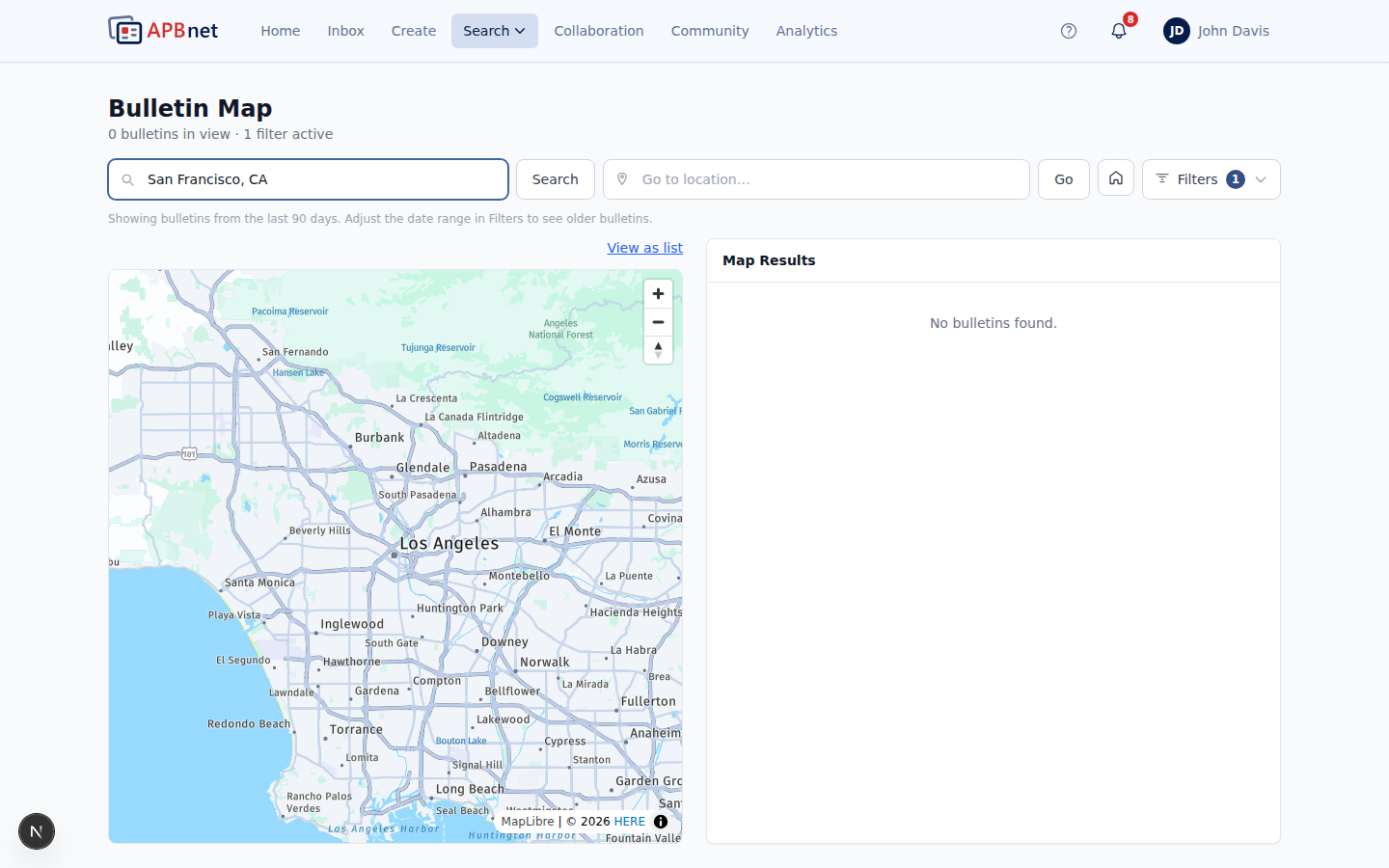
Map-Based Search — results panel alongside the map showing several bulletins with type, agency, and date - 5
Click a bulletin to open it.
Opening a bulletin from the results panel shows the full detail view. From there, you can save it to your Saved tab, share it to a Collaboration Group, or mark it as Interested.
Tips
This is the same interaction as map-based distribution
Map-based distribution (choosing who gets your bulletin when you create one) and map-based search (finding bulletins from a region) both work by navigating the map — pan and zoom to the area you want. Learn one, you know both.
Use it for multi-jurisdiction pattern research
If you're investigating a pattern that spans multiple counties or agencies, map-based search is faster than searching agency by agency. Zoom out to cover the whole region and see bulletins from all agencies in one view.
Combine map view with keyword filters
Map view and text search work together. Set your geographic area with the map, then add a keyword — a bulletin type, a vehicle description, a name — to narrow results within that region.
Related guides
Map-Based Distribution Selection
The same pan-and-zoom interaction used when sending — choose which agencies receive your bulletin.
Read the guide →
Saving & Finding Bookmarked Bulletins
Save bulletins you find via map search to your Saved tab for easy access.
Read the guide →
Setting Up Subscriptions
Get notified automatically when bulletins matching your criteria enter the system.
Read the guide →