How-To Guides
Understanding Your Inbox
APBnet™ organizes incoming activity across five tabs — each with a distinct purpose. Here's what each one shows and how they fit together.
Before you start
- The inbox is available to all APBnet™ users — no special role required.
- Access it from the navigation bar at the top of any page. The inbox icon shows your unread count.
The five tabs
- 1
Open the inbox from the main navigation.
Click the inbox icon in the top navigation bar. The inbox opens to the Received tab by default. The five tabs run across the top of the inbox panel.
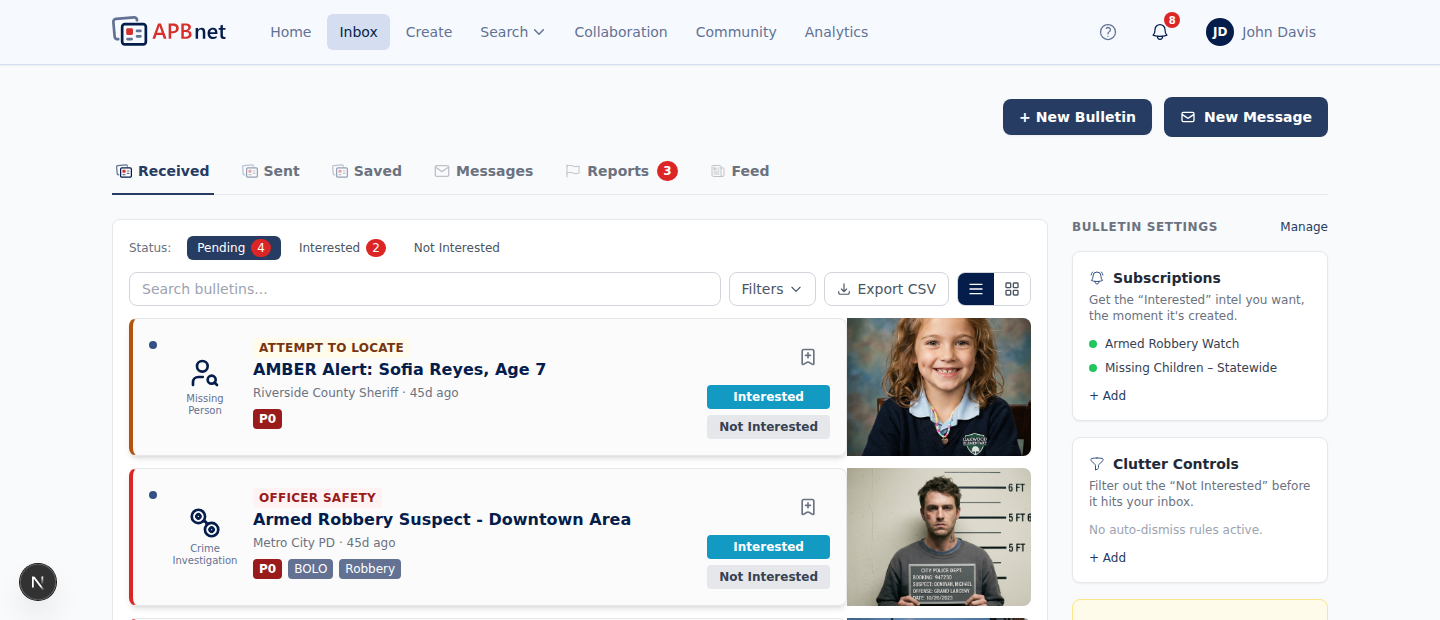
Inbox — all five tabs visible across the top: Received, Sent, Saved, Messages, Feed - 2
Received — Bulletins sent to you.
Every bulletin distributed to your agency arrives here. Each entry shows the bulletin type, subject summary, sending agency, and when it arrived. This is the primary place to monitor incoming activity.
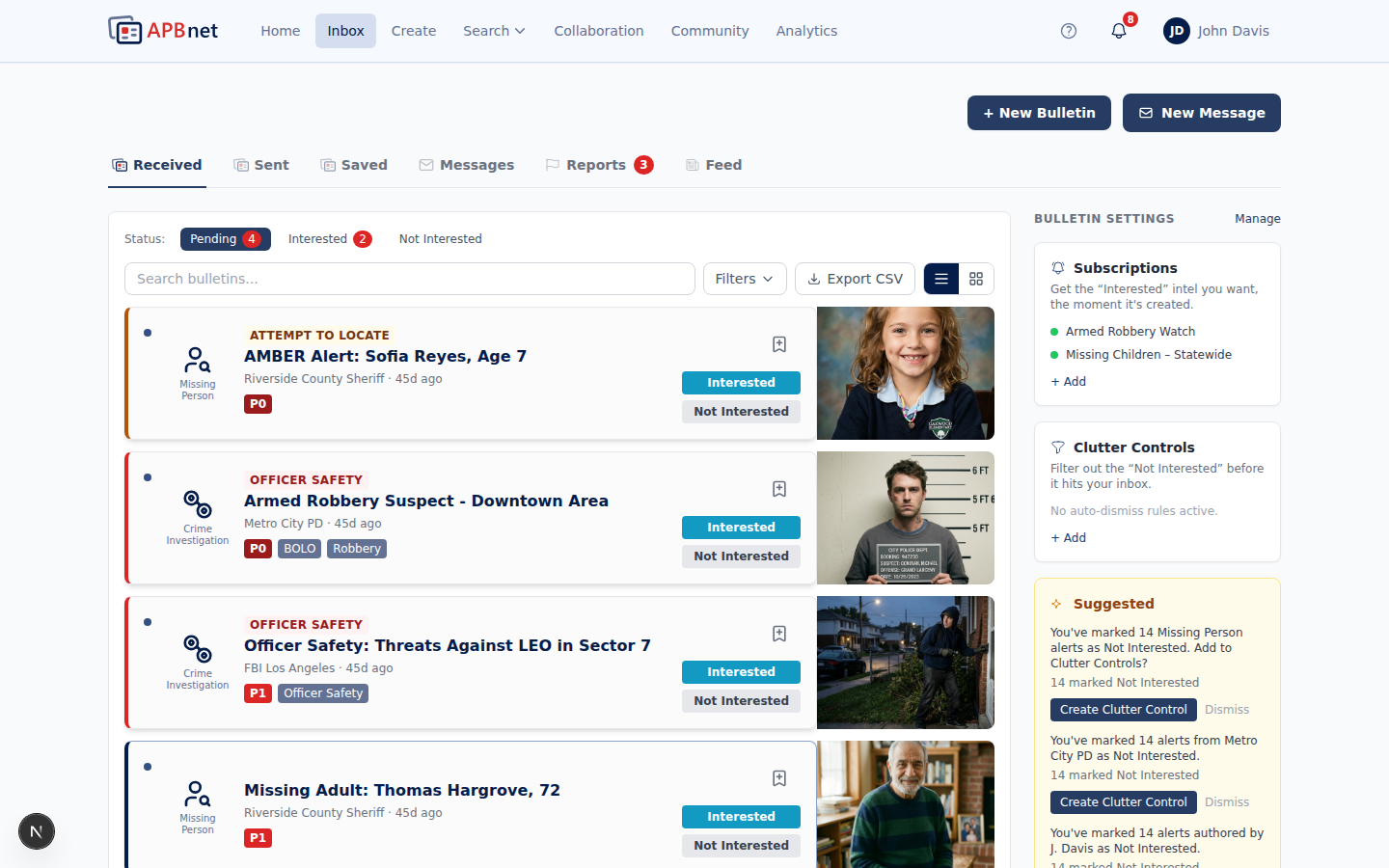
Inbox — Received tab open, showing a list of incoming bulletins with type icons, summaries, agency names, and timestamps - 3
Sent — Bulletins you have sent.
If you have the Creator role, this tab shows every bulletin you've sent — with delivery status and recipient count. Viewers and other roles that don't create bulletins will see an empty Sent tab.
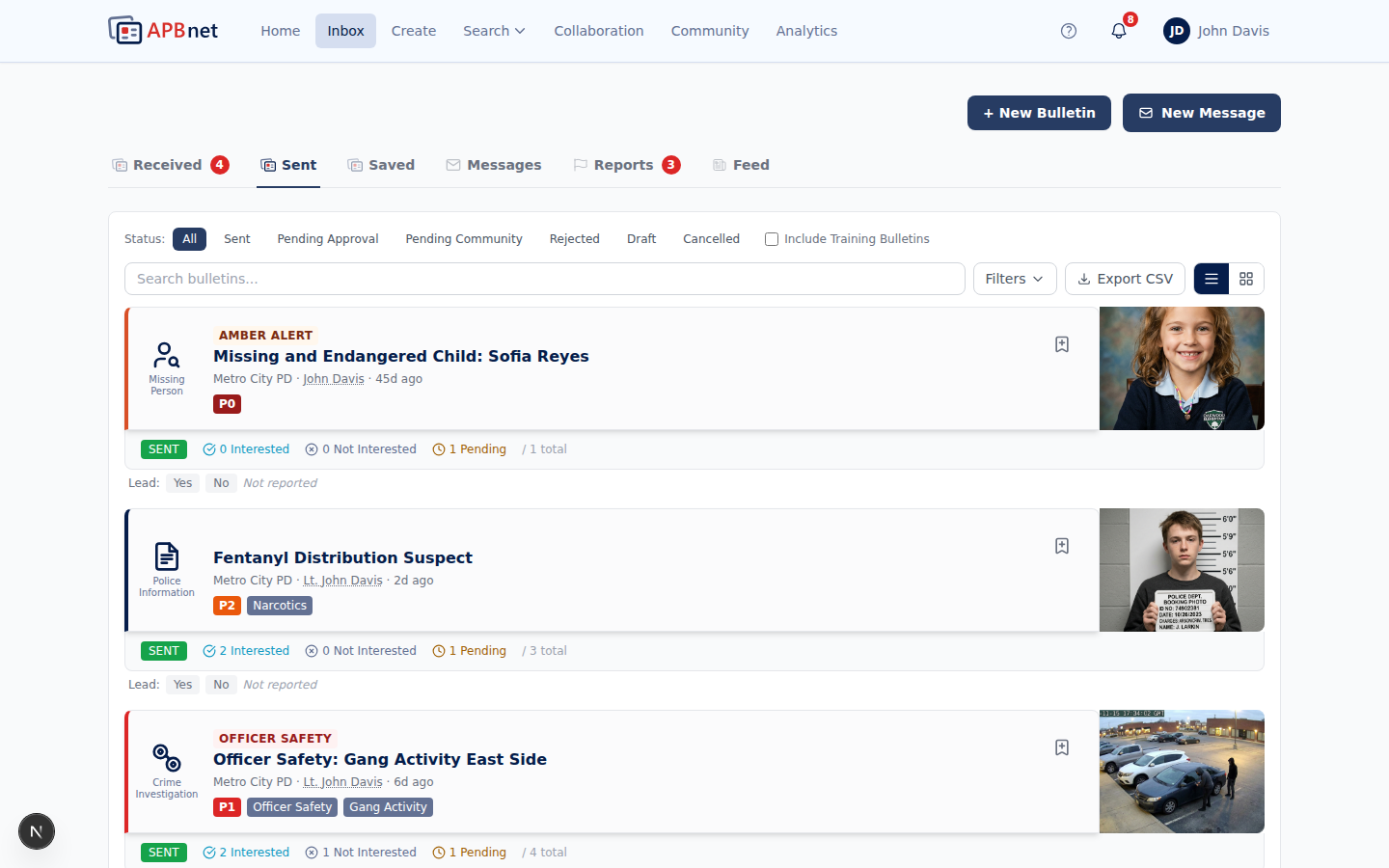
Inbox — Sent tab showing several sent bulletins with delivery status and recipient counts - 4
Saved — Bulletins you have bookmarked.
When you save a bulletin — from Received or Feed — it stays here until you remove it. Use Saved as a lightweight case folder: save bulletins relevant to an active case and remove them when the case closes.
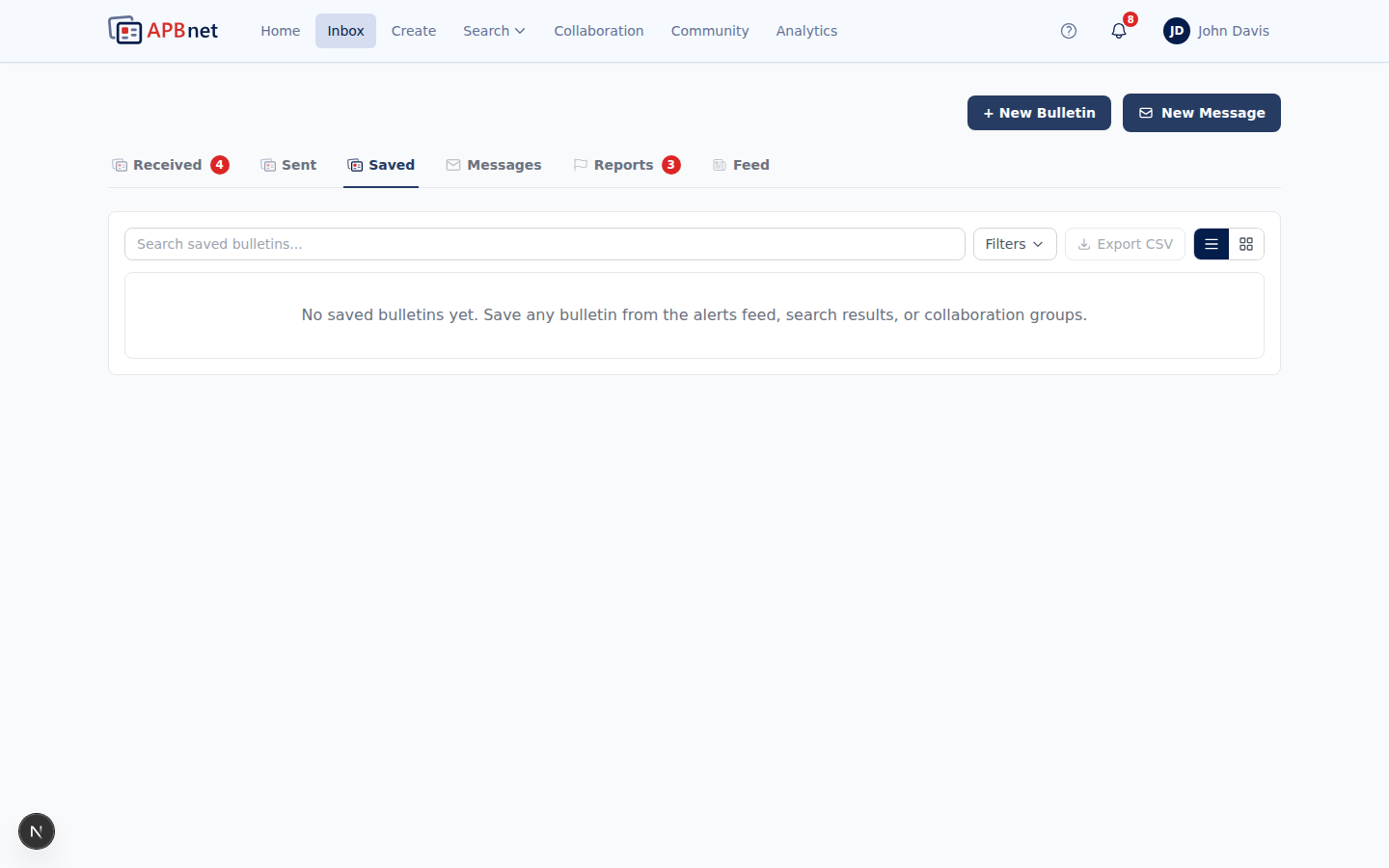
Inbox — Saved tab showing a small set of bookmarked bulletins - 5
Messages — Direct messages between APBnet™ users.
Direct messages between APBnet™ users appear here, separate from broadcast bulletins. If another officer sends you a message directly through the platform, it lands in Messages — not in Received.
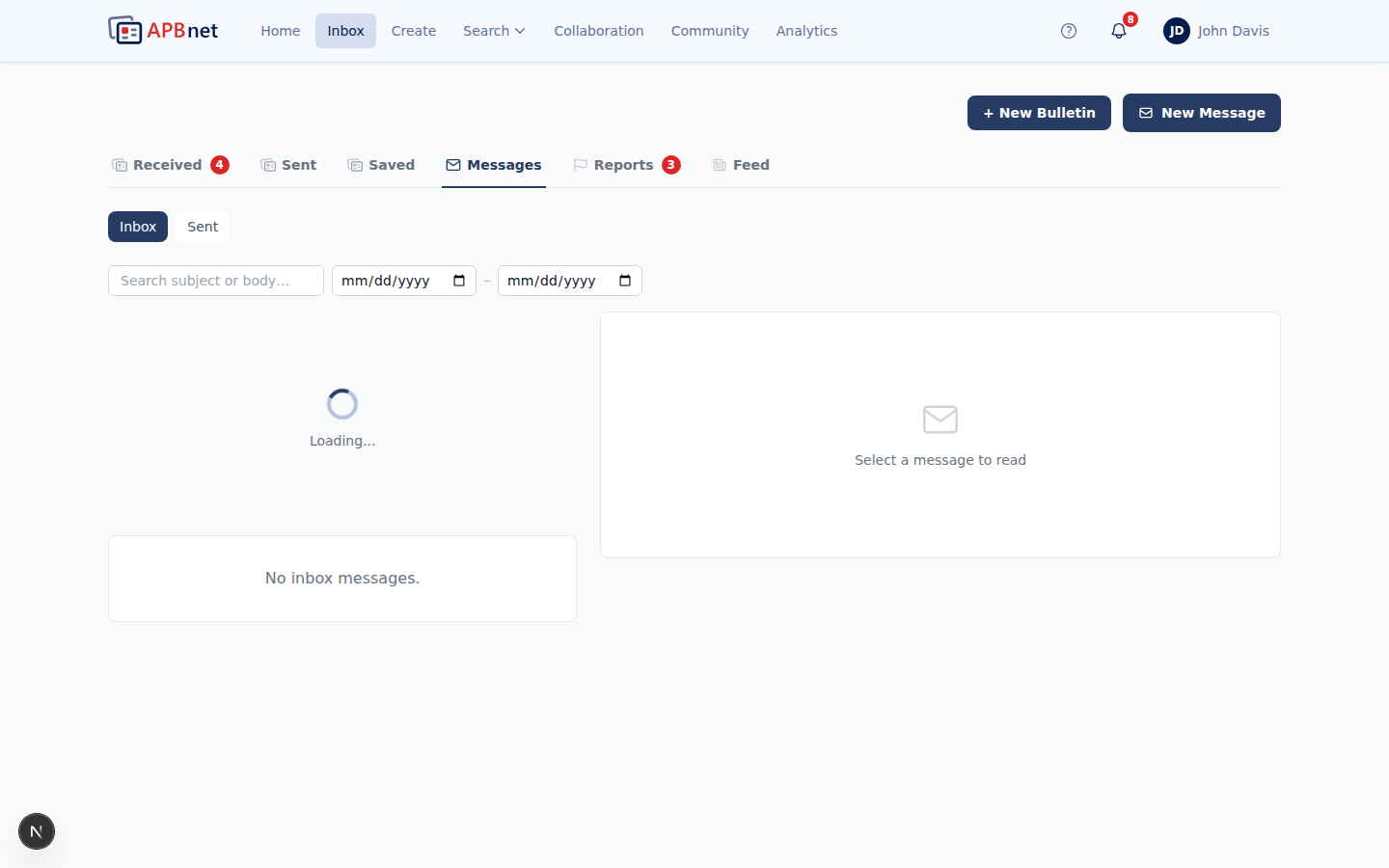
Inbox — Messages tab showing a conversation list with unread indicators - 6
Feed — Announcements and platform activity — not the same as your Local Feed.
The Feed tab collects agency announcements, bulletin-approval notices, collaboration group activity, surveys, and other action-required items — a running log of platform activity, separate from the bulletins themselves. It's easy to confuse with your Local Feed (My Agency, My County, My State, Custom Region), but that's a different feature entirely, on the APBnet™ Home page rather than here. See the Local Feed guide below.
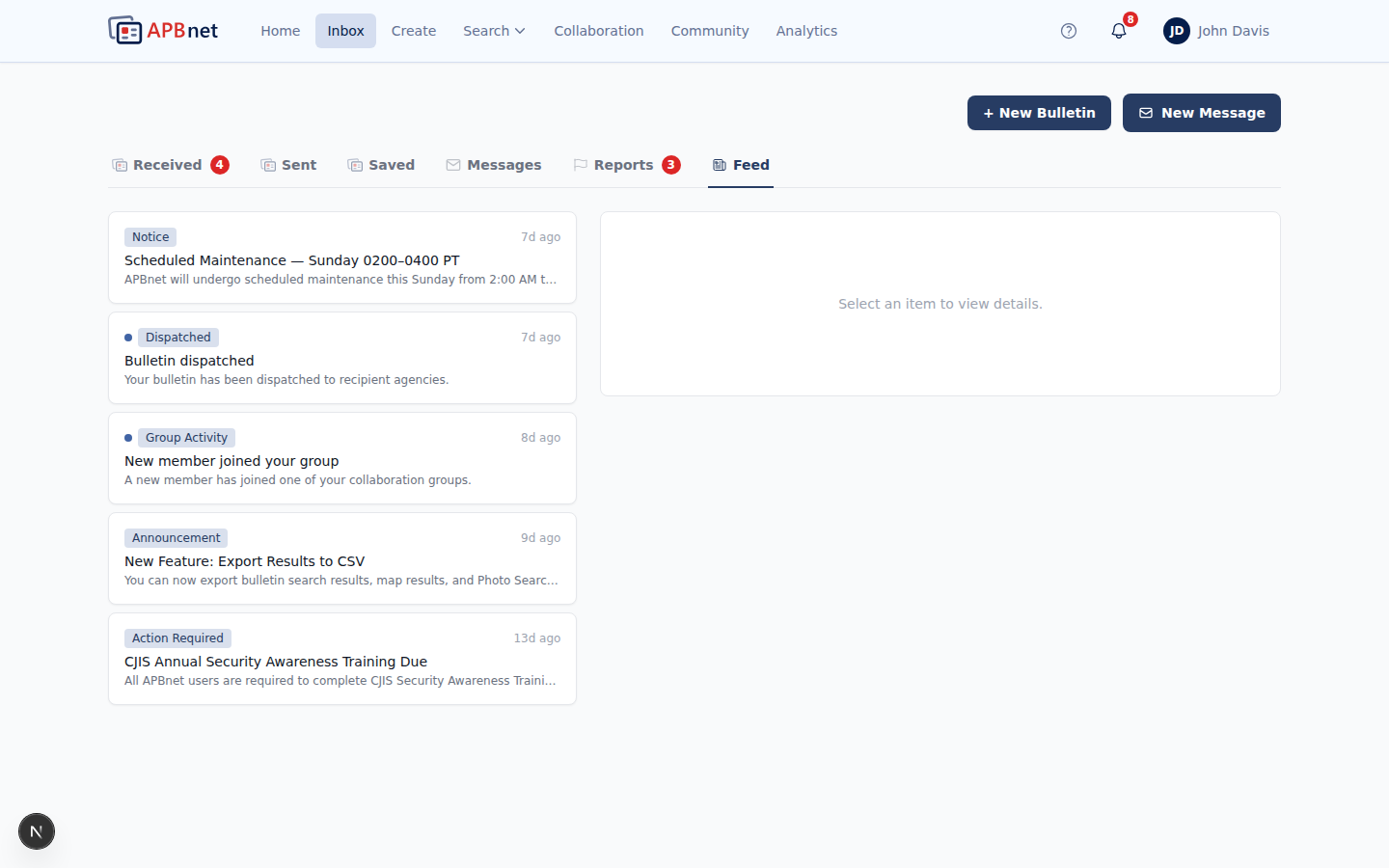
Inbox — Feed tab showing announcements, bulletin-approval notices, and collaboration activity
Different from legacy APBnet™
Legacy APBnet™ presented a single combined inbox — everything arrived in one list. APBnet™ now separates activity into five focused tabs. If you're used to scanning a single view, take a minute to explore all five tabs. The separation is intentional: sent bulletins, saved bulletins, messages, and platform notices each get their own space so your Received tab stays focused on what's actually incoming.
Tips
Use Saved as a case folder
Save every bulletin related to an active case so they stay accessible without searching. When the case closes, remove them to keep your Saved tab clean and relevant.
The Feed tab isn't your Local Feed
It's an easy mix-up: the Inbox's Feed tab is for announcements, approvals, and collaboration activity. Your Local Feed — My Agency, My County, My State, and Custom Region — lives separately, on the Home page.
Messages are separate from bulletins
Direct messages from colleagues go to the Messages tab, not Received. If someone tells you they sent you a message and you don't see it in Received, check Messages.
Related guides
Using Your Local Feed
A different feature on the Home page — four automatic views of nearby activity, not to be confused with the Inbox's Feed tab.
Read the guide →
Setting Up Subscriptions
Set up proactive alerts — get notified when a specific plate, person, or criteria enters the system.
Read the guide →
Saving & Finding Bookmarked Bulletins
How to save bulletins and keep your Saved tab organized.
Read the guide →
Sending Direct Messages
The full walkthrough of composing, replying to, and searching messages.
Read the guide →
Interested / Not Interested
Signal relevance on incoming bulletins to shape your feed and help bulletin authors.
Read the guide →
Setting Your Notification Preferences
Control how and when APBnet™ notifies you — email, push, or daily digest.
Read the guide →