How-To Guides
Setting Your Notification Preferences
Control which categories of activity alert you — Officer Safety bulletins, bulletins from other users, subscription matches, and more — which channel each one uses, and whether alerts fire immediately or arrive as a daily digest.
Before you start
- All users can configure their own notification preferences. Your settings don't affect other users at your agency.
- SMS notifications are coming soon. You can set your SMS preferences now, but text messages won't start arriving until the service goes live — you'll still need a mobile number on file in your account profile when it does.
- Push notifications require the APBnet™ app or a supported browser with notifications enabled.
Steps
- 1
Open Settings from your account menu and select Notification Preferences.
Your notification settings are per-account and apply across all devices where you use APBnet™.
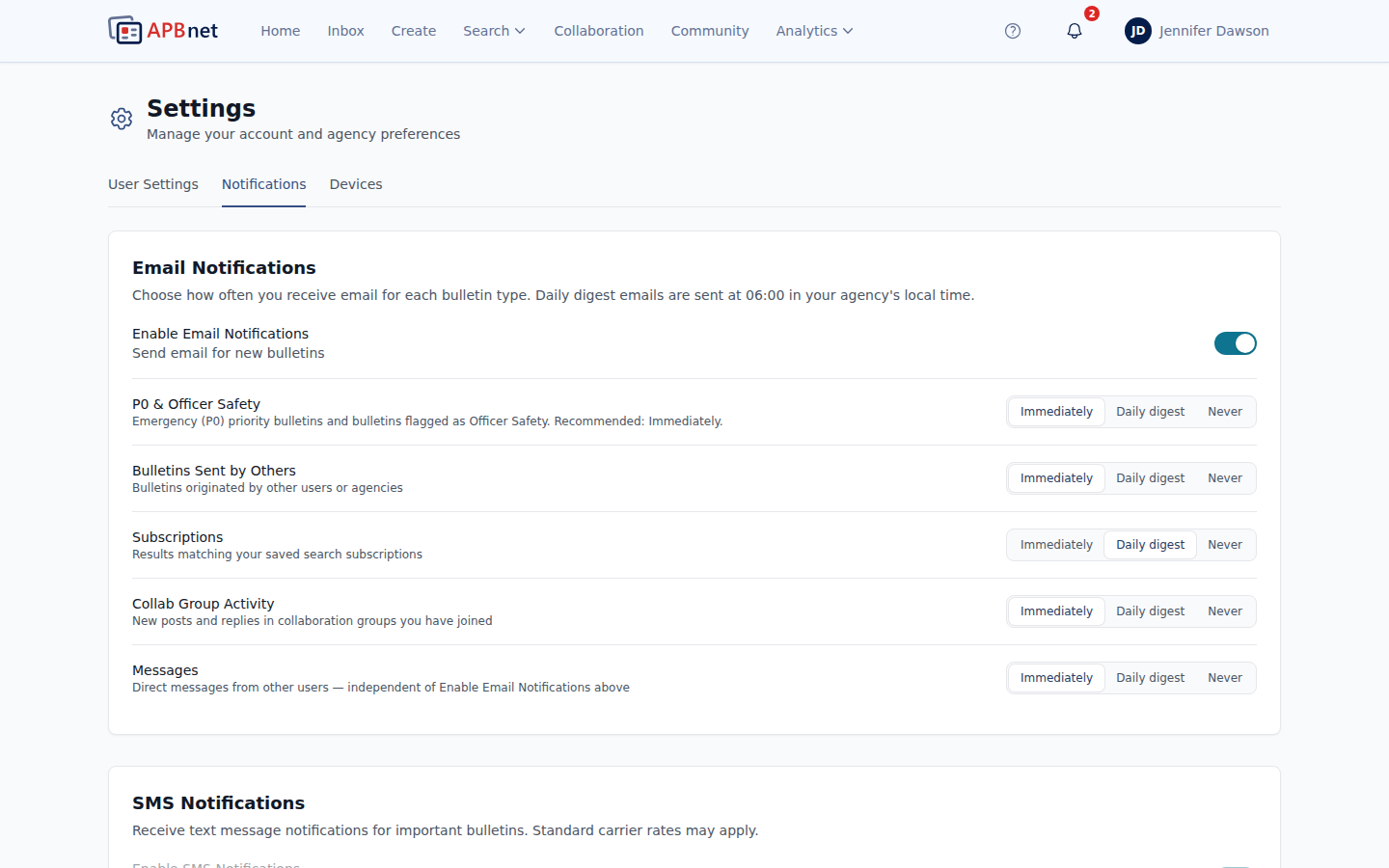
Notification Preferences settings page showing P0 & Officer Safety, Bulletins Sent by Others, Subscriptions, Collab Group Activity, and Messages rows with channel toggles (push, email, SMS) - 2
For each category, choose your notification channel.
Activity is grouped into a few categories, each with its own row: P0 & Officer Safety, Bulletins Sent by Others, Subscriptions (results matching your saved search subscriptions), and Collab Group Activity. A separate Messages row covers direct messages from other users — it's controlled independently of the categories above. For each row, toggle which channels you want active:
- Push — alert on your device immediately, even when APBnet™ isn't open.
- Email — sent to your account email address. Good for bulletins you want a record of.
- SMS — text message to your mobile number. Coming soon — set your preference now and it'll start working once the service activates. For Messages, SMS will be immediate-or-never only; the daily digest option is limited to the other categories.
- 3
For lower-priority categories, switch from immediate to daily digest.
Instead of an alert every time, digest mode batches a category into a single daily summary. You still see everything — it just arrives once a day rather than interrupting you throughout the shift. Digest isn't available for the Messages row, which is immediate or never only.
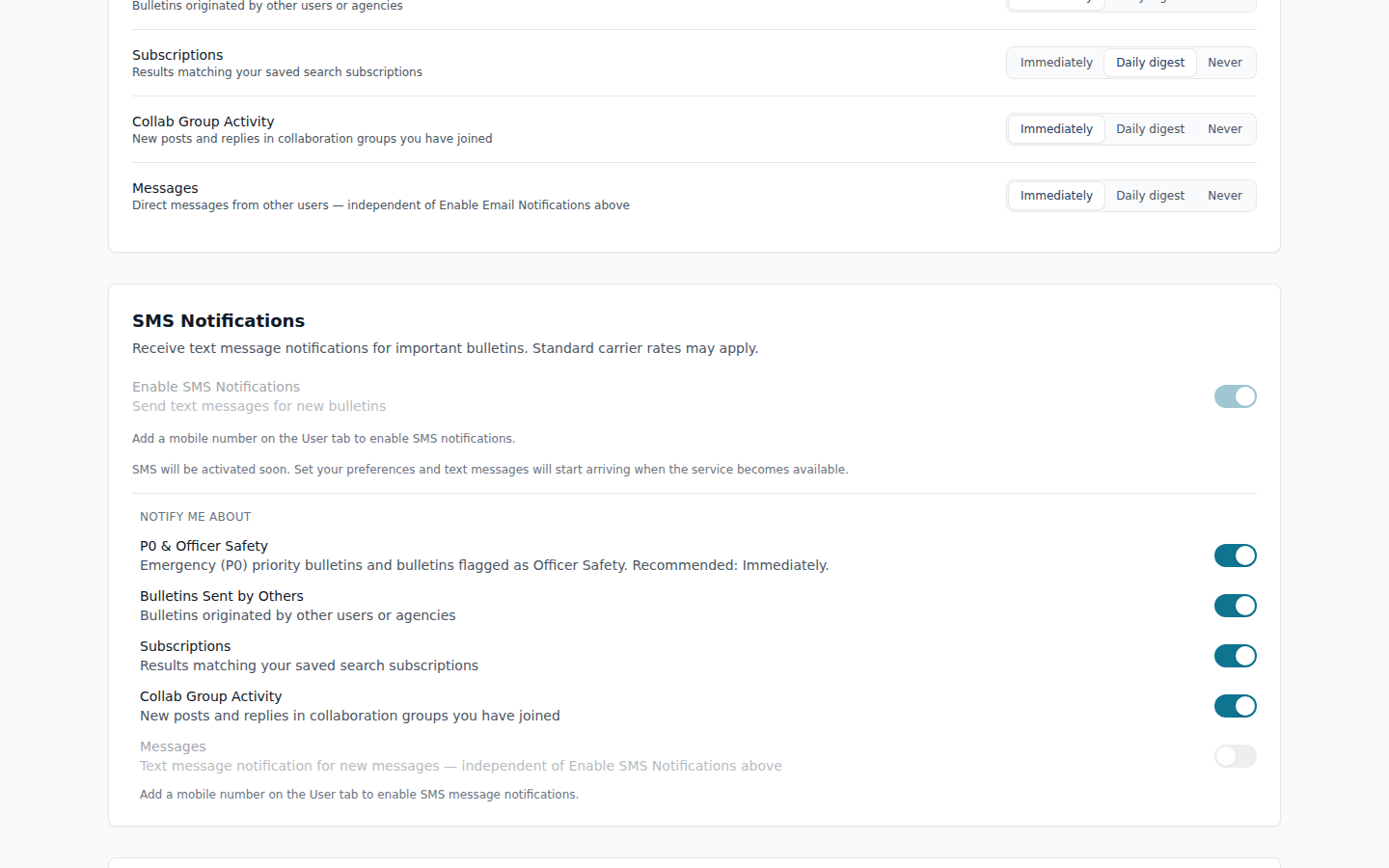
Notification preferences with digest mode selected for a lower-priority category, and the SMS 'coming soon' notice visible - 4
Save your preferences.
Changes take effect immediately across all your devices.
Tips
Set up SMS now, even though it's not active yet
SMS is coming soon. Once it goes live, it'll be the most interruptive channel — it goes straight to your phone regardless of what you're doing — so it's worth deciding now which categories genuinely need that versus push or email.
Digest is ideal for lower-urgency categories
Categories that don't require a same-day response — like Collab Group Activity — are good candidates for digest mode. You'll still see everything; it just won't interrupt your shift.
Subscription notifications live on this same page
The Subscriptions row here controls how you're alerted when a bulletin matches one of your saved search subscriptions — you don't set that separately when you create the subscription itself.
Troubleshooting: Push Notifications Not Arriving
Push notifications sometimes fail to arrive with no error message anywhere to explain why — and that's not a sign something's broken. Delivery depends on three separate systems all agreeing to cooperate: your APBnet™ notification settings, your browser, and your computer's operating system. If any one of them says no — or was never asked — nothing shows up. Work through the checks below in order. Each one rules out one link in the chain.
- 1
Confirm Enable Web Push and browser permission are on in Settings.
Open Settings → Notifications and confirm Enable Web Push is toggled on and Browser Permission shows Granted. If it shows anything else, click the toggle again — your browser should prompt you. Fix this before moving on; none of the later checks work without it.
- 2
Check your browser's notification permission for APBnet™.
APBnet™'s own settings can look right while your browser holds a separate, site-specific permission that's slipped into the wrong state. In Chrome or Edge, click the icon just left of the address bar while on the APBnet™ site and look for Notifications. It should say Allow. If it says Block, or isn't listed, click it and change it to Allow.
Common trap: Chrome sometimes shows permission requests quietly — a small icon in the address bar instead of a pop-up — for sites it doesn't consider highly engaged yet. If the request goes unnoticed, nothing is ever granted. Check chrome://settings/content/notifications and set Default behavior to Sites can ask.
- 3
Check your operating system's notification setting for your browser.
This is the check people miss most, because the browser has no way to warn you about it. Your browser can correctly report its own permission as Granted while your operating system silently blocks the notification before it's ever visible — nothing in APBnet™ or your browser will tell you this is happening.
- Windows: Open Settings → System → Notifications, find your browser in the app list, and confirm it's toggled on. Check that Focus Assist isn't set to suppress notifications.
- macOS: Open System Settings → Notifications, find your browser, and confirm Allow Notifications is on. Check that a Focus/Do Not Disturb mode isn't active.
If fixing this setting starts notifications working with no other changes, this was almost certainly the cause.
- 4
Refresh your push subscription if it's gone stale.
If the checks above all look correct and notifications still aren't arriving, your browser may be holding onto an old push registration that no longer matches what APBnet™ expects. Click Refresh Push Registration on the Settings page first. If that doesn't help, use Clear Site Data for APBnet™ in your browser's site settings, then sign back in and re-enable push — this resets the registration completely, but also logs you out.
IT Admins: use the built-in connectivity test
The Network Configuration section of the IT Admin tab has a Test Connectivity button that runs a real push round-trip, not a guess. A Pass means the full delivery chain worked. A Fail means something in checks 2–4 above is broken. Not tested means this browser doesn't have an active push subscription yet — enable push in Settings first, then run it again.
Test Connectivity checks the connection silently on purpose, so running it repeatedly doesn't spam you with notifications. To confirm you'll actually see something — and that check 3, your OS-level setting, is correct — use Send Test Push Notification on the Settings page instead. That one triggers a real, visible notification.

Still not working?
On a work or department-managed computer, your IT department may have a policy that blocks browser notifications system-wide — this has to be changed by whoever manages your device's policies, not from the browser. This is likely the cause if check 3's setting is greyed out, missing entirely, or reverts on its own.
Otherwise, contact your agency's IT Admin or support@apbnet.org with what you saw in checks 2 and 3, and the Test Connectivity result if you have IT Admin access — that gets you a much faster answer than "push notifications don't work."
Related guides
Setting Up Subscriptions
Set up saved search subscriptions — their alerts are controlled by the Subscriptions row on this page.
Read the guide →
Using Clutter Controls
Reduce inbox noise at the source — clutter controls work alongside notification settings.
Read the guide →
Understanding Your Inbox
How notifications connect to the tabs where bulletins actually land.
Read the guide →