Getting Started
Getting Started: User Admin
You manage who has access to APBnet™ and what they can do. Here's what to configure first and how to keep your user list current.
User Admin is a permission layered on top of your Creator or Viewer role, not a replacement for it. If you haven’t already, start with Getting Started: Creator or Getting Started: Viewer to cover the fundamentals.
What you control as a User Admin
- Add and manage user accounts for your agency
- Assign roles — Creator (can send bulletins) or Viewer (receives and searches only)
- Flag specific Creators, per user, so their bulletins require approval before sending
- Create a reviewer group — the users who can approve bulletins from flagged Creators
- Deactivate accounts when users leave the agency
First things to do after logging in
Do these five things before your users start logging in.
- 1
Check whether your agency uses SSO
If your IT Admin has configured single sign-on, user accounts are created automatically — you just need to assign their role.
- 2
If not using SSO, add users
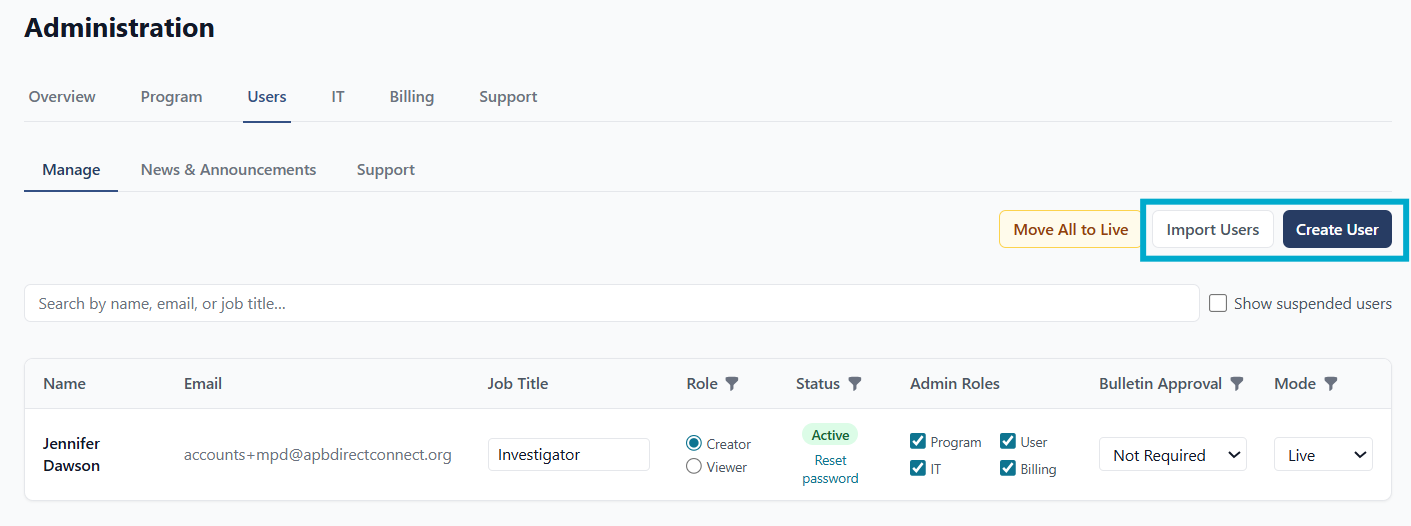
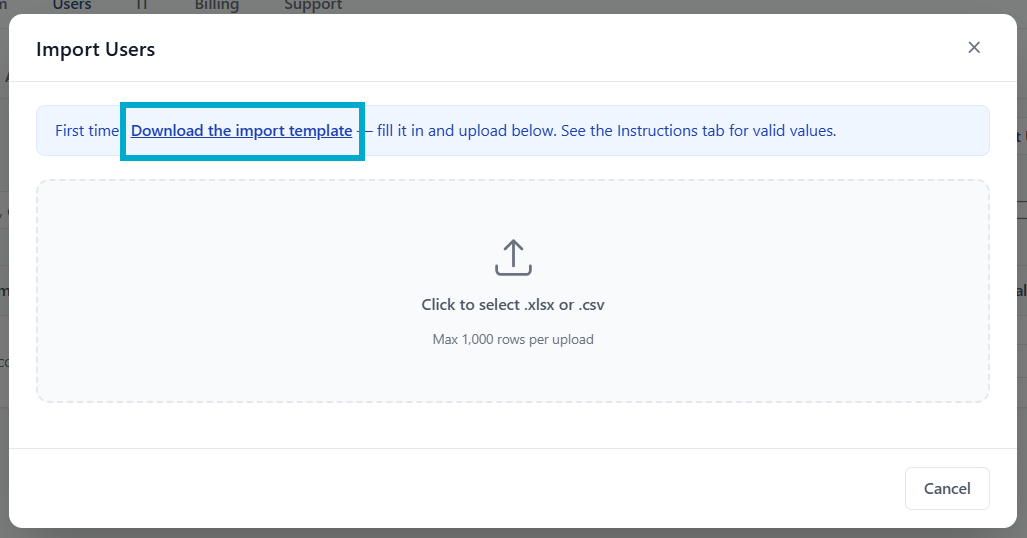
If your agency isn't using SSO, you'll add users manually from the Admin > Users tab. You can use the Import Users feature to do a bulk upload from the downloaded Import Template.
- 3
Assign roles to your users
Open the user list in the Admin panel and assign each user as Creator or Viewer. Creators can send bulletins; Viewers can only receive and search. When in doubt, start users as Viewers — you can upgrade them to Creator at any time.
- 4
Set review requirements when assigning Creator roles
When you assign a user as Creator, you can require that their bulletins go through review before sending. This is set per user — some Creators may send freely while others require approval. Decide this during role assignment, before users start submitting bulletins.
- 5
Build your reviewer group
Add the supervisors, PIOs, or senior officers responsible for approvals to the reviewer group. Any member of the group can approve or update a flagged bulletin before distribution. Make sure they know they're in the group before Creators start submitting.
Tips for User Admins
Add everyone — there's no per-seat licensing
APBnet™ doesn't charge per user. There's no cost reason to limit who gets access. If someone at your agency would benefit from receiving or sending bulletins, add them.
If your agency uses SSO, accounts are created automatically
When a user logs in through your agency's single sign-on provider, APBnet™ creates their account automatically. You still assign their role — Creator or Viewer — but you don't need to manually invite them first.
Set review requirements at the time of role assignment
Bulletin review is configured per user, not agency-wide. When assigning someone as a Creator, decide then whether their bulletins require approval. It's easier to set this correctly upfront than to chase down bulletins that went out without oversight.
Reviewers need Creator access
The reviewer role is assigned to specific users. Make sure anyone you designate as a reviewer also has Creator-level access — they need to be able to read the full bulletin, including distribution details, before approving.
Where to get help
For account or access questions you can't resolve from the Admin panel, use the support form in the Admin tab to reach the Critical Reach team.