Getting Started
Getting Started: IT Admin
You configure the technical settings that keep APBnet™ running securely at your agency. Here's what to set up before your users go live.
IT Admin is a permission layered on top of your Creator or Viewer role, not a replacement for it. If you haven’t already, start with Getting Started: Creator or Getting Started: Viewer to cover the fundamentals.
What you control as an IT Admin
- Configure single sign-on (SSO) if your agency uses it — when active, user accounts are created automatically
- Set allowed email domains and configure firewall or proxy whitelisting
- Manage device access controls — restrict or permit access by device type
- Configure optional data integrations that connect APBnet™ to external agency systems
First things to do before go-live
Complete these steps in order — each one affects whether the next step works correctly.
- 1
Configure allowed domains
Add your agency's email domain(s) to the allowed list in the IT Admin panel. This controls which email addresses can be used to create accounts at your agency. If your agency uses multiple domains — a primary and a subdomain, for example — add all of them. Also include domains used by approved contractors, such as IT support firms, if they need direct access.
- 2
Set up SSO if your agency uses it
If your agency uses a single sign-on provider, configure the integration before any users log in. Once SSO is active, accounts are created automatically — your User Admin just assigns roles. Contact the Critical Reach team if you need provider-specific configuration guidance.
- 3
Whitelist APBnet™ traffic on your network
If your agency runs a web content filter or proxy, add APBnet™domains and IP ranges to your allowlist before go-live. The current list is available in the IT Admin portal. Test access from a standard user workstation — network rules often differ between admin and standard accounts.
- 4
Configure device access controls
Set which device types are permitted to access APBnet™ at your agency — agency-issued only, personal devices, or both. If your agency has a mobile device management (MDM) policy, make sure APBnet™ is included in the managed app list before officers try to access it from the field.
Essential how-to guides
Configuring Allowed Domains & Whitelisting
Set which email domains are permitted for your agency and configure firewall or proxy whitelisting for APBnet™.
Read the guide →
Multi-Factor Authentication
MFA is mandatory and enforced automatically — there's nothing to configure, but here's what to expect.
Read the guide →
Managing Device Access Controls
Restrict or allow access by device type and configure mobile device policies for your agency.
Read the guide →
Tips for IT Admins
Configure SSO before users start logging in
Once SSO is active, user accounts are created automatically. If users create accounts manually before SSO is configured, those accounts may conflict. Set up SSO first — coordinate with your User Admin so they're ready to assign roles as accounts come in.
MFA needs no setup from you — but tell your users what to expect
MFA is mandatory and enforced automatically for every user, platform-wide — there's no IT Admin toggle to configure. Each user sets up an authenticator app themselves the first time they log in (SMS isn't an option). If your users are new to authenticator apps, you may want to give instructions on how to access your preferred app.
Test domain whitelisting before go-live
If your agency runs a web filter or proxy, APBnet™ traffic needs to be whitelisted before users can access the platform. Test from a standard user workstation — not just your admin machine, which may have different network rules.
Data integrations are optional and additive
APBnet™ can connect to external data sources to enrich bulletin information. These integrations are configured per agency and don't affect core functionality if they're not enabled. Enable them only when the integration has been tested and approved.
Where to get help
For SSO integration support, domain and IP whitelisting details, or data integration configuration, contact the Critical Reach team directly via the support form in the Admin tab. Technical configurations that can't be completed from within the app require Critical Reach involvement.
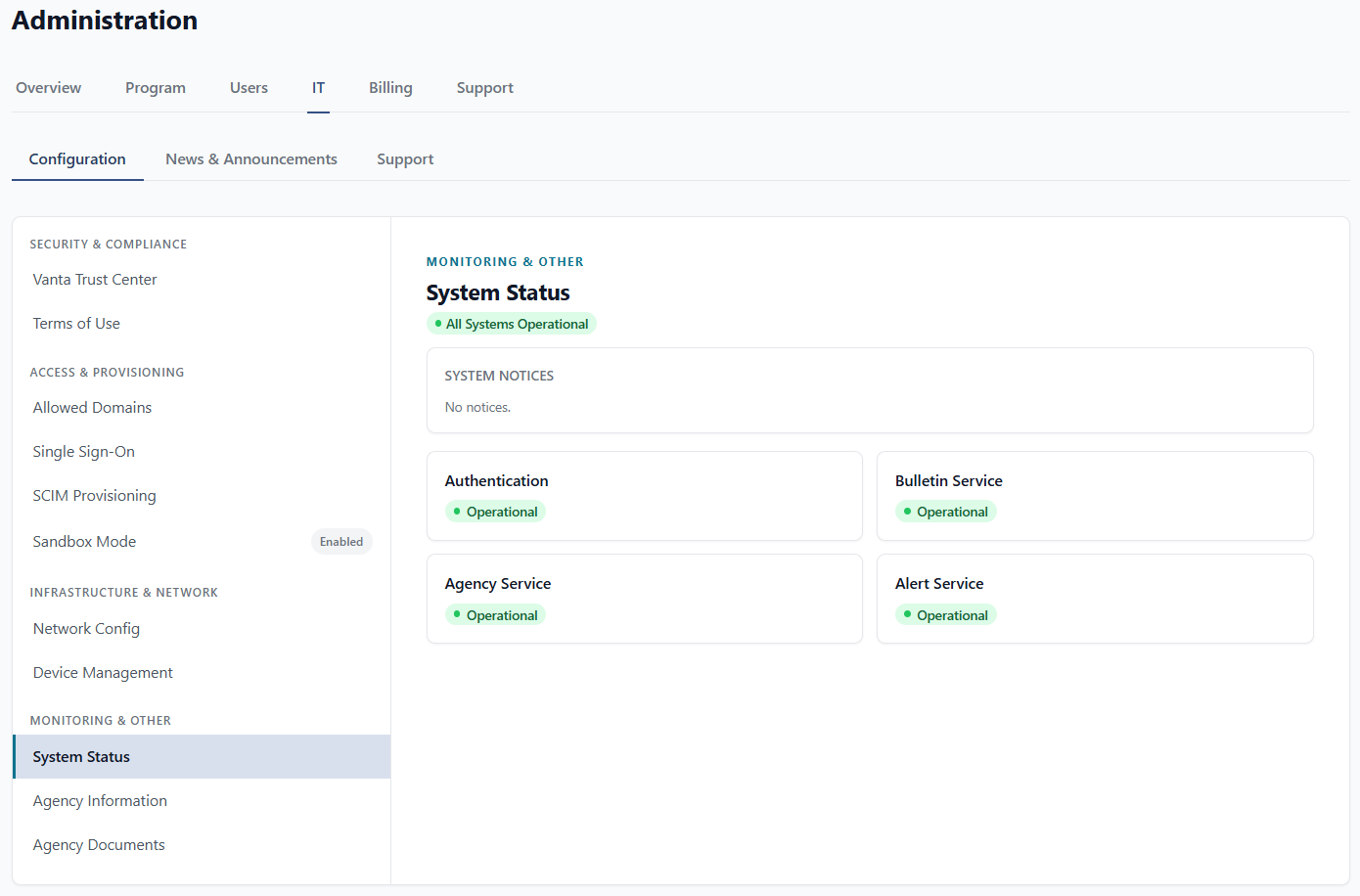
You can also check current system status and Critical Reach's compliance documentation directly from Admin > IT > Configuration — System Status under Monitoring & Other, and Vanta Trust Center under Security & Compliance.