How-To Guides
Setting Up Subscriptions
Subscriptions are proactive alerts — you tell APBnet™ what to watch for, and it notifies you the moment a matching bulletin enters the system. This is different from the Local Feed, which surfaces bulletins for your Agency, County, and State automatically with no setup required.
Subscriptions vs. the Local Feed
Subscriptions — proactive
“Notify me when any bulletin with license plate 7ABC123 enters the system.” You define the criteria. APBnet™ watches and alerts you when it happens.
Local Feed — automatic
Shows bulletins for your Agency, County, and State. No criteria to set — it just works. Open your Local Feed from the Home page for ongoing situational awareness.
Before you start
- Subscriptions are available to Creators and Viewers.
- Have your criteria ready — a license plate, a name, a case reference, or a Photo Search candidate — before opening the form.
Steps
- 1
Open the Subscriptions panel.
From your inbox, open the sidebar and click Manage (or + Add if you have none yet) under Subscriptions. This opens the alert settings panel with your existing subscriptions listed alongside their status.
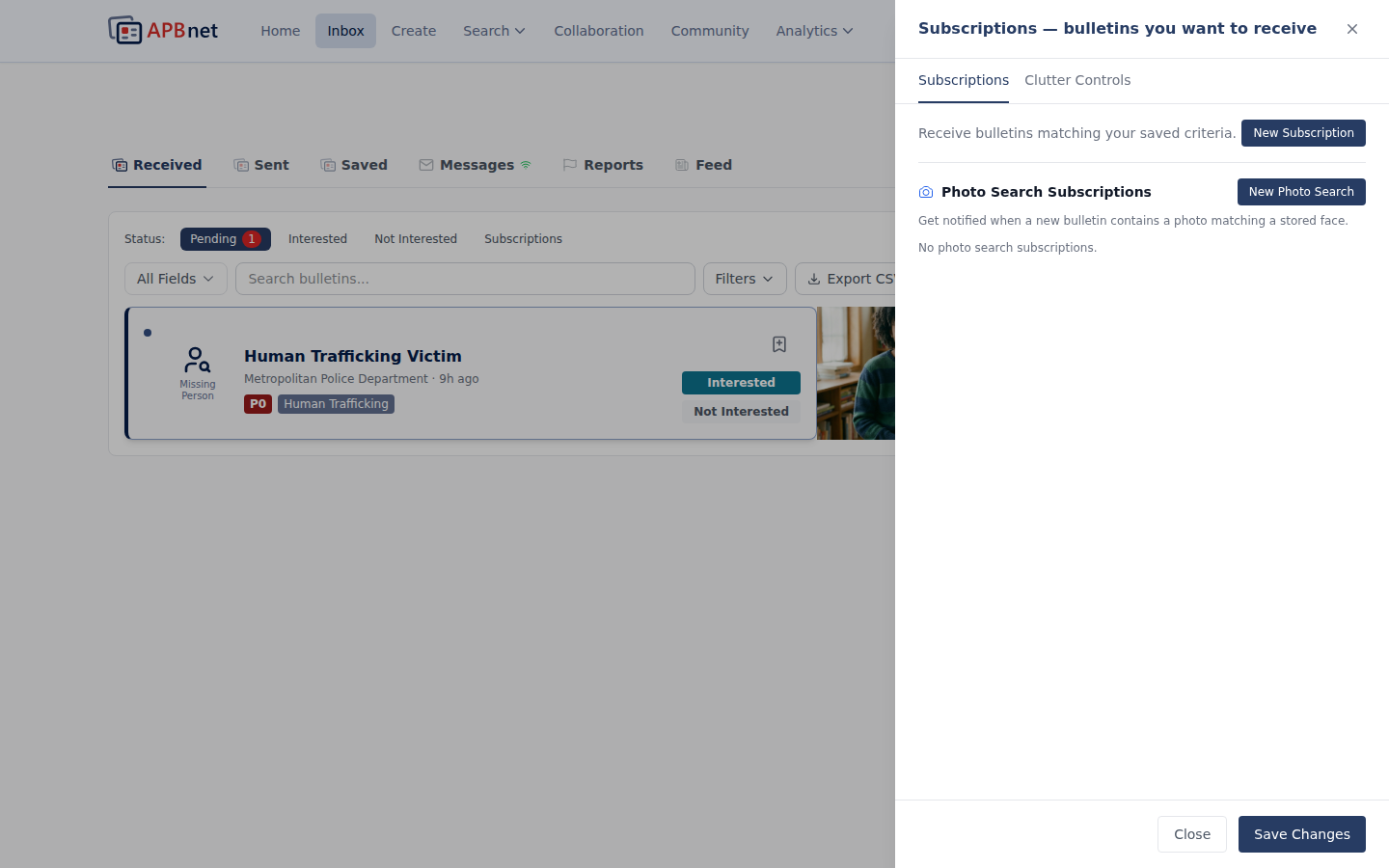
Subscriptions panel showing a list of existing subscriptions with status indicators and a 'New Subscription' button - 2
Click New Subscription.
The subscription form opens. You'll choose a type and enter the criteria APBnet™ should watch for.
- 3
Choose a subscription type and enter your criteria.
Common types:
- License plate — notifies you when any bulletin with this plate enters the system.
- Person — notifies you when a bulletin matching this name or description is issued.
- Photo Search candidate — notifies you when a Photo Search match is found for a specific unidentified person in your case.
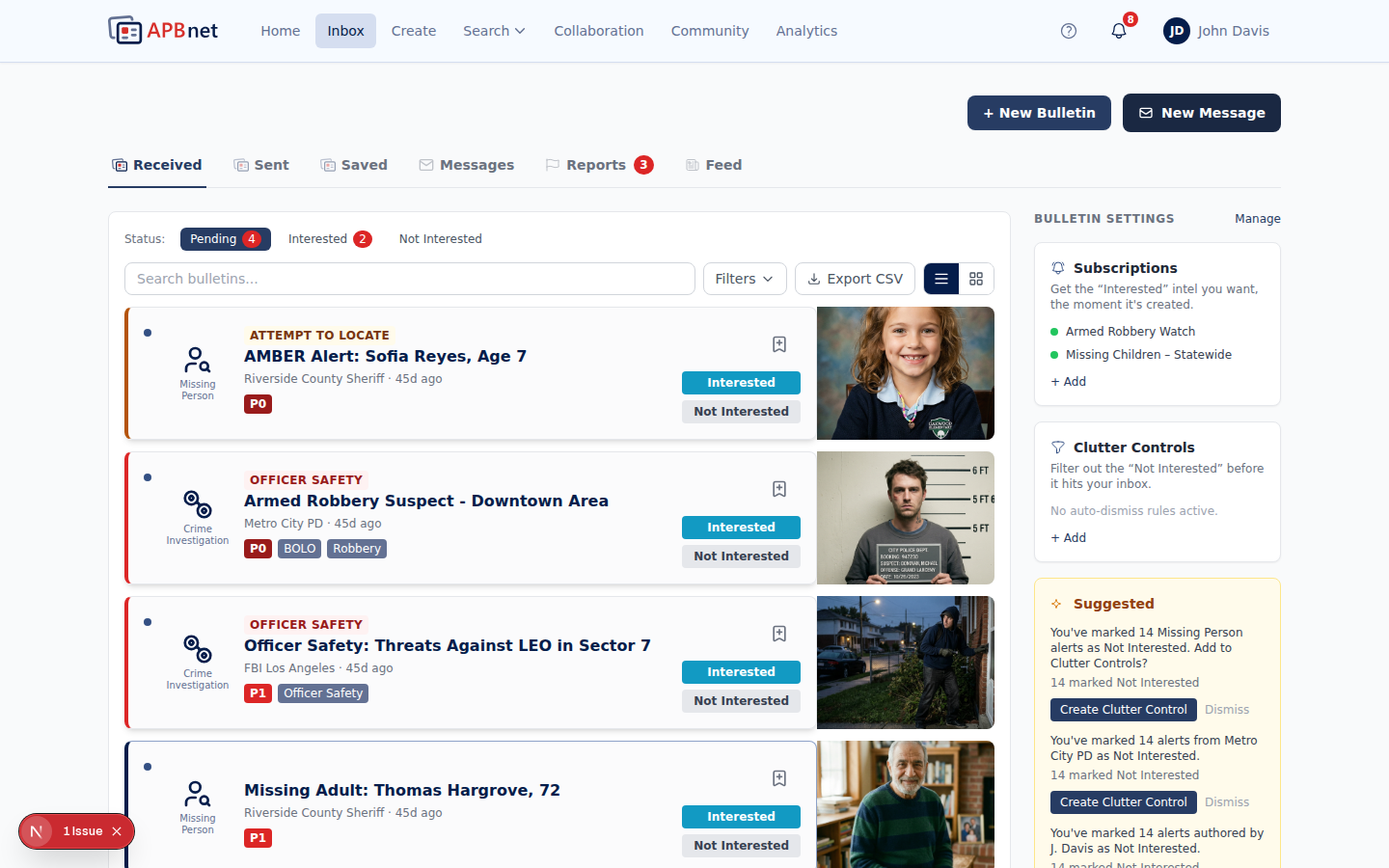
New subscription form with type selected and criteria fields filled in — e.g., license plate field with a plate number entered - 4
Set how you want to be notified.
Choose your notification channel — push, email, or SMS — and whether alerts should fire immediately or be batched into a digest. For case-critical subscriptions like a plate on a fleeing suspect, keep notifications immediate.
- 5
Name it and save.
Give it a name that connects to the case — the plate number, the suspect's name, a case number. You'll see this in your subscriptions list, so make it easy to find and remove when the case closes.
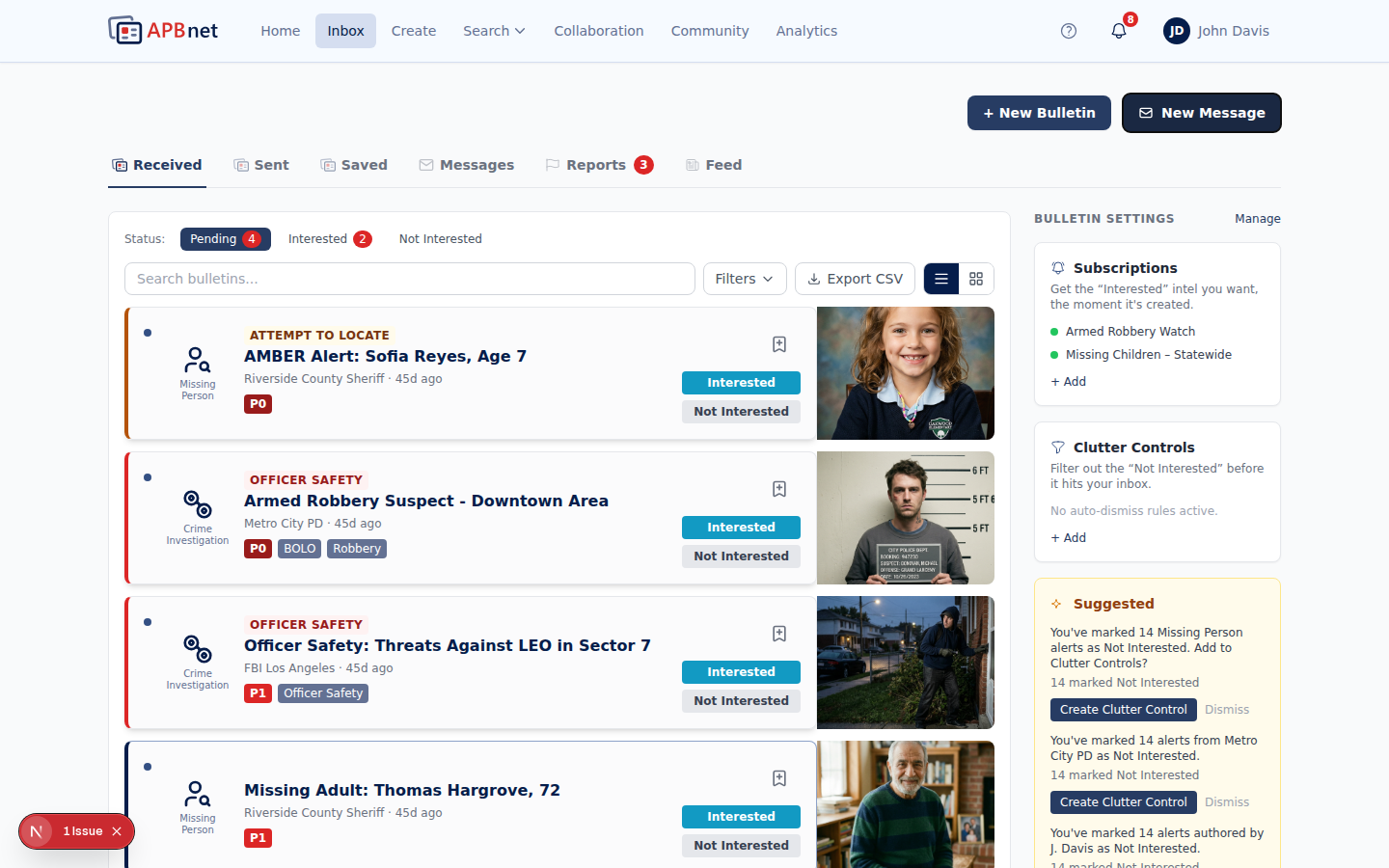
Subscriptions panel with a newly created subscription showing as active in the list - 6
When the case closes, remove the subscription.
Open subscriptions, find it, and delete it. A clean list means every alert you get is actually relevant — stale subscriptions create noise over time.
Tips
One subscription per specific criteria
Create a separate subscription for each plate, person, or case element you're tracking. A focused subscription is more useful than a broad one — broad criteria generate more noise than signal.
APBnet™ may suggest Clutter Controls, not subscriptions
The suggestion engine works off Not Interested patterns, not Interested ones — if you repeatedly dismiss a certain type of alert, the sidebar may suggest adding a Clutter Control for it. It doesn't currently suggest new subscriptions, so set those up yourself when you know what you're tracking.
Prune subscriptions when cases close
A subscription for a cleared case still fires alerts. Review your list periodically and remove anything no longer active — it keeps your alerts meaningful.
Related guides
Understanding Your Inbox
How the five inbox tabs work, including where subscription alerts land.
Read the guide →
Setting Your Notification Preferences
Control how and when APBnet™ notifies you for subscriptions and bulletins.
Read the guide →
Interested / Not Interested
Mark bulletins as relevant — Not Interested patterns are what the system uses to suggest Clutter Controls.
Read the guide →