Getting Started
Getting Started: Creator
Your job is getting the right information to the right agencies at the right moment. Here's what the Creator role gives you to do that, what to configure first, and where to go when you need help.
What you can do as a Creator
Creators are able to create and send bulletins to other agencies. You author the content, select your distribution area, choose your layout, and track whether your bulletin produced results — all from a single workflow.
- Create bulletins for any supported type — Crime Investigation, Missing Person, Identifiable Property, Training Opportunity, Staff Bulletin, and more — plus tags and Special Tags for finer routing
- Choose from professional bulletin layouts and preview before sending
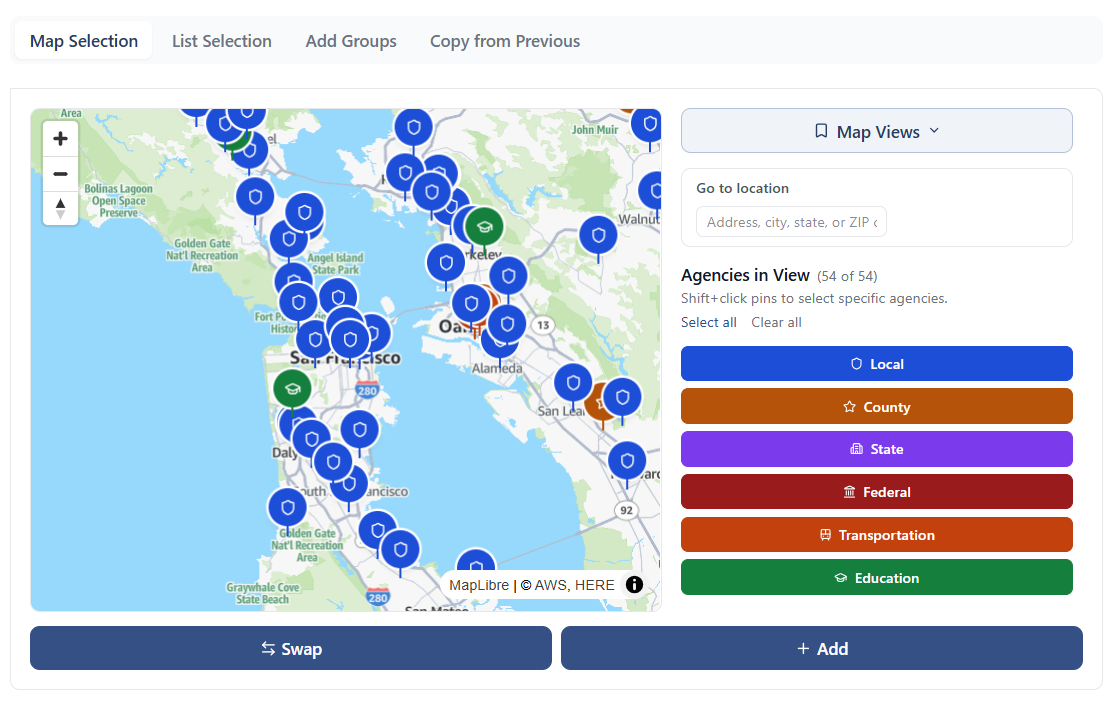
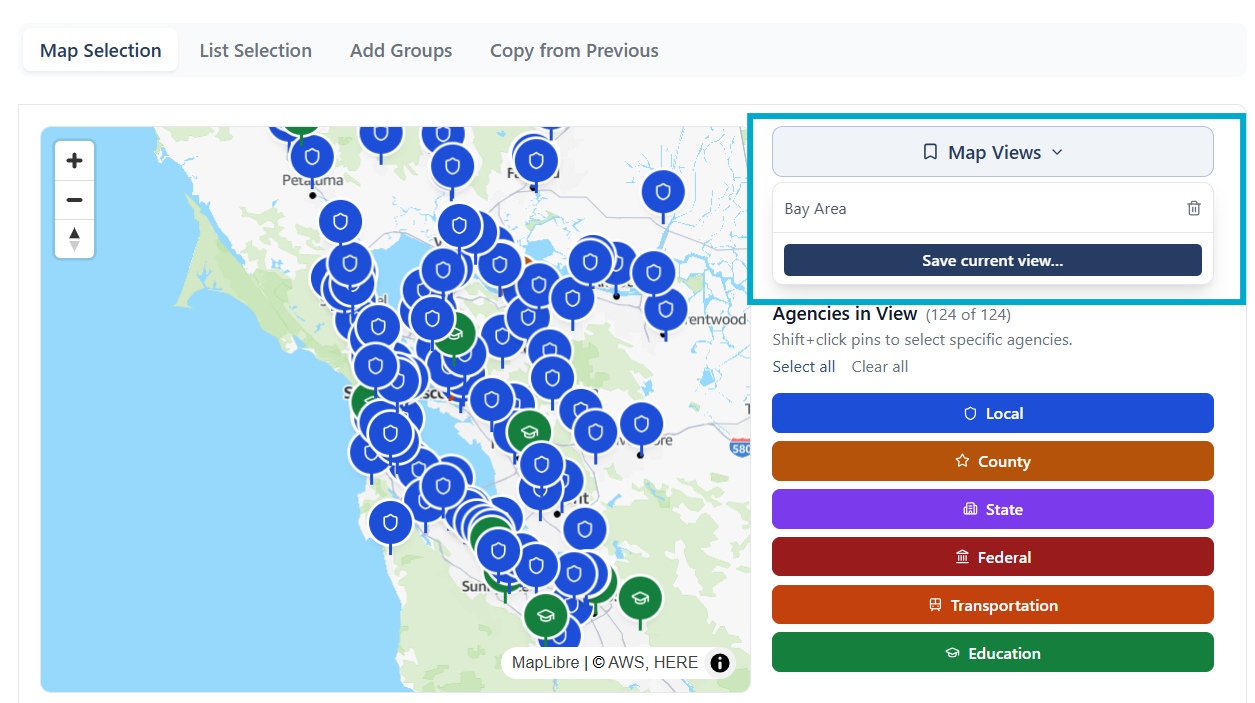
- Select a distribution area using the map — search, center, zoom — decide on the distribution region with a few clicks
- Alternatively, select where to send your bulletin from geotargeted lists
- Share bulletins with community partners through the Community Address Book
- Send bulletins to recipients with matching tags — reach only the users who need to know, without broadcasting to the whole agency
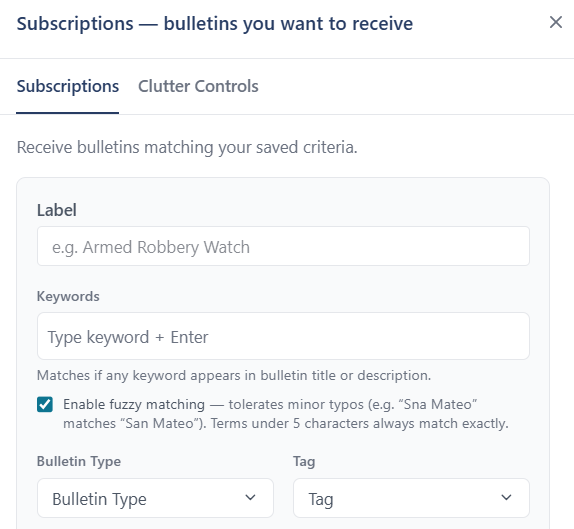
- Set up subscriptions that notify you when a new bulletin matches your criteria
- Search the bulletin database by keyword, location, case detail, and tag
- Report whether your bulletin generated a lead — from the bulletin itself or your Sent folder
- Track how recipients responded using Interested / Not Interested feedback
First things to do after logging in
Your first login walks you through a setup wizard for notifications and alert filters. Once that's complete, do these five things.
- 1
Try the map-based distribution tool
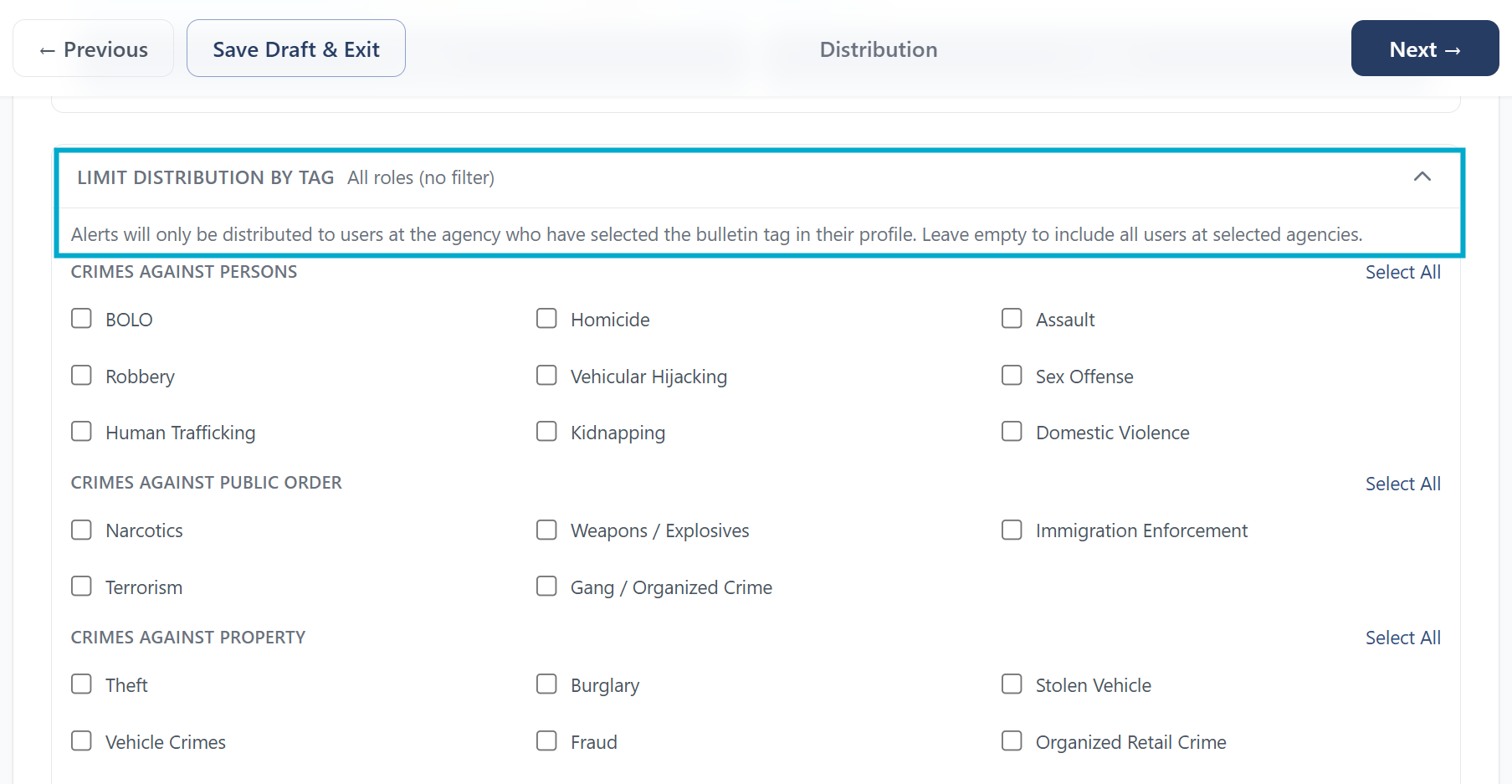
Before you need to send anything urgent, open Create a Bulletin and step through the distribution screen. You'll make two distribution decisions: which agencies receive the bulletin (using the map — search, center, zoom) and who within those agencies sees it. By default it goes to all users at the selected agencies, but you can narrow it to users whose tags match your bulletin — useful when a bulletin is specific to a crime type and shouldn't go to every user at the agency. Get comfortable with both options before you need to move fast.
- 2
Set up subscriptions for your active cases
Open the Received tab and create subscriptions for the bulletin types and criteria that matter to your current cases. For example: get notified when any bulletin mentioning a specific license plate enters the system, or when a Photo Search candidate matches an unidentified person you're working. Subscriptions alert you when new bulletins are created by others, even if you're not on the distribution — set them up now to get intelligence that matters to you.
- 3
Review your notification preferences
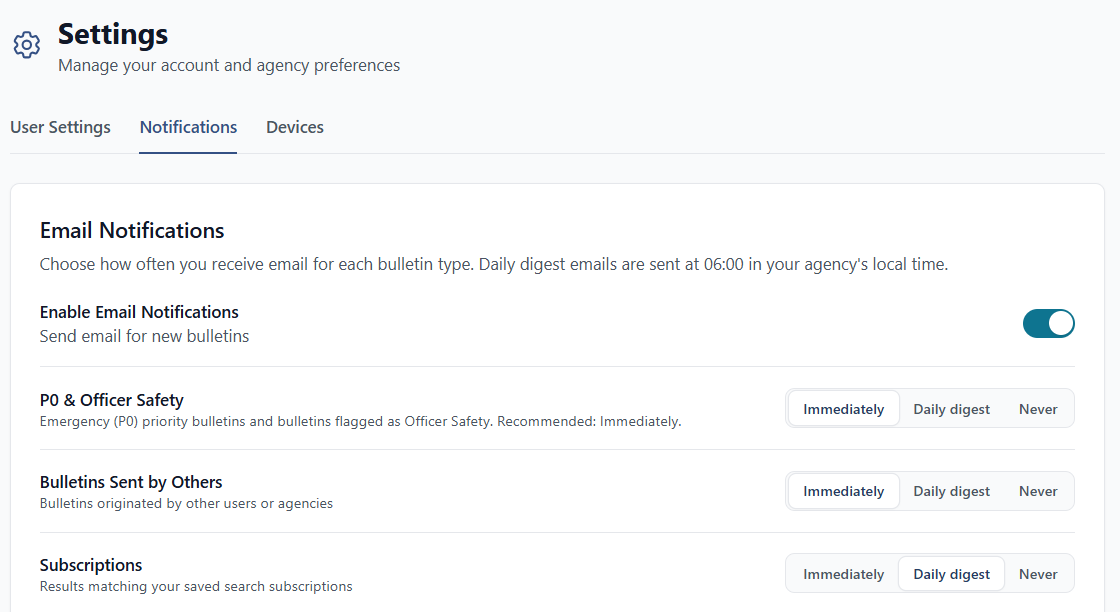
Click your name in the upper right and select Settings > Notifications. Confirm which bulletin types notify you by SMS, email, or push — and at what frequency. Preferences can be customized by category: high-priority bulletins, bulletins sent by others, subscriptions, and Collaboration Group activity.
- 4
Learn your inbox tabs
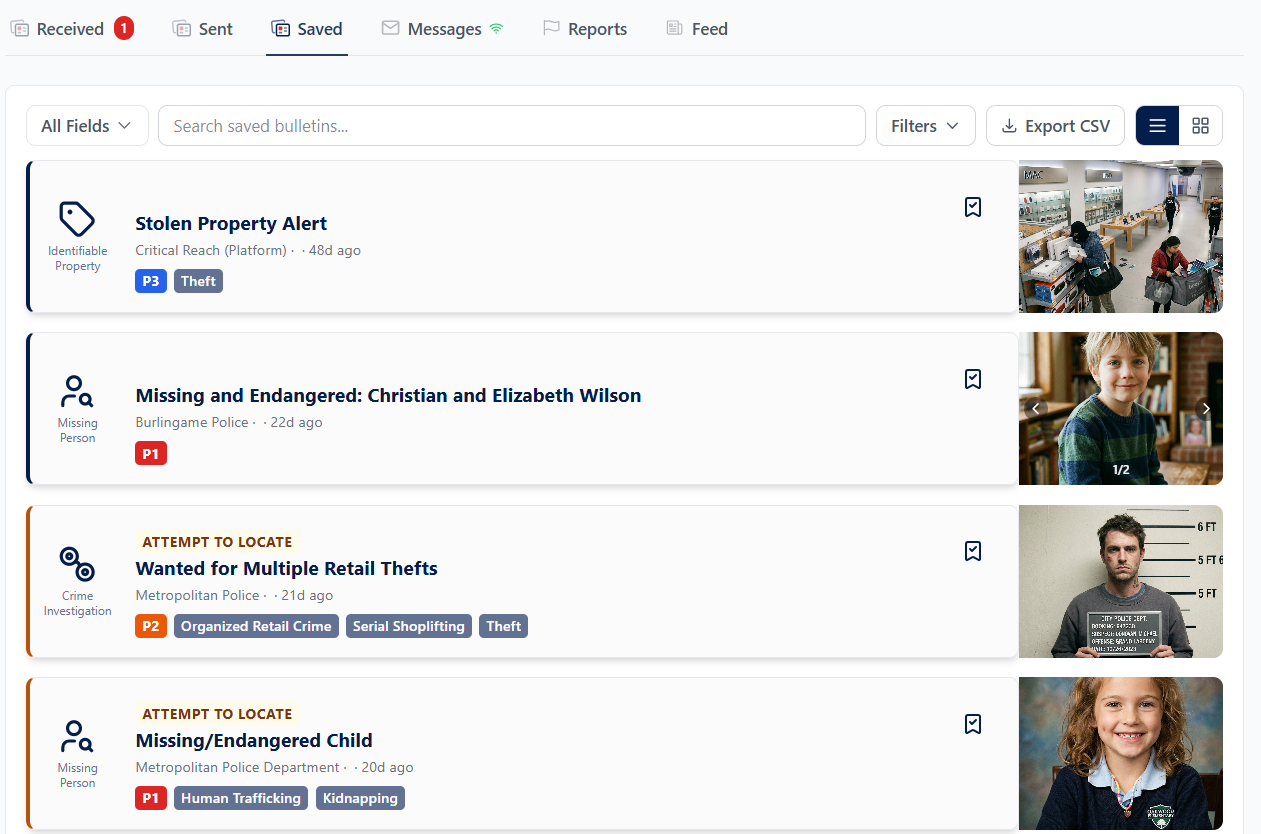
Your inbox has five tabs: Received, Sent, Saved, Messages, and Feed. Spend two minutes clicking through each one. Understanding the structure now saves you from hunting later.
- 5
Find your Sent folder
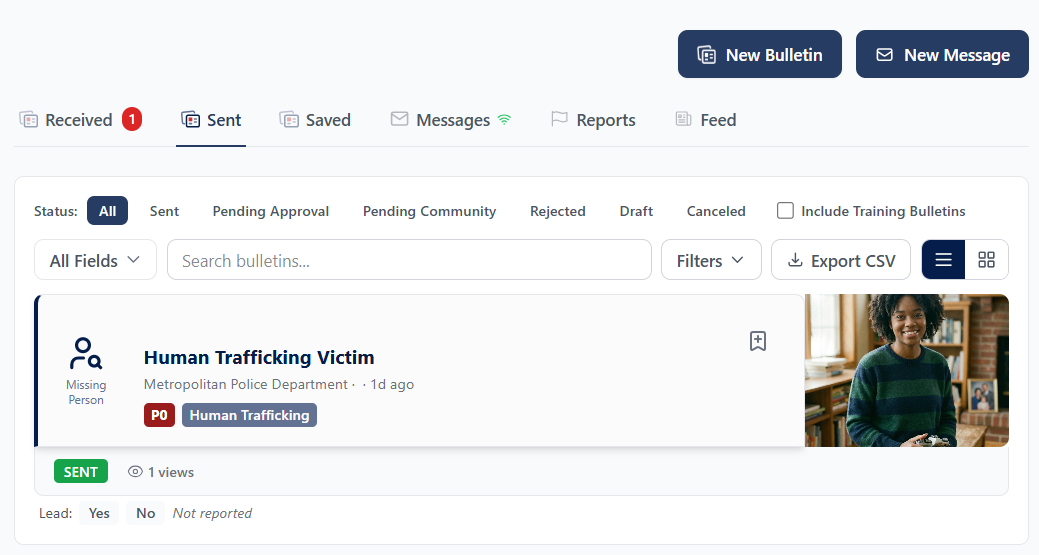
Your Sent folder is where you manage bulletins after they go out — update them, see recipient response, and report whether a bulletin generated a lead. Seven days after sending, APBnet™ will prompt you to answer that question. You can also respond at any time directly from the Sent folder. Your Program Admin uses this data to understand how effectively the platform is working for your agency.
Your five essential how-to guides
These are the guides most relevant to your first week. Bookmark them — you'll come back to them.
Bulletin Types Explained
Understand every bulletin type — including Staff Bulletin and Training Opportunity, which route differently from the rest.
Read the guide →
Tags Explained
Tags refine routing and searchability — a controlled vocabulary, not free text, available for any bulletin type.
Read the guide →
Map-Based Distribution Selection
Search, center, and zoom the map to select your distribution area — agencies in view are selected with a few clicks.
Read the guide →
Choosing a Bulletin Layout
Pick from portrait, landscape, photo-top, and side-by-side layouts. Preview before you send.
Read the guide →
Setting Up Subscriptions
Get notified automatically when a bulletin matching your criteria enters the system — by license plate, case type, location, and more.
Read the guide →
Tips for Creators
A few things that make a real difference once you're up and running.
Match your distribution to the threat — not your agency list
Use the map to set your distribution area based on where the subject is likely to be, not which agencies you can remember. Search, center, and zoom — agencies in view are selected. It takes a few clicks.
Use tag-based distribution for specialized bulletins
When a bulletin is specific to a crime type — a homicide update, a fraud pattern, a missing persons case — send it by tag to reach only users who indicated interest in that category during onboarding. It keeps specialized bulletins out of inboxes where they don't belong.
Copy recipients from a previous bulletin for follow-up bulletins
When you're updating an active bulletin, start from the same distribution list. The bulletin creation wizard lets you carry recipients forward.
Answer your lead prompts — they only take a second
Seven days after you send a bulletin, APBnet™ asks: did it generate a lead? You can also answer at any time from your Sent folder. It takes one click — and your Program Admin uses this data to track APBnet's effectiveness for your agency.
Crop photos before you send
The photo crop editor lets you frame a suspect or missing person photo within the bulletin — no external editing required. A well-framed photo gets more attention.
Respond to the bulletins you receive too — don't leave them Pending
You're a recipient as well as an author. Every bulletin you receive starts out Pending until you mark it Interested or Not Interested. That response gives the other agency's author the same feedback you rely on for your own bulletins, and it helps tailor which bulletins reach you going forward.