How-To Guides
Saving & Finding Bookmarked Bulletins
Save any bulletin to your Saved tab for quick access during active cases — no searching required. Saved bulletins stay until you remove them.
Before you start
- Saving is available to all APBnet™ users regardless of role.
- You can save a bulletin from anywhere you can open it — Received, Feed, or search results.
Steps
- 1
Open a bulletin from your inbox, Feed, or search results.
You can save a bulletin from any view where you can read it. Open the full bulletin detail to access the save control.
- 2
Click the Save (bookmark) icon.
The save icon is in the bulletin toolbar. When saved, the icon fills to confirm the bulletin has been bookmarked.
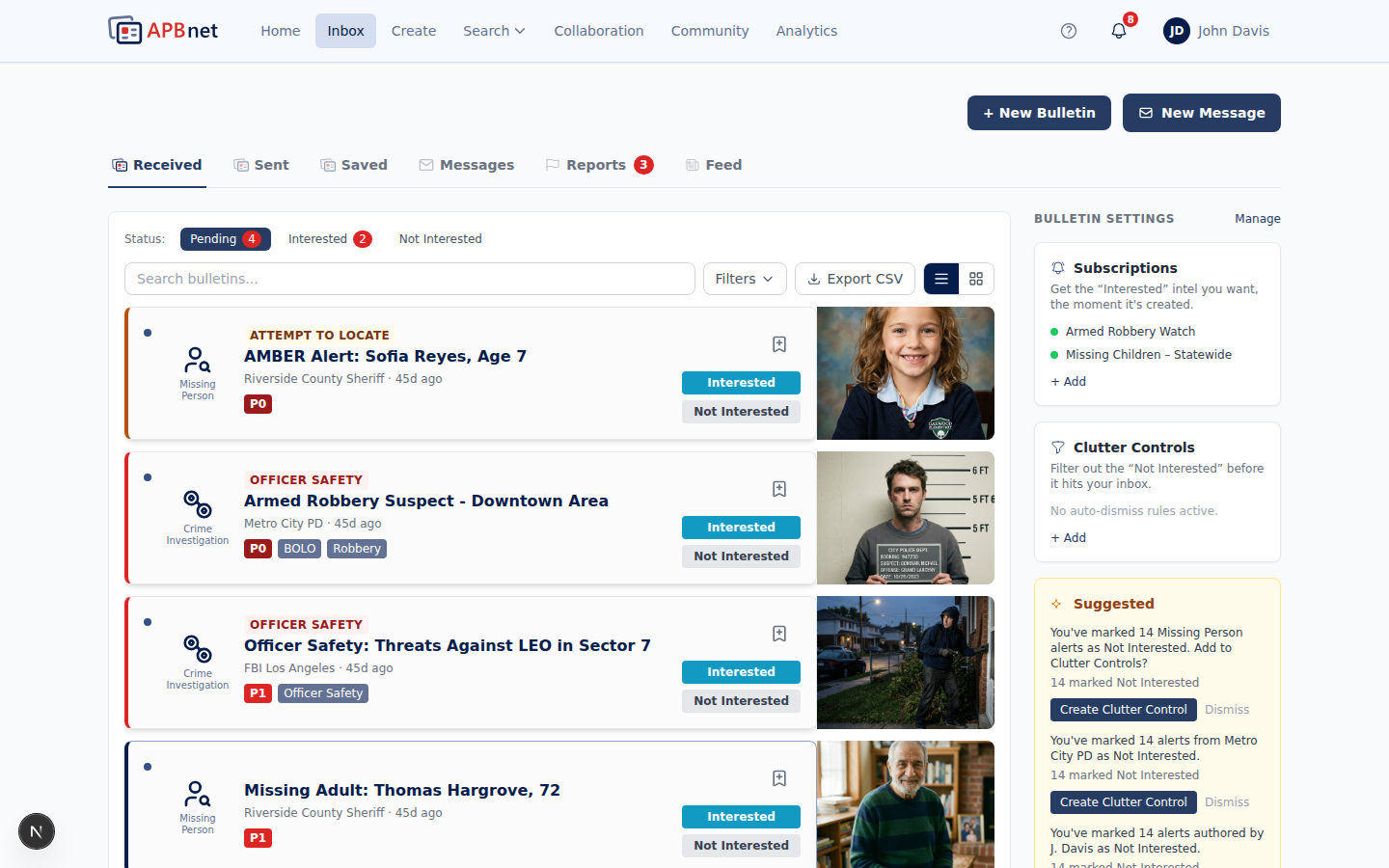
Bulletin detail view with the save/bookmark icon highlighted in the toolbar, showing the filled (saved) state - 3
Access saved bulletins from your inbox Saved tab.
Open your inbox and select the Saved tab. All your bookmarked bulletins are listed here in order of when they were saved.
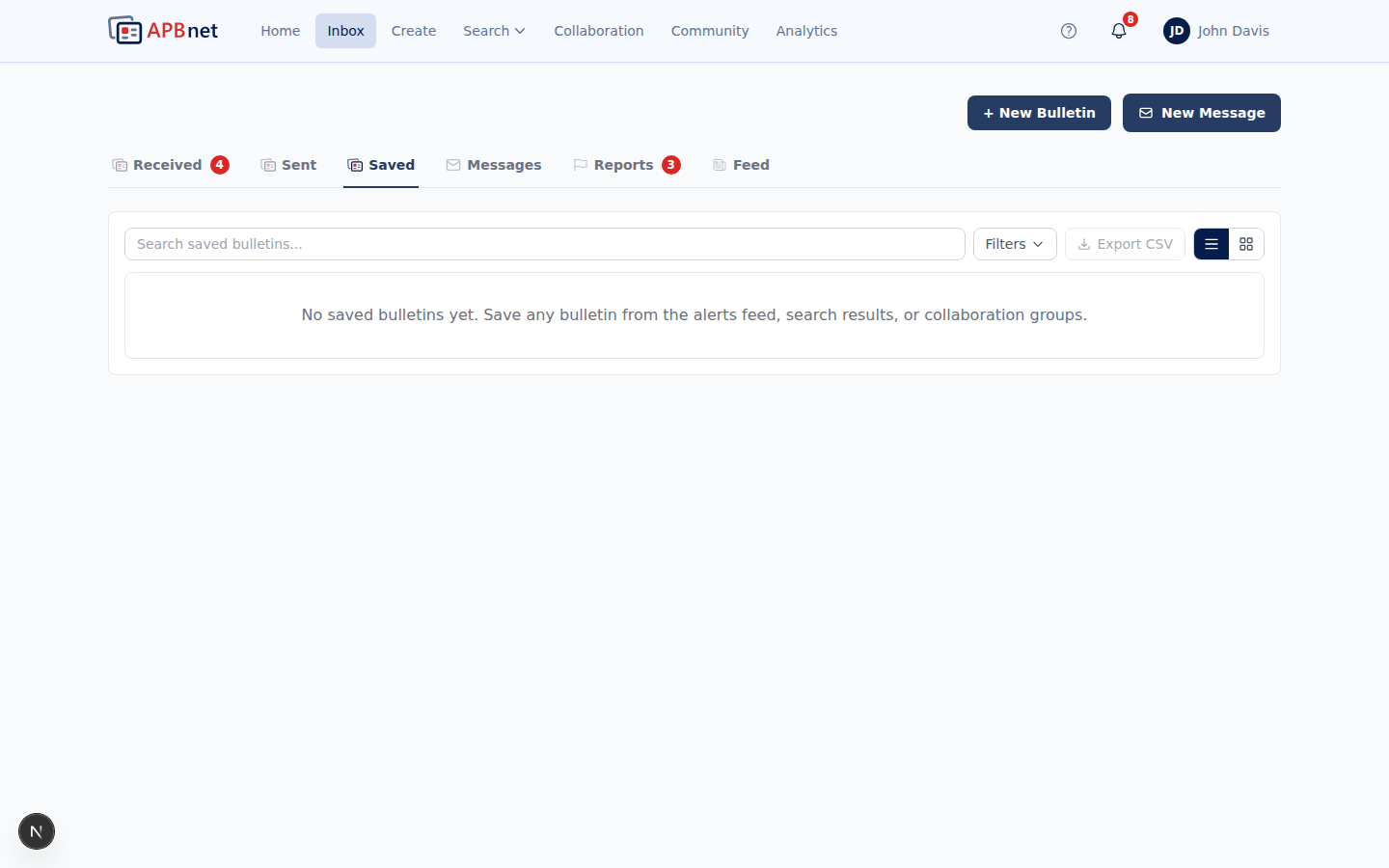
Inbox Saved tab showing a list of bookmarked bulletins with type, subject, agency, and saved date - 4
When the case closes, remove bulletins from Saved.
Open the bulletin and click the Save icon again to unsave it, or remove it directly from the Saved tab. Keeping your Saved tab clean means every bulletin in it is relevant to something currently active.
Tips
Use Saved as a lightweight case folder
Save every bulletin related to an active investigation so it's accessible in one place without searching each time. The Saved tab becomes a snapshot of what's open and relevant right now.
Save from anywhere you find a bulletin
You don't have to be in Received to save. If you find a relevant bulletin in the Feed, in Search results, or shared in a Collaboration Group, you can save it immediately from that view.
Saved is personal — it's your list, not a shared folder
Your Saved bulletins are only visible to you. If you want to share bulletins with your team, use a Collaboration Group. Save is for your own reference during an active investigation.
Related guides
Understanding Your Inbox
How the five inbox tabs work, including the Saved tab where bookmarks live.
Read the guide →
Interested / Not Interested
Another way to signal relevance — Interested helps shape your feed and suggest subscriptions.
Read the guide →
Setting Up Subscriptions
Get notified automatically when a specific plate, person, or criteria enters the system.
Read the guide →