How-To Guides
Map-Based Distribution Selection
How to choose which agencies receive your bulletin by navigating the map — search, center, and zoom to cover the right area.
Before you start
- You need the Creator role to create and send bulletins.
- Distribution is configured inside the bulletin creation wizard — you can't set it before starting a bulletin.
Steps
- 1
Select Create Bulletin from the main navigation.
The bulletin creation wizard opens. You'll work through several steps — bulletin type, subject details, and fields — before reaching distribution.
- 2
Complete the bulletin details steps until you reach the Distribution step.
The progress indicator at the top of the wizard shows where you are. The Distribution step is where you set which agencies receive the bulletin.
- 3
Use the search bar above the map to navigate to your target area.
Enter a city, county, address, or intersection. The map will center on that location. This is the fastest way to get to the right area — especially when you're working a case outside your immediate jurisdiction.
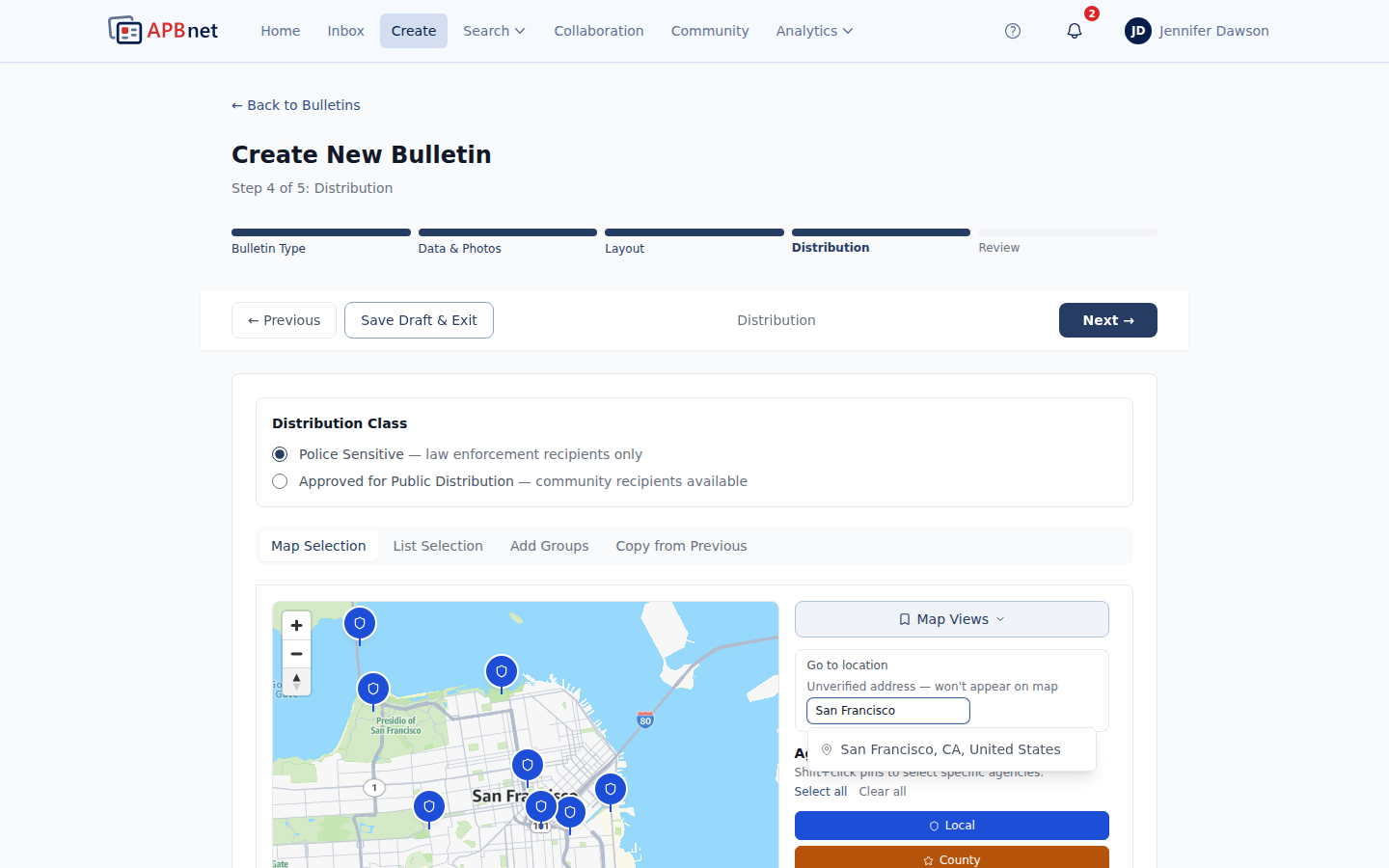
Map-Based Distribution — search bar above the map with a city name entered, map centered on result - 4
Zoom and pan the map until the area you want to reach fills the window.
Use the + and − controls to zoom in or out. Click and drag to pan. The agencies visible in the map window at any moment are the agencies that will receive your bulletin — there's no separate selection step. What you see is what gets sent to.
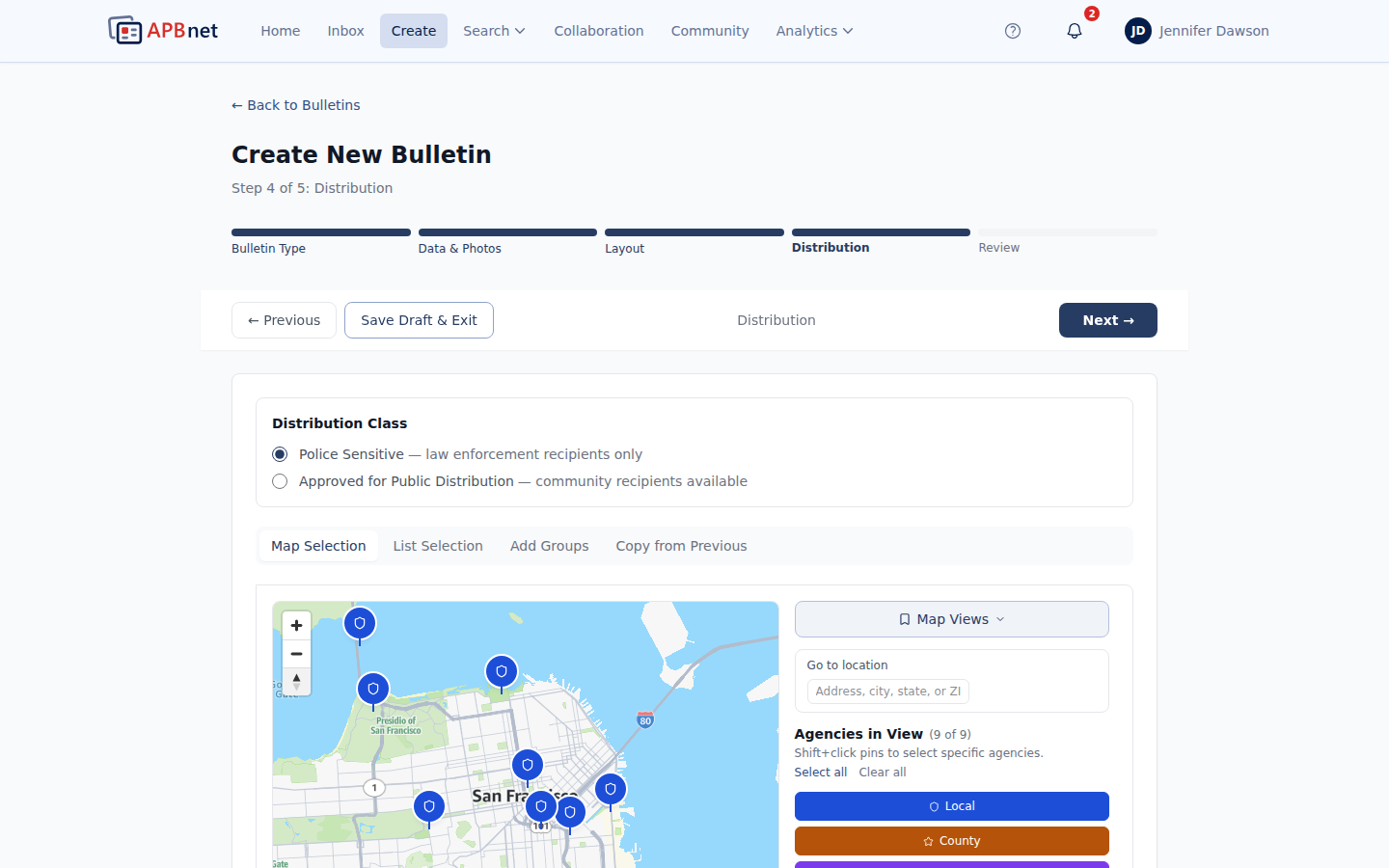
Map-Based Distribution — map zoomed to show a county-level area with agency markers visible - 5
Review the agency list alongside the map.
A list of agencies in your current map view appears beside the map. Confirm the coverage looks right before moving on. If you need to adjust, pan or zoom and the list updates automatically.
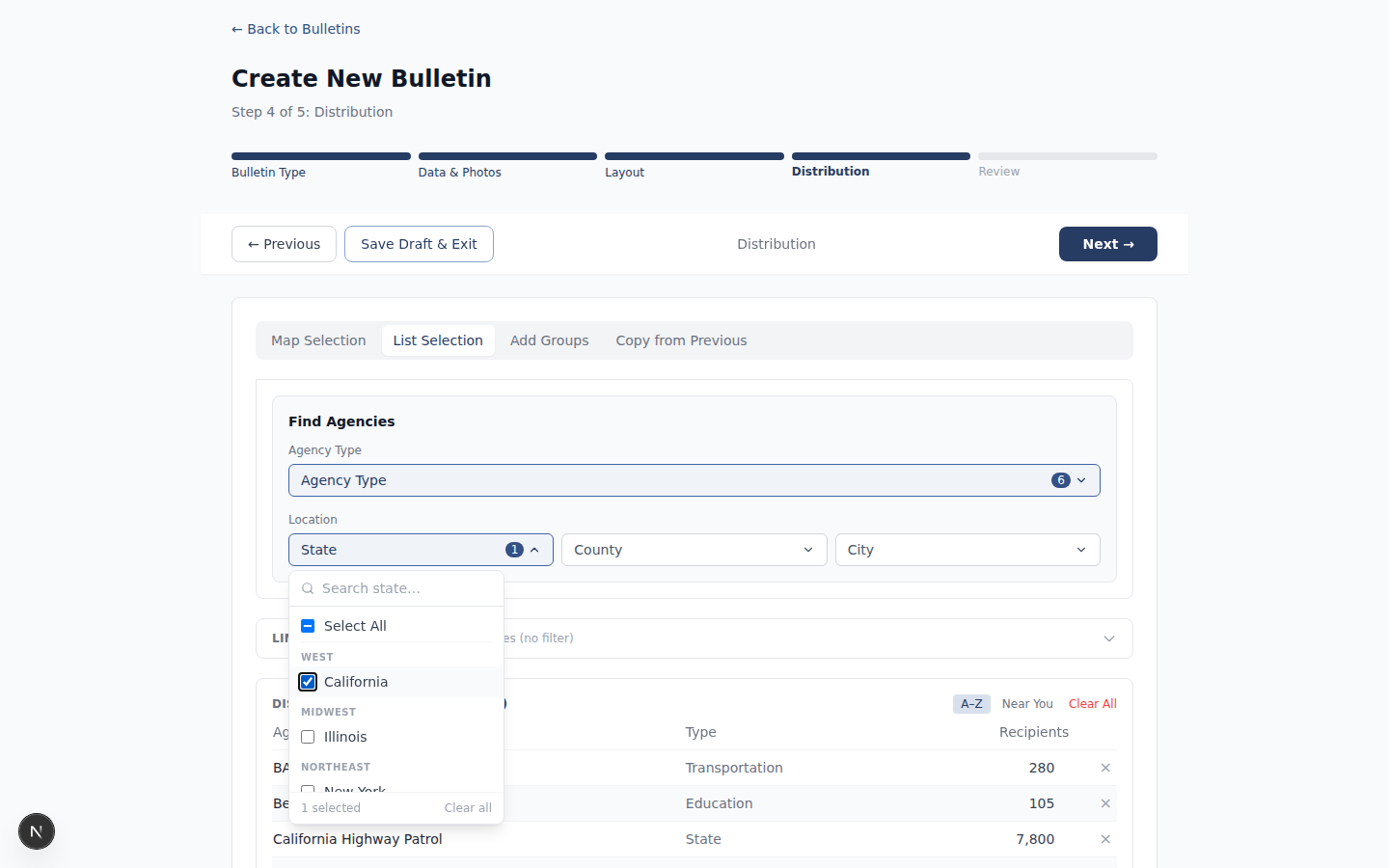
Map-Based Distribution — agency list panel showing selected agencies matching the current map view - 6
(Optional) Narrow delivery by tag.
By default, your bulletin goes to all users at the agencies in view. If your bulletin is specific to a crime type — a fraud pattern, an ORC group, a narcotics case — you can toggle Tag-Based Delivery and select matching tags. Only users at the selected agencies whose tags match will receive the bulletin. This keeps specialized bulletins out of inboxes where they don't belong.
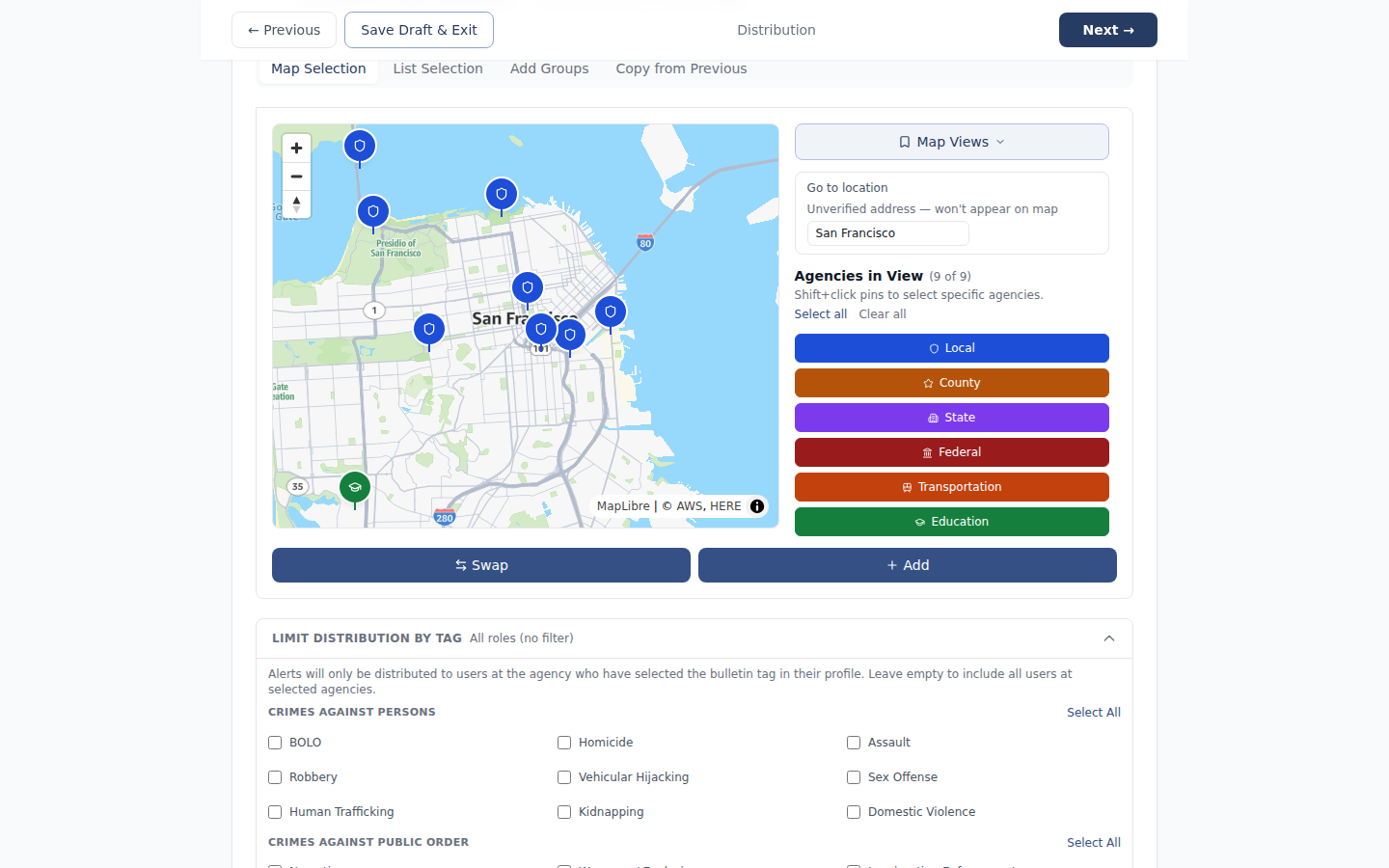
Map-Based Distribution — tag-based delivery toggle enabled with example tags selected - 7
(Optional) Save this view for reuse.
If you cover the same distribution area regularly — a standing mutual-aid zone, your county's usual footprint — click Map Views above the map and save the current view. A saved view restores the same center, zoom, and any agencies you'd individually removed, so you don't have to rebuild it from scratch next time.
- 8
Click Continue to proceed through the remaining wizard steps.
Distribution is locked in when you advance. You can return to this step before sending if you need to adjust. When everything looks right, click Send Bulletin on the final step.
Tips
Use it for fleeing suspects
When a suspect is actively fleeing, search the likely route, center the map on it, and zoom to cover the corridor. Agencies in view are included — no list-building required. You can send in seconds.
Err on the side of wider coverage
An agency that receives a bulletin it doesn't need is a minor inconvenience. An agency that doesn't receive one that's relevant to their jurisdiction is a real problem. When in doubt, zoom out.
This is different from map-based search
Map-based distribution sets who receives your bulletin when you create one. Map-based search finds bulletins created by others. Same map interaction — different purpose.
Related guides
Map-Based Bulletin Search
Use the same map interaction to search for bulletins by geographic area.
Read the guide →
Choosing a Bulletin Layout
Pick a layout and preview your bulletin before sending.
Read the guide →
Using Bulletin Fields
Fill in structured fields to make your bulletin searchable and filterable.
Read the guide →