How-To Guides
Choosing a Bulletin Layout
APBnet™ gives you a set of layout controls — orientation, variant, font size, and field columns — instead of a single layout picker. A live preview shows exactly how your bulletin will look — with your photos and content in place — before you send it.
Before you start
- Layout selection happens inside the bulletin creation wizard, after you've chosen the bulletin type and subject details.
- Have your photos ready to upload before reaching the layout step — the live preview works best when your actual images are in place.
Steps
- 1
Progress through the bulletin wizard to the Layout step.
The progress indicator at the top of the wizard shows where you are. Complete bulletin type and subject details first — the layout options shown may vary based on your bulletin type.
- 2
Set the Orientation and Layout Variant.
These are two separate controls, not one combined picker. Orientation sets Portrait or Landscape; Layout Variant sets Standard, Split, or Stacked. Mix and match to fit your content.
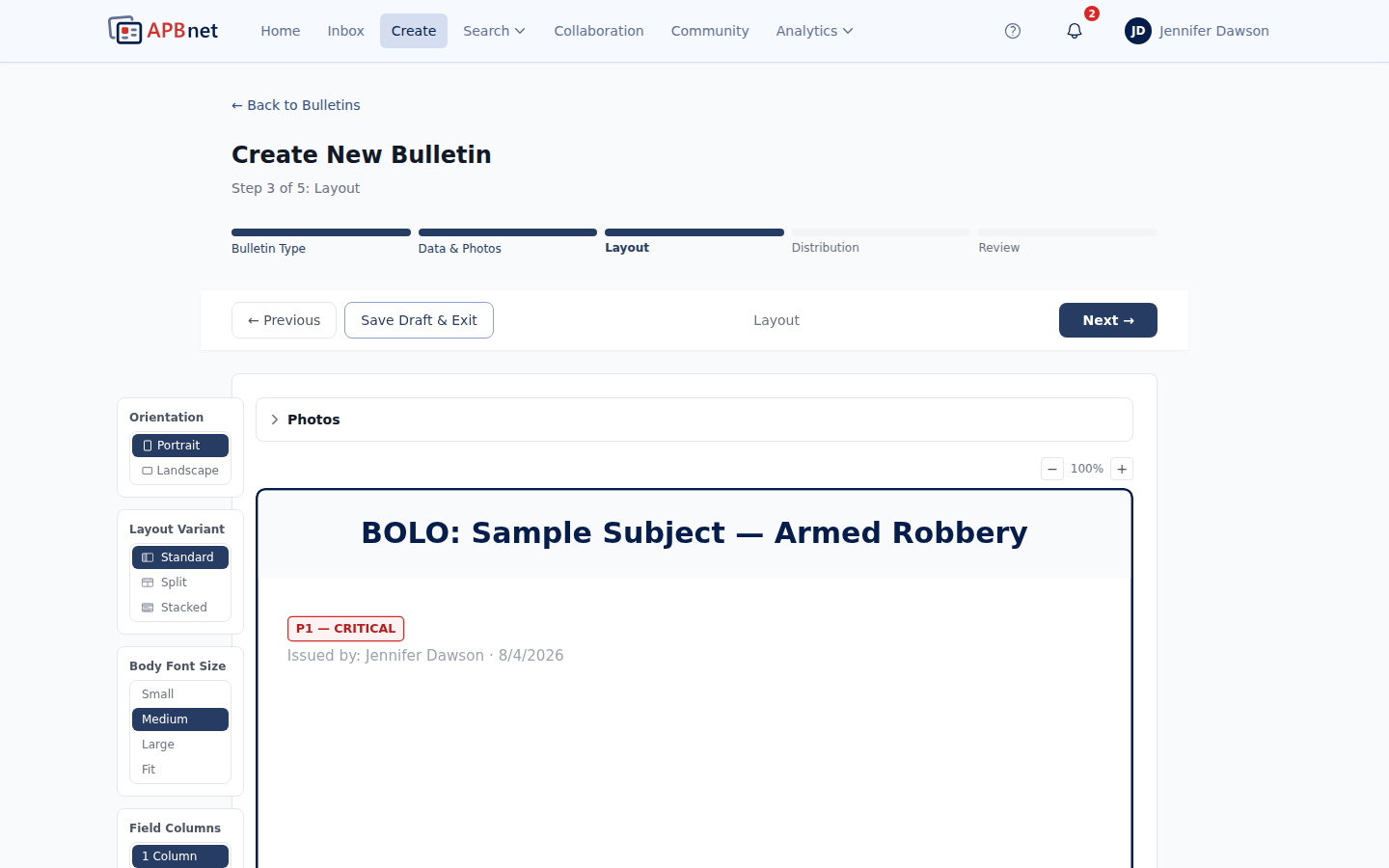
Bulletin layout step — Orientation toggle (Portrait/Landscape) and Layout Variant selector (Standard/Split/Stacked) alongside the live preview - 3
Adjust Body Font Size and Field Columns, and review the live preview.
Every change to any of the four controls updates the preview with your actual content and photos in place. This is exactly what recipients will see. Try a few combinations — the preview updates instantly.
Bulletin layout preview panel showing the live preview with actual bulletin content and photo in place - 4
If the photo framing needs adjustment, use the Photo Crop Editor.
Each layout has specific photo dimensions. If your photo doesn't frame well, click the crop icon to open the Photo Crop Editor and reposition it within the layout slot.
- 5
Click Continue to proceed.
You can return to the Layout step before sending if you want to switch. The layout is not locked until the bulletin is sent.
The four layout controls
These are independent controls, not a single named layout you pick from a list — combine them to fit your bulletin.
Orientation
Portrait, Landscape
Portrait suits person-focused bulletins where a single face or mug shot should lead. Landscape gives more horizontal room for descriptive text alongside a photo.
Layout Variant
Standard, Split, Stacked
Standard is a single-column layout. Split divides the bulletin into two side-by-side sections — useful for a person alongside a vehicle, or two angles of the same subject. Stacked arranges sections vertically, one below the other. If your bulletin is in Multi Subject mode, additional variants built for two, three, or four subjects appear here instead.
Body Font Size
Small, Medium, Large, Fit
Controls how dense the bulletin's text reads. Fit auto-sizes text to the available space — useful when you're not sure how much content you'll end up with.
Field Columns
1 Column (more may be available)
Controls how structured fields are arranged in the preview — more columns fit more fields without scrolling, at the cost of a narrower layout per field.
Tips
Portrait for people, Landscape for detail
If your bulletin is about identifying a person, Portrait leads with the face — which is what officers need to recognize someone in the field. If your bulletin relies heavily on written description or multiple details, Landscape gives more room for text.
Try a few combinations before deciding
The preview updates instantly as you change any control. Spend 30 seconds trying a couple of combinations with your actual content loaded — what sounds good in the abstract sometimes looks very different with your real photo.
Layout affects how quickly recipients can act
A well-chosen layout puts the identifying information — face, vehicle, plate — where officers expect it. A layout mismatch (like a landscape layout for a face bulletin) requires recipients to work harder to extract the information they need.
Related guides
Using the Photo Crop Editor
Crop and position photos precisely within your chosen layout.
Read the guide →
Using Bulletin Fields
Fill structured fields so your bulletin is searchable and filterable.
Read the guide →
Bulletin Types Explained
Choose the right bulletin type before selecting a layout.
Read the guide →