How-To Guides — IT Admin
Configuring Allowed Domains & Whitelisting
Two tasks covered here: setting which email domains are authorized to register APBnet™ accounts at your agency, and ensuring APBnet™ traffic passes through your network firewall or proxy without being blocked.
Before you start
- You need the IT Admin role to access these settings.
- Configure allowed domains before inviting users. Accounts registered with unauthorized email addresses will need to be removed and re-invited.
- Have your network firewall or proxy documentation available if you're configuring whitelisting — you'll need APBnet™'s domain list and IP ranges from the settings panel.
Part 1 — Allowed email domains
Allowed domains restrict which email addresses can register an APBnet™account at your agency. Only users with an email address matching an allowed domain can create an account.
- 1
Open IT Admin Settings and select Allowed Domains.
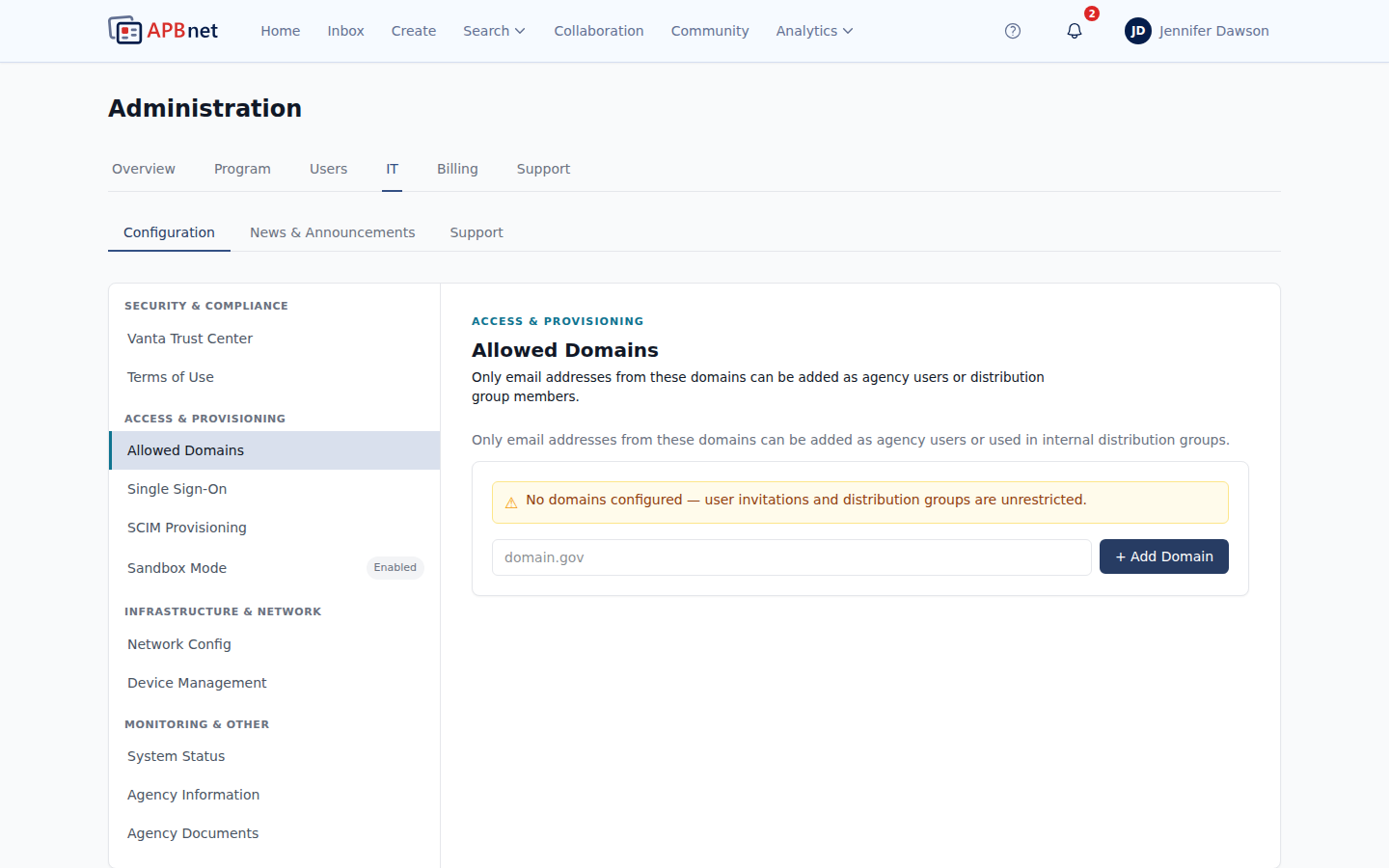
IT Admin settings — Allowed Domains tab showing the list of configured domains and an Add Domain button - 2
Add your agency's primary email domain.
Enter the domain without the @ symbol — for example,
citypolice.gov. Save and confirm. All accounts with that domain can now register. - 3
Add additional domains for contractors or partners if needed.
If your agency uses approved IT contractors or other authorized staff who have different email domains, add those domains separately. Each domain is listed and can be removed independently.
- 4
(Optional) Configure Single Sign-On (SSO).
If your agency uses SSO — Active Directory, Okta, or a similar provider — APBnet™ supports SSO integration. Configure it in the SSO tab within IT Admin settings. Users signed in through SSO don't need a separate APBnet™ password. Contact APBnet™ support for the SAML or OIDC configuration values you'll need.
Part 2 — Network whitelisting
If your agency filters outbound traffic through a firewall or proxy, you may need to whitelist APBnet™'s domains and IP ranges so the platform works without interruption — especially for push notifications and real-time updates.
- 5
Open the Network Whitelisting tab in IT Admin settings.
This tab lists APBnet™'s domains and IP ranges that should be allowed through your firewall or proxy. The list is current — check back after major APBnet™ updates.
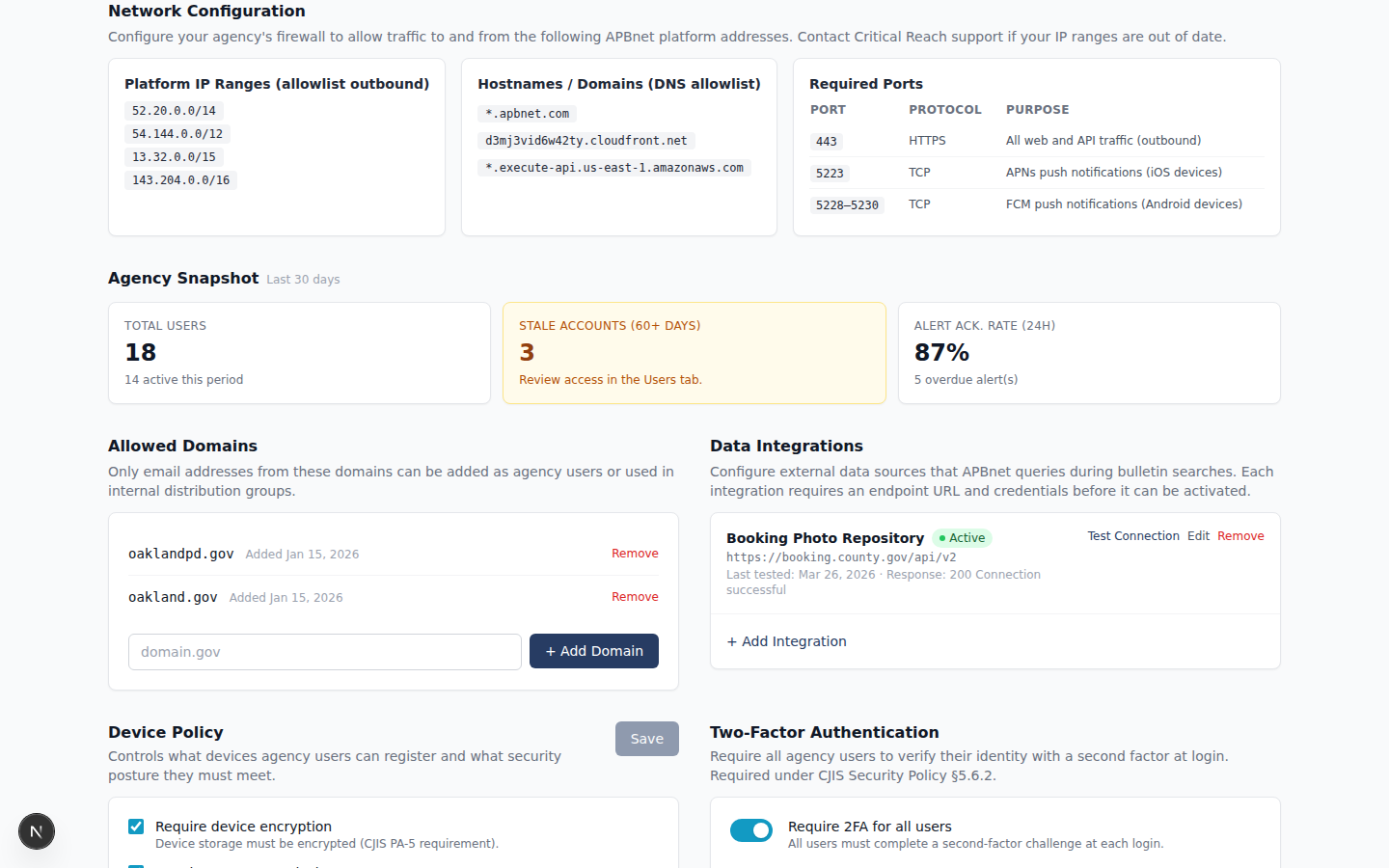
IT Admin Network Whitelisting tab showing APBnet™ domains and IP ranges to allow through firewall or proxy - 6
Add the listed domains and IP ranges to your agency's firewall or proxy allowlist.
This is done in your existing network infrastructure tools — not inside APBnet™. Use the listed values as your reference. If users report that push notifications aren't arriving or real-time updates are slow, network blocking is a common cause.
Tips
Set allowed domains before your first user signs up
Accounts registered with an unauthorized domain won't automatically move to an allowed domain if you add it later — they'll need to be re-invited. Configure your allowed domains before anyone receives an invitation.
If push notifications aren't working, check the whitelist
The most common cause of missing push notifications on agency networks is a firewall blocking APBnet's notification delivery domains. Check the Network Whitelisting tab and confirm those domains are allowed through.
SSO simplifies onboarding significantly
If your agency uses SSO, enabling it for APBnet™ means new users don't need to create or remember another password — they log in with their agency credentials. Worth the setup time if you're onboarding many users.
Related guides
Multi-Factor Authentication
MFA is mandatory and automatic — no IT Admin configuration needed.
Read the guide →
Managing Device Access Controls
Control which devices are authorized to access APBnet™ at your agency.
Read the guide →
Program Admin: Controlling Feature Access
Feature-level settings sit with Program Admin — a different role from IT Admin.
Read the guide →