How-To Guides — IT Admin
Managing Device Access Controls
How to configure which types of devices are permitted to access APBnet™at your agency, and how to integrate APBnet™ with your mobile device management (MDM) policy if your agency uses one.
Before you start
- You need the IT Admin role to configure device access settings.
- Know your agency's policy before configuring — whether officers are expected to use agency-issued devices only, personal devices, or both.
- If your agency uses an MDM platform (such as Jamf, Microsoft Intune, or VMware Workspace ONE), add APBnet™ to your managed app list before officers try to access it from the field.
Steps
- 1
Open IT Admin Settings and select Device Access Controls.
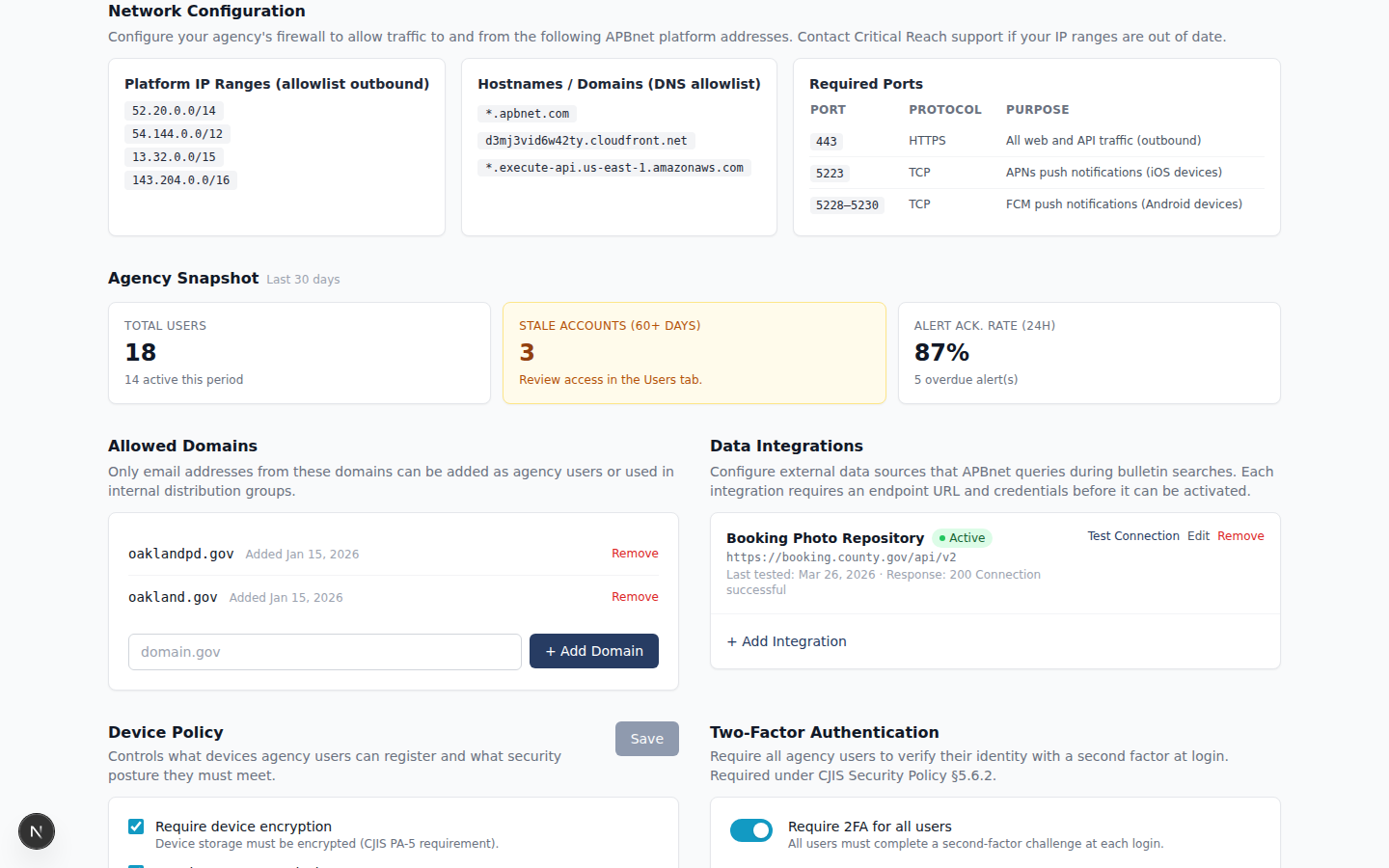
IT Admin Device Access Controls panel showing device policy options and the MDM integration section - 2
Set your agency's device policy.
Choose from three options:
- Agency-issued devices only — restricts access to devices your agency manages. Highest security. Requires that all officers have an agency device and that your MDM policy covers APBnet™.
- Personal devices allowed — officers can access APBnet™ from personal phones or tablets. Broader access but less device-level control. MFA enforcement is especially important in this configuration.
- Both agency-issued and personal — most flexible. Some agencies allow personal devices for field access while requiring agency devices for admin functions.
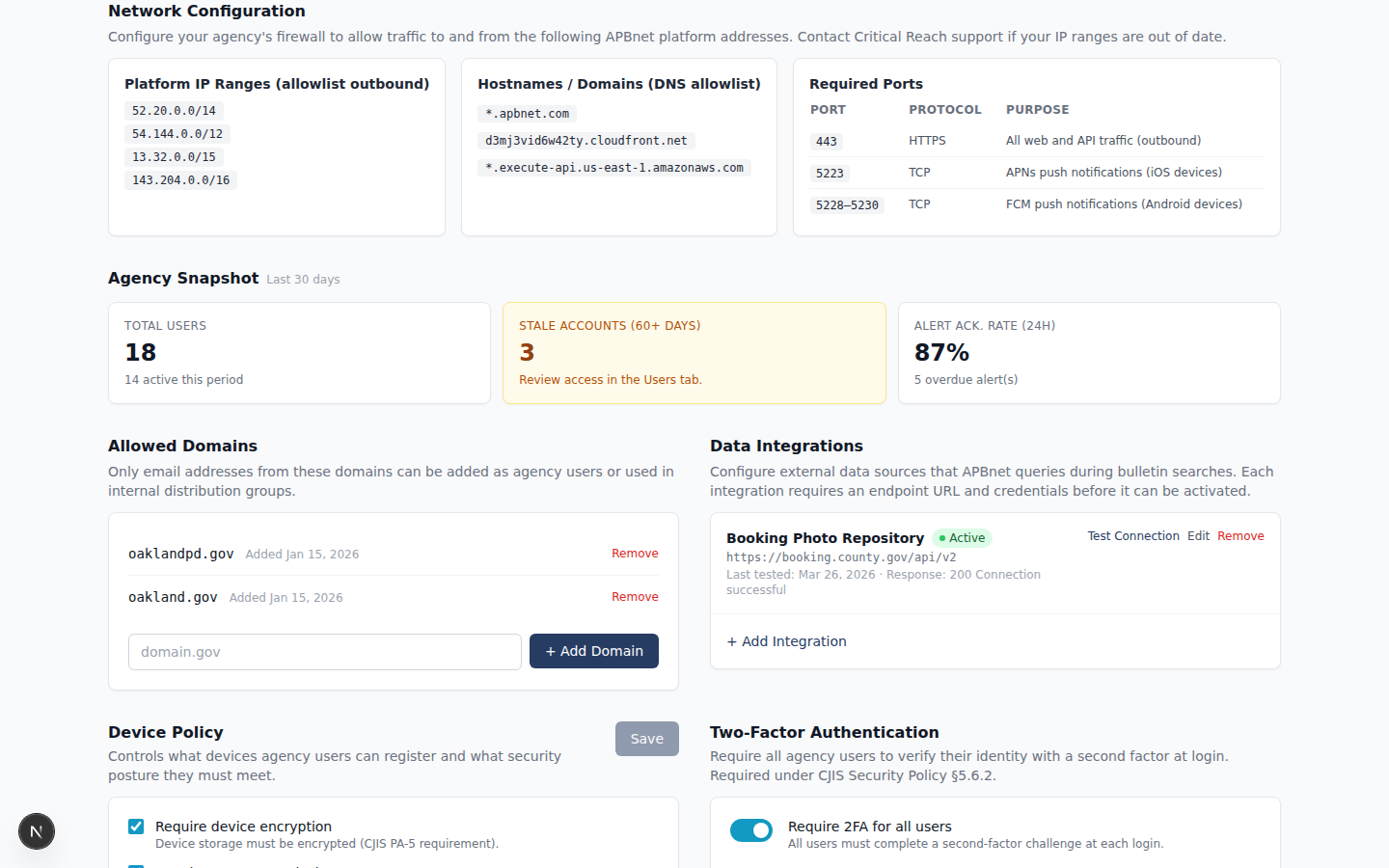
Device Access Controls — policy selector with three options, agency-issued only selected - 3
If using MDM, add APBnet™ to your managed app list.
This step happens in your MDM platform, not in APBnet™. Add APBnet™ to your managed app list so the app can be deployed to devices through your MDM workflow. Officers who try to access APBnet™ before it's in the managed list may be blocked or see errors — complete this before announcing availability.
- 4
Save settings and test access from a representative device.
After saving, test login from the device types you've authorized — and from a device you've excluded — to confirm the policy is working as expected before notifying users.
Tips
Add APBnet™ to MDM before officers access it from the field
Officers encountering an MDM block for the first time in the field — on a call, trying to look up a bulletin — creates real problems. Deploy APBnet™ through MDM before it's announced so access is ready on day one.
Device controls and MFA cover different threats
Device access controls limit which devices can connect. MFA — mandatory and automatic for every user, nothing to configure — ensures the right person is behind the screen. Together they address two separate threat vectors: lost or stolen devices, and compromised credentials.
Personal device access increases reach but requires policy clarity
If you allow personal devices, make sure officers know what's expected around data handling and app permissions. A brief policy communication at rollout prevents misunderstandings about what's appropriate on a personal device.
Related guides
Multi-Factor Authentication
MFA is mandatory and automatic — a second, complementary layer to device controls.
Read the guide →
Configuring Allowed Domains & Whitelisting
Set up allowed email domains and network whitelisting for your agency.
Read the guide →
Program Admin: Controlling Feature Access
Feature-level settings sit with Program Admin — a separate role.
Read the guide →