How-To Guides
Tags Explained
Tags refine a bulletin's routing and make it easier to find — beyond what its bulletin type alone can do. Unlike a description, tags are a fixed, controlled vocabulary: pick from a list, don't type your own.
Tags vs. bulletin type
Bulletin type sets the broad category and determines core routing and available fields. Tags sit underneath that — a set of optional, more specific labels (Homicide, Narcotics, Stolen Vehicle, and about 30 others) that help subscribers and search find bulletins relevant to their role or area. The same full list of tags is available no matter which bulletin type you pick — tags aren't restricted by type.
Tags appear in the wizard's first step, directly below the bulletin type dropdown — select all that apply, or use Select all / Clear all to move faster.
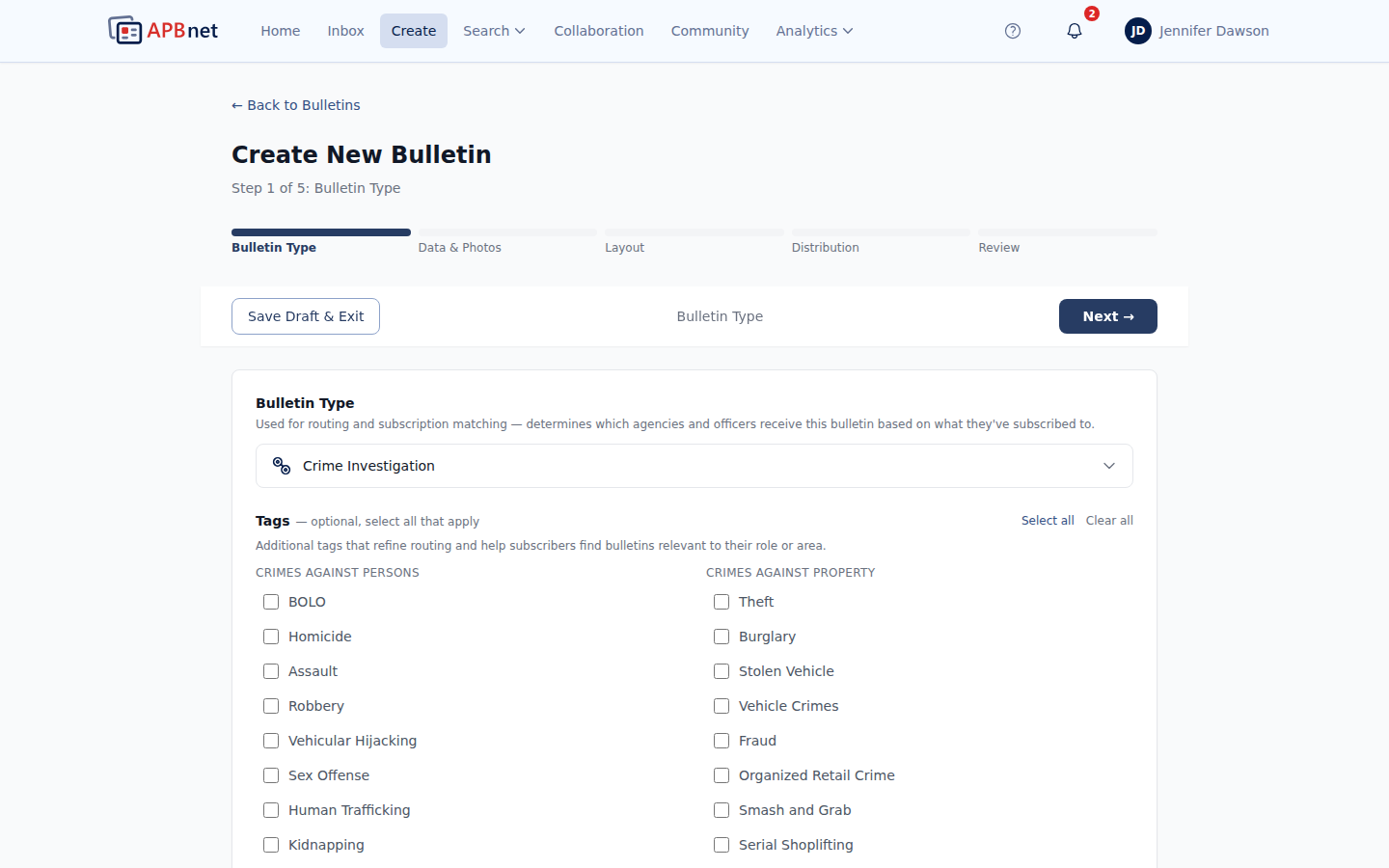
The four tag categories
Every tag falls into one of four groups, shown as columns in the wizard.
Crimes Against Persons
- BOLO
- Homicide
- Assault
- Robbery
- Vehicular Hijacking
- Sex Offense
- Human Trafficking
- Kidnapping
- Domestic Violence
Crimes Against Public Order
- Narcotics
- Weapons / Explosives
- Immigration Enforcement
- Terrorism
- Gang / Organized Crime
Crimes Against Property
- Theft
- Burglary
- Stolen Vehicle
- Vehicle Crimes
- Fraud
- Organized Retail Crime
- Smash and Grab
- Serial Shoplifting
Other
- Warrant
- In Custody
- Campus Safety
- Hospitality and Public Venues
- Transit / Transportation
- Deceased Individual
- Unidentified Remains
- Locate Next of Kin
Every bulletin type offers the same tags
Tags don't change based on the bulletin type you selected — the same full list is available whether you're creating a Crime Investigation, a Jurisdiction Record, or any other type. Apply whichever tags actually describe the bulletin, regardless of type.
Tips
Tags are optional — but they power subscriptions
A subscription built around a tag (say, Narcotics or School Safety) only fires when that tag is actually applied to the bulletin. Skipping tags on a relevant bulletin means the officers subscribed to that category never hear about it.
Tags aren't the same as Special Tags
Officer Safety, Attempt to Locate, Attempt to Identify, and the national alert designations (AMBER, Ashanti, Silver, Ebony, Feather/Turquoise) are a separate concept — Special Tags — configured just below Tags in the same step. See Bulletin Types Explained for how those work.
Apply every tag that fits
Bulletins commonly qualify for more than one tag — a vehicle theft with a weapon involved might warrant both Vehicle Crimes and Weapons / Explosives. Select all that apply; there's no penalty for a bulletin carrying several tags.
Related guides
Bulletin Types Explained
See how tags, Special Tags, and bulletin type work together.
Read the guide →
Using Bulletin Fields
Tags sit in the same wizard step as structured fields — both make bulletins searchable.
Read the guide →
Setting Up Subscriptions
Subscribe to a tag to get notified whenever a matching bulletin is created.
Read the guide →