How-To Guides
Bulletin Types Explained
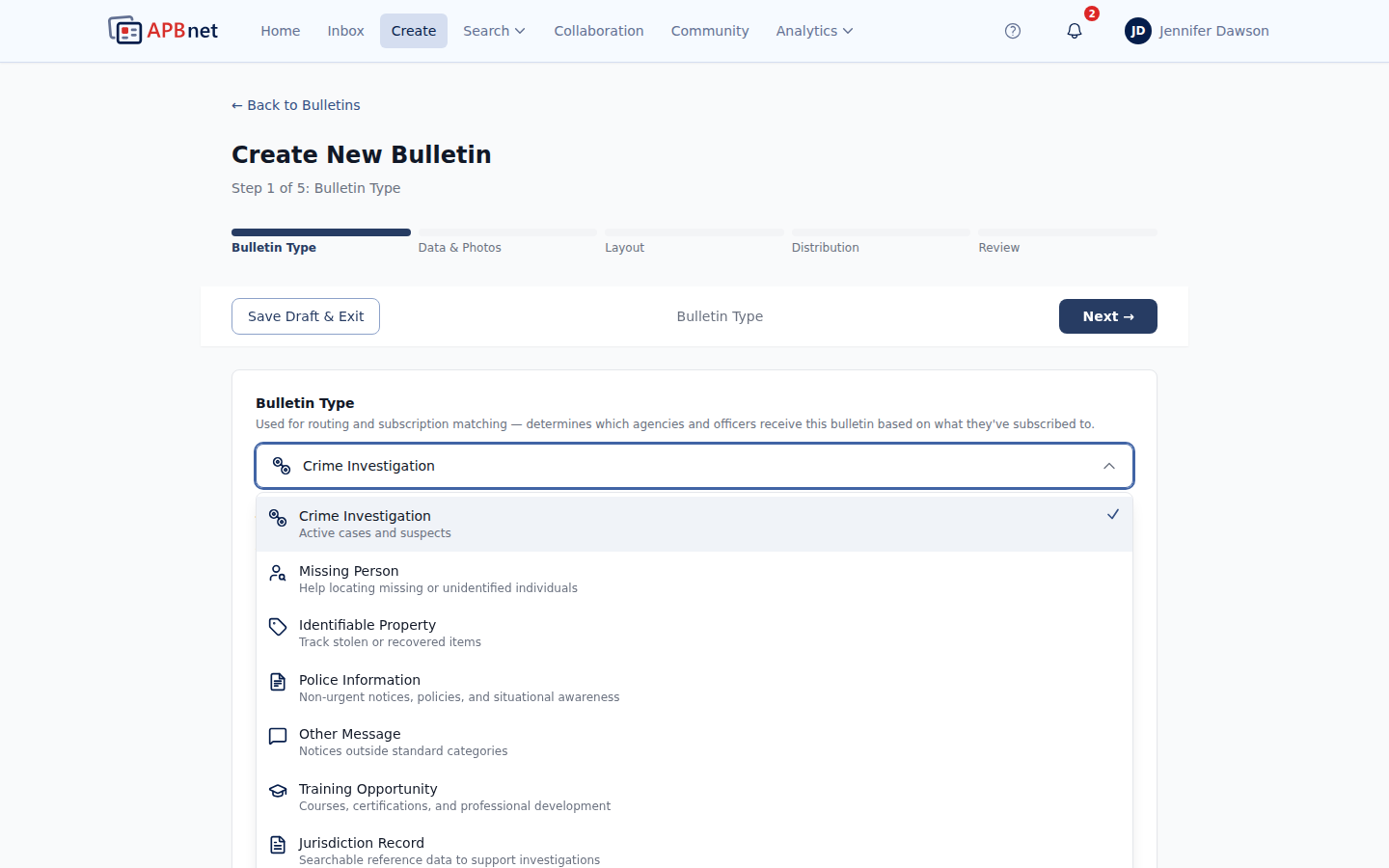
APBnet™ supports eight bulletin types — each with its own routing behavior, available fields, and available tags. Type is used for routing and subscription matching, so choosing the right one ensures your bulletin reaches the right people.
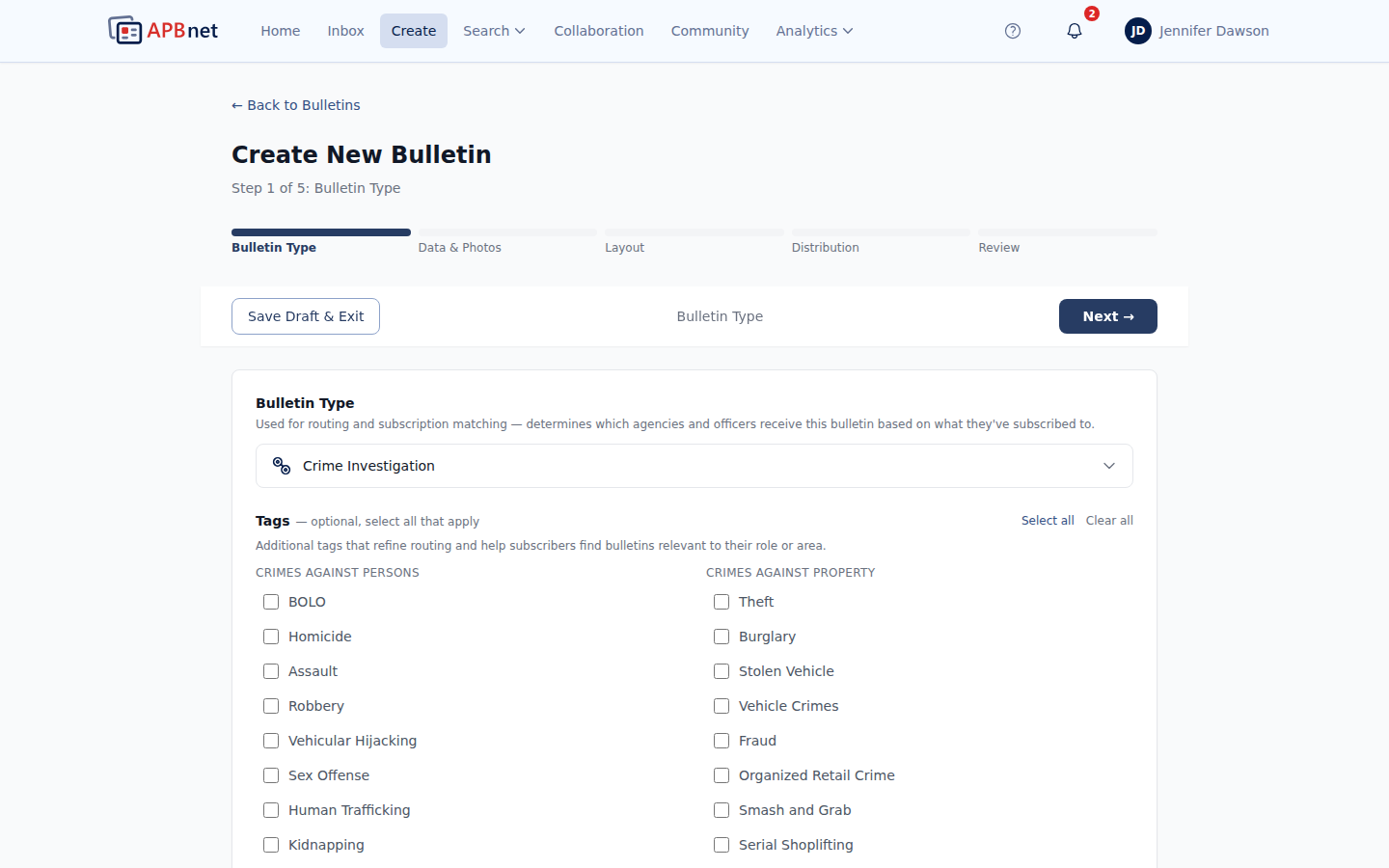
The six standard types
These types follow standard distribution — they go to all users at the agencies you select in the Distribution step. Staff Bulletin and Training Opportunity, covered below, route differently.
Crime Investigation
Active cases and suspects. The broadest and most commonly used type.
Missing Person
Help locating a missing or unidentified individual. Add the Attempt to Locate Special Tag if you need broad, active search assistance, or a national alert type (AMBER, Ashanti, Silver, Ebony, Feather/Turquoise) if the case meets that alert's criteria.
Identifiable Property
Track stolen or recovered items — vehicles, firearms, or other identifiable property.
Jurisdiction Record
Searchable reference data to support investigations. Meant to be available to every APBnet user, not just the agencies you specifically distribute to — Officer Safety, Attempt to Locate, and Attempt to Identify can still be added if relevant.
Police Information
Non-urgent notices, policies, and situational awareness.
Other Message
Notices outside the standard categories.
Any tag can be applied to any bulletin type — the tag list doesn't change based on which type you pick. See Tags Explained for the full list.
Looking for AMBER Alert, ATL, or Officer Safety?
These aren't bulletin types — they're Special Tags, a separate set of toggles you apply in the same wizard step, alongside your bulletin type and Priority. Officer Safety, Attempt to Locate, and Attempt to Identify can be added to any bulletin type — including Jurisdiction Record — and can be combined freely with each other. National alert designations (AMBER, Ashanti, Silver, Ebony, Feather/Turquoise) are mutually exclusive — pick at most one per bulletin. See Tags Explained for the full list.
Looking for BOLO? That one's a regular Tag, not a Special Tag — pick it from the Tags list alongside things like Homicide or Stolen Vehicle. See Tags Explained for the full list.
Staff Bulletin — opt-in only
Staff Bulletin
Personnel updates and event notices — internal law enforcement community communications that aren't operational bulletins. Staff Bulletins are delivered only to users who have opted in to receive them; by default, users don't receive them.
To opt in: Go to Settings > Notifications and enable Staff Bulletins.
Training Opportunity — routes to a POC group
Training Opportunity
Training Opportunity bulletins are not broadcast to all users at receiving agencies. Instead, they route to each receiving agency's Training POC group — a Collaboration Group created automatically for every agency.
Why: Training logistics — scheduling, attendance, completion requirements — don't belong in field officers' operational inboxes. Routing to a dedicated group keeps this content where it's actionable, without configuration overhead for every agency.
Who's in the group: Every agency's Training POC group starts with the agency's Program Admin as the sole member. A Program Admin can add or remove members from Collaboration like any other group — there's no separate setting for this. If an agency's Training POC group is ever missing entirely, Training Opportunity bulletins fall back to all of that agency's Program Admins.
Individual users can opt out of Training Opportunity bulletins from Settings > Notifications — they're opt-out, not opt-in, so new users receive them by default.
Adding recipients beyond the POC group: A Program Admin can also add Training Recipients under Bulletin Settings in the admin portal — external email addresses (an individual's email or a shared group address) that receive an emailed copy of every training bulletin reaching the agency, in whatever format the admin sets, on top of the in-app delivery to the POC group.
Tips
Type drives routing — tags and Special Tags refine it
Bulletin type determines which agencies and officers receive a bulletin based on their subscriptions. Tags and Special Tags layer on top to narrow that further — see Tags Explained for how they interact.
The tag list is the same for every type
Tags aren't restricted by bulletin type — pick whichever ones fit, regardless of the type you selected.
Staff Bulletin and Training Opportunity need a one-time settings check
If you're not seeing Staff Bulletins, check that you've opted in under Settings > Notifications. If you're not seeing Training Opportunity bulletins for your agency, ask your Program Admin whether you're a member of the agency's Training POC group in Collaboration.
Related guides
Tags Explained
The same tag list applies no matter which bulletin type you pick.
Read the guide →
Choosing a Bulletin Layout
Pick the right layout for your bulletin type and preview before sending.
Read the guide →
Using Bulletin Fields
Fill in structured fields so your bulletin is searchable and filterable.
Read the guide →
Map-Based Distribution Selection
Choose which agencies receive your bulletin using the map.
Read the guide →