How-To Guides — Program Admin
Controlling Feature Access
Program Admins control which APBnet™ features are active for their agency. Features are off by default and must be explicitly enabled. Changes take effect immediately for all users at your agency.
Before you start
- You need the Program Admin role. IT Admins and User Admins do not have access to the feature access panel.
- Feature changes are immediate and affect all users at your agency — there is no staging mode. Coordinate with your team before enabling a major feature mid-shift.
- Some features require additional configuration after enabling — for example, Community Distribution requires you to set the review preference, and Training Opportunity requires a POC contact list.
Steps
- 1
Open the Program Admin panel and select Feature Access.
The feature access panel lists all available features with their current state — enabled or disabled — for your agency.
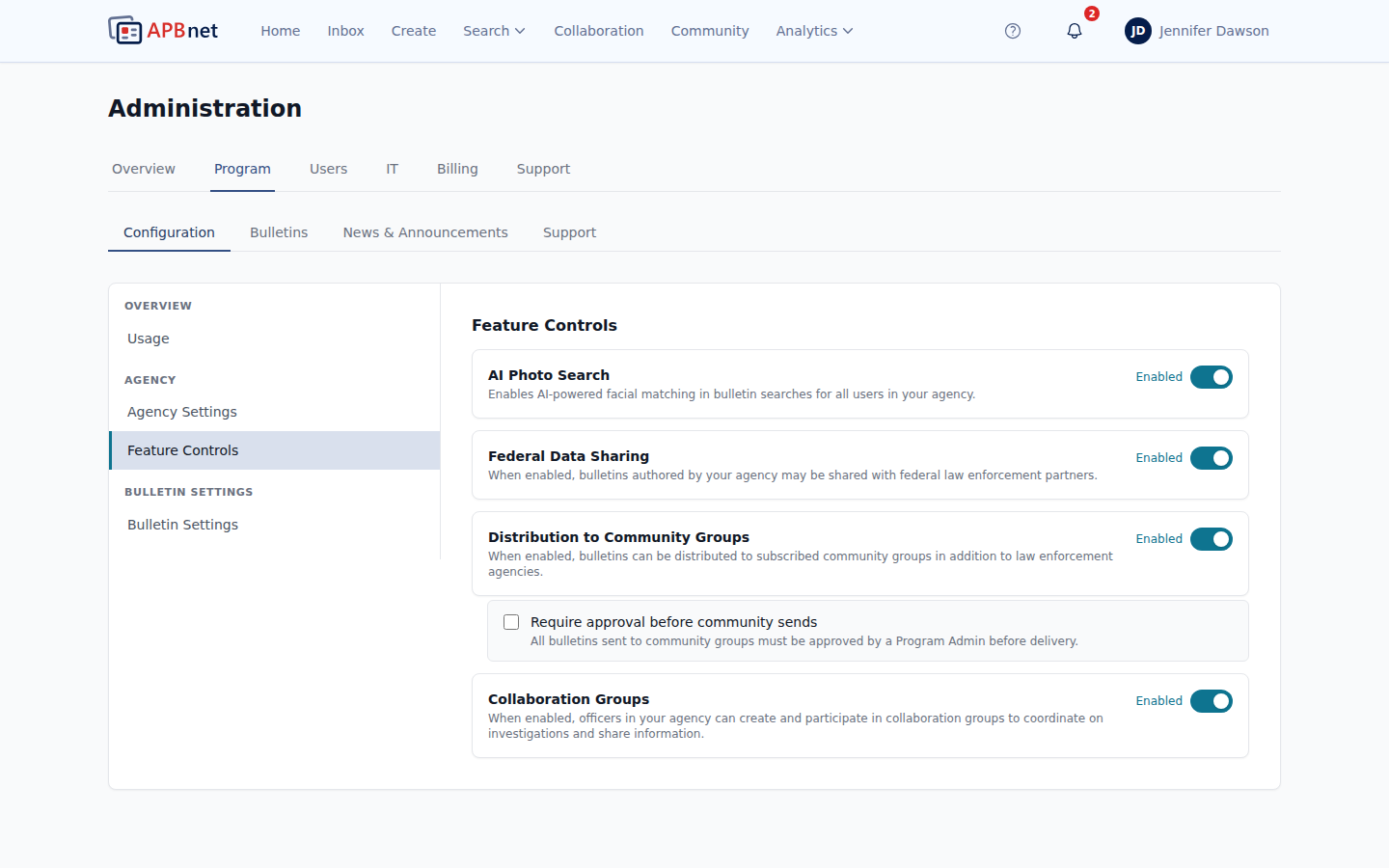
Program Admin Feature Access panel showing all features with on/off toggles and brief descriptions - 2
Toggle features on or off as appropriate for your agency.
Review the features listed below before enabling. Start with the features your agency is ready to use — you can always enable more as your team gets comfortable.
- 3
Complete any required configuration for newly enabled features.
Some features prompt for additional setup immediately after enabling — for example, Community Distribution asks whether an internal review is required, and Training Opportunity prompts for POC contacts. Complete this configuration before the feature goes live for users.
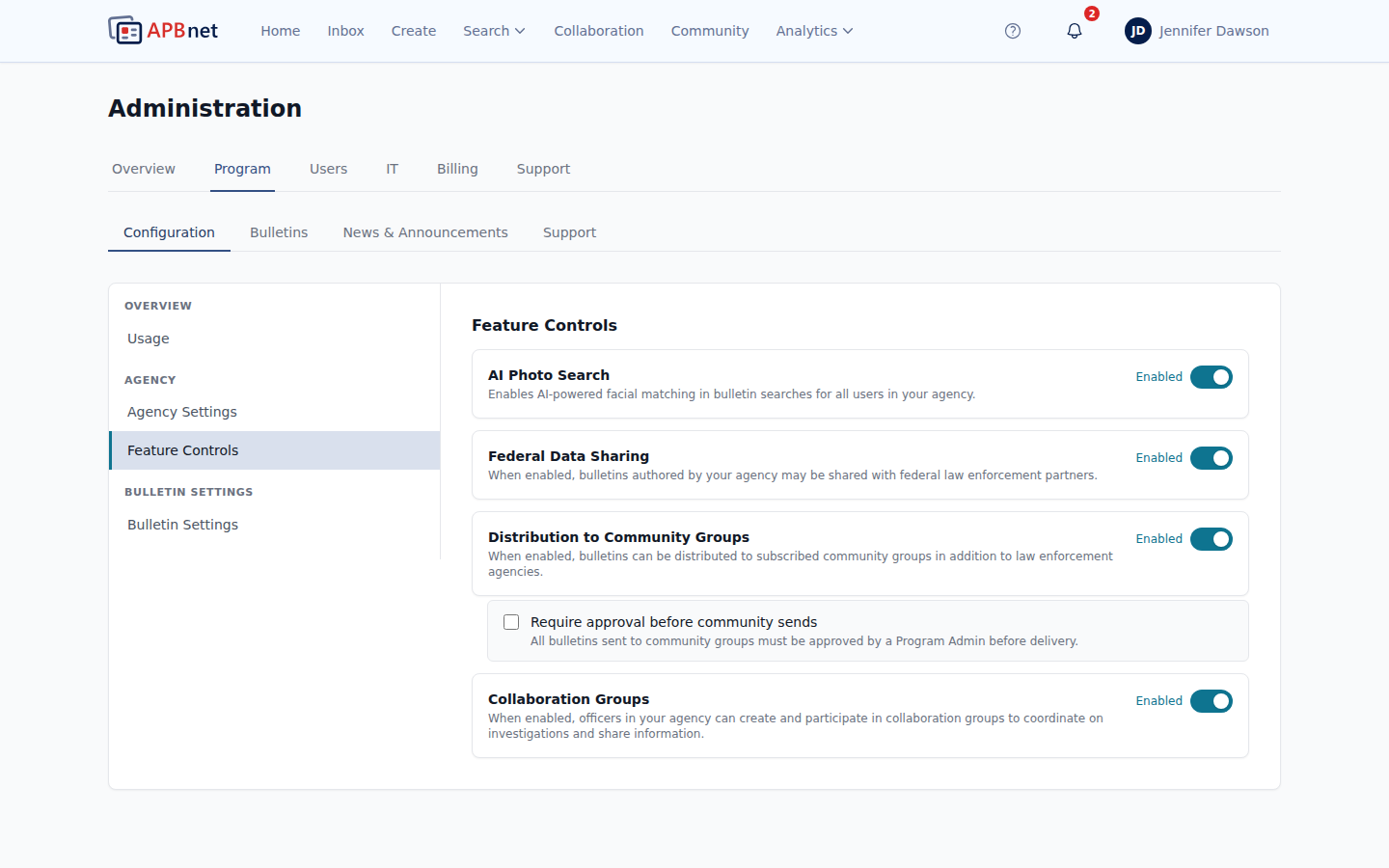
Program Admin feature configuration prompt after enabling Community Distribution — showing the review requirement toggle - 4
Communicate newly enabled features to your users.
Features take effect immediately — users will see new options appear without any announcement from the system. If you enable a significant feature like Photo Search or Community Distribution, communicate it to your team directly so they know it's available and understand how to use it.
Feature reference
Photo Search
Enables facial recognition-assisted searching across bulletin photos. When active, Creators can run a Photo Search and Viewers receive candidate match notifications. Disable for agencies that haven't completed the required training or authorization.
Federal Sharing
Allows bulletins to be distributed beyond your immediate regional network to federal agency partners. Requires your agency to meet federal data-sharing requirements. Leave off until your agency has completed the necessary onboarding.
Community Distribution
Enables the Community Address Book and allows Creators to include non-law-enforcement community partners in bulletin distribution. When enabled, you can also require an internal review step before any bulletin reaches community recipients.
Bulletin Types
Control which bulletin types are available to your agency's Creators. Disable types your agency doesn't use — this keeps the type selector focused and reduces the chance of an officer selecting the wrong type under pressure.
Training Opportunity — POC Contacts
Configure which users receive Training Opportunity bulletins. This type routes only to designated point-of-contact recipients — not to all users. Set the POC contact list here so training communications reach the right people.
Tips
Start narrow, expand as your team gets comfortable
Enable the features your agency is genuinely ready to use on day one. Adding features incrementally — and communicating each one — produces better adoption than turning everything on at once and hoping users discover it.
Feature changes are immediate — time them intentionally
Enabling or disabling a feature takes effect instantly for all users. Avoid making changes mid-shift during active incidents. Changes before shift start or after shift end give users time to notice and ask questions before things get busy.
You're the escalation point for access and permission issues
When users or User Admins can't resolve an access or feature question, it comes to you. Familiarize yourself with what each feature does and what role is needed to use it — so you can quickly identify whether a request requires a feature toggle or just a role change.
Related guides
Bulletin Types Explained
Understand what each bulletin type does before deciding which to enable.
Read the guide →
Using the Community Address Book
Community distribution must be enabled by Program Admin before Creators can use it.
Read the guide →
IT Admin: Configuring Allowed Domains & Whitelisting
Technical settings like allowed domains and device policy sit with IT Admin, not Program Admin.
Read the guide →