How-To Guides
Using Clutter Controls
Clutter Controls let you file away lower-priority bulletins automatically so your inbox stays focused on what actually needs attention. Set rules by agency, bulletin type, or priority threshold — and adjust them as your work changes.
Clutter Controls vs. Subscriptions
These two features work together, not instead of each other. Clutter Controls quiet the noise — they push lower-priority content out of your way. Subscriptions bring specific content in — they make sure you never miss a bulletin that matches an active case. Use both.
Before you start
- Clutter Controls are per-user — your rules don't affect your colleagues.
- Clutter rules don't delete bulletins. They file them away — you can still access any bulletin by opening the relevant tab or searching.
Steps
- 1
Open Clutter Controls from your account settings.
Clutter Controls are in your personal settings. Your existing rules are listed here. APBnet™ may also display suggested rules based on your Interested / Not Interested history.
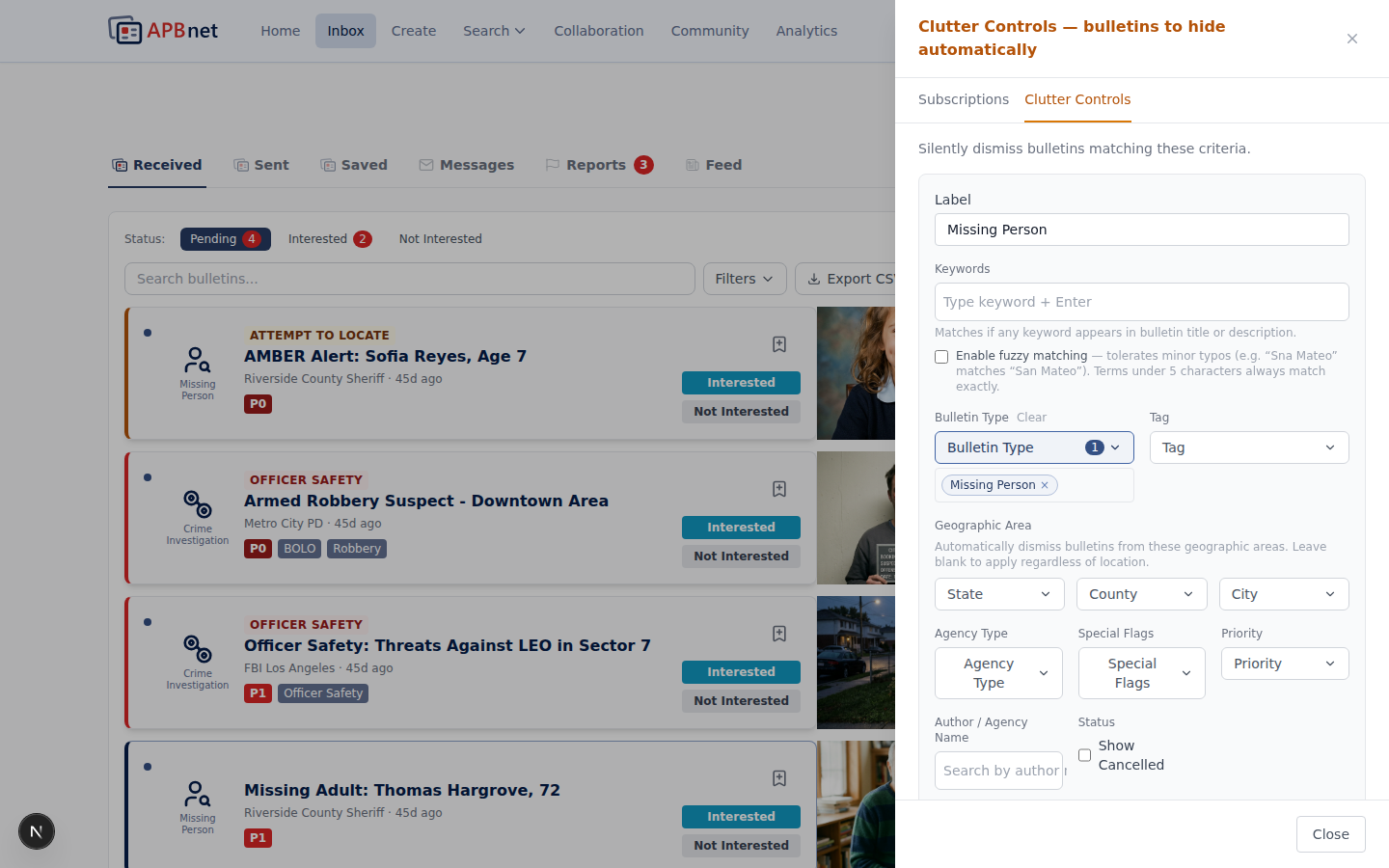
Clutter Controls settings panel showing a list of active rules and any system suggestions - 2
Add a new rule and choose what to filter.
Rules can target:
- Bulletin type — suppress or file all bulletins of a specific type (e.g., ATL bulletins from outside your immediate area).
- Agency — auto-file all bulletins from a specific agency you rarely act on.
- Priority threshold — set a minimum urgency level so only high-priority bulletins surface in your main inbox view.

New clutter rule form showing filter type options — bulletin type, agency, or priority threshold - 3
Choose the action: auto-file or suppress for a set period.
Auto-file moves matching bulletins out of your main inbox into a lower-priority folder — they're still accessible but not in your face. Suppress for a set period is useful for bulletin types that spike around a specific event or time of year and then return to normal.
- 4
Save the rule and monitor for a week.
Clutter rules take effect immediately. Check your filed bulletins after a few days to confirm the rule is catching the right things — and not over-filing. Adjust as needed.
Tips
Start with one rule, not ten
It's tempting to file everything at once. Start with the single bulletin type or agency generating the most noise. Monitor for a week, confirm nothing important is being filed, then add more rules incrementally.
Review APBnet's suggestions
As you mark bulletins as Interested or Not Interested, APBnet™ builds a picture of what matters to you and may suggest Clutter Controls worth enabling. Check the suggestions panel — they're often right.
Clutter rules never delete bulletins
Nothing is permanently removed. Filed bulletins are accessible by opening the lower-priority folder or running a search. Clutter Controls manage your view — not your records.
Related guides
Interested / Not Interested
Your Interested / Not Interested responses feed directly into Clutter Control suggestions.
Read the guide →
Setting Your Notification Preferences
Control notification channels and digest settings alongside Clutter Controls.
Read the guide →
Setting Up Subscriptions
Clutter Controls quiet the noise. Subscriptions bring specific content in. Use both.
Read the guide →