How-To Guides — Program Admin
Configuring Bulletin Settings
Bulletin Settings controls how your agency's outgoing bulletins look and who gets a copy outside the normal distribution list — from a custom banner to CC'd email recipients. Most settings save independently and take effect immediately.
Before you start
- You need the Program Admin role. Other admin roles don't have access to Bulletin Settings.
- There's no single page-wide Save button — each section below saves independently. Image uploads and toggles save immediately; text fields like Banner Display Name and Footer Text show a Save/Discard prompt after you make a change.
Steps
- 1
Select Admin > Program > Configuration > Bulletin Settings.
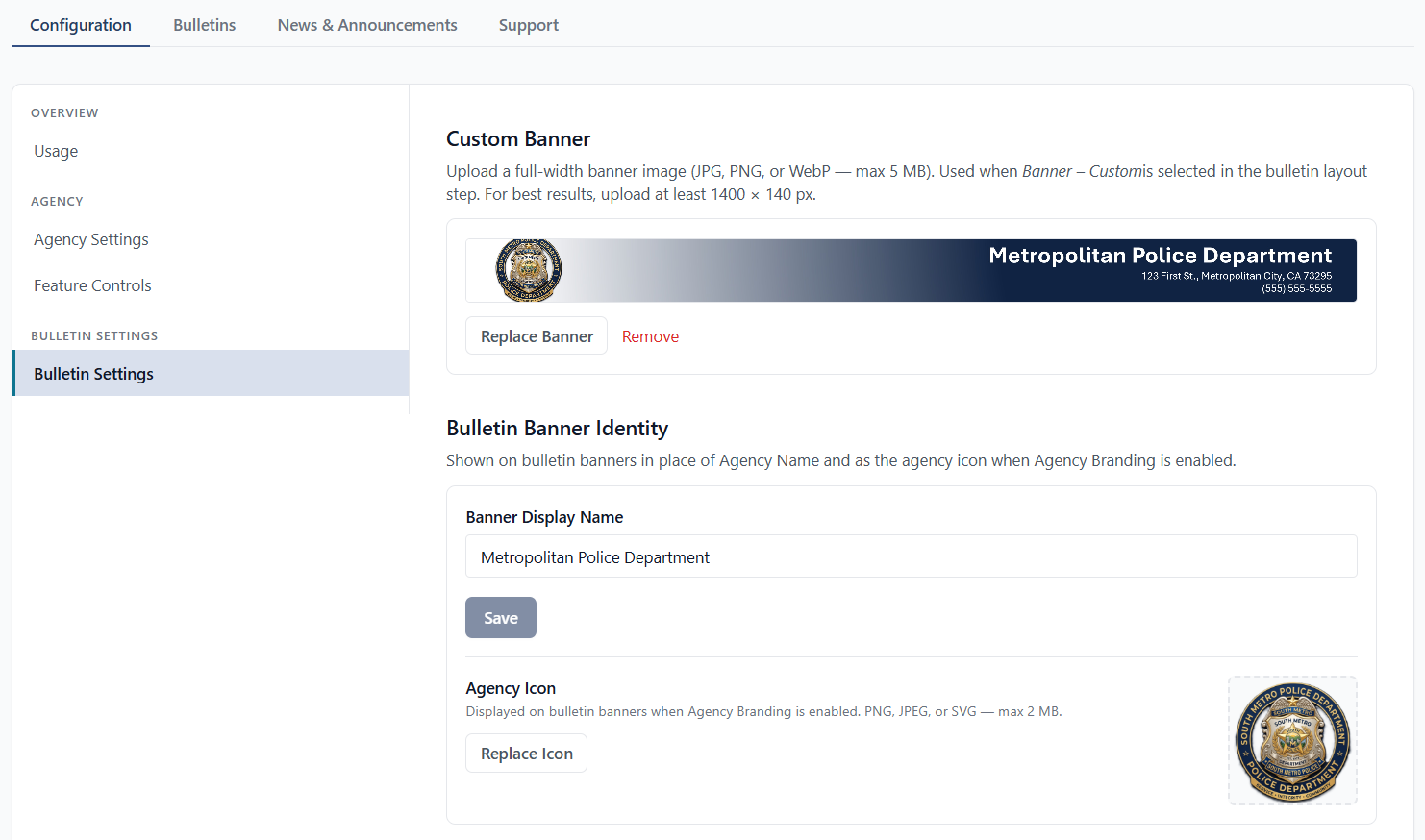
Bulletin Settings sits under the Bulletin Settings section of the Configuration left-nav, below Agency Settings and Feature Controls.
- 2
Set your banner and identity first — they show up on every bulletin that uses them.
Upload a Custom Banner if your agency wants a branded banner option, then confirm your Banner Display Name and Agency Icon. These are the fields other agencies see when your bulletins arrive in their inbox.
- 3
Set your Dispatch Policy and any CC'd recipients.
Decide whether your agency's users should automatically receive bulletins created by others at your agency, then add any Distribution Recipients or Training Recipients who need a copy outside the app — for example, a records unit mailbox.
Settings reference
Custom Banner
Upload a full-width banner image (JPG, PNG, or WebP — max 5 MB; at least 1400×140 px recommended). Only appears on a bulletin when Banner – Custom is selected in the bulletin layout step — it doesn't apply automatically to every bulletin. Saves immediately on upload; use Replace Banner or Remove to change it.
Bulletin Banner Identity
Banner Display Name and Agency Icon — shown on bulletin banners in place of your Agency Name, and as the icon when Agency Branding is enabled. Banner Display Name defaults to your Agency Name until you override it, and has its own Save/Discard. The Agency Icon (PNG, JPEG, or SVG — max 2 MB) saves immediately on upload.
Push Notification Icon
Choose which APBnet™ icon — current or legacy — appears on web push notifications sent to your agency's users. Saves immediately when selected.
Footer Text
Optional text (up to 200 characters) shown at the bottom of dispatched bulletins. Set separate text for law enforcement recipients and community recipients. Leave a field blank to omit the footer row for that audience.
Dispatch Policy
The "Auto-include this agency on outgoing bulletins" toggle. When on, every user at your agency receives bulletins created by others at your agency automatically — even if they weren't selected on that bulletin's distribution list. This only affects your own agency's users, not other agencies.
Distribution Recipients
Email addresses that get a copy of bulletins sent to your agency, in addition to normal in-app delivery. Choose a delivery format per recipient: Link, PDF, or Both. PDF attachments contain CJI — only add law enforcement recipients.
Training Recipients
Same idea as Distribution Recipients, but specific to Training Opportunity bulletins sent to your agency — a separate list with its own Link/PDF/Both format per recipient.
Tips
Custom Banner only applies when a Creator chooses it
Uploading a Custom Banner doesn't change every bulletin your agency sends — it only appears when a Creator selects Banner – Custom in the bulletin layout step. If you want it used consistently, communicate that expectation to your Creators.
Vet your Distribution and Training Recipients lists — PDFs carry CJI
Any recipient set to PDF or Both receives an attachment containing CJI data. Only add law enforcement email addresses to these lists, and review them periodically as staff change.
Auto-include is about your own users, not other agencies
Dispatch Policy's auto-include toggle only affects whether your agency's users automatically see bulletins created by other users at your agency. It has no effect on which other agencies receive your bulletins.
Related guides
Choosing a Bulletin Layout
Custom Banner only appears when a Creator selects Banner – Custom in this step.
Read the guide →
Controlling Feature Access
The sibling Program Admin configuration page — agency-wide feature toggles.
Read the guide →
Bulletin Types Explained
Training Opportunity bulletins are what Training Recipients actually receives.
Read the guide →