How-To Guides
Sharing Bulletins in a Collaboration Group
How to share a bulletin into a Collaboration Group, add context for your team, and find bulletins others have shared with you.
Before you start
- You must be a member of a Collaboration Group to share bulletins into it. Contact a group owner to be added if you don't see the group you need.
- All users can share bulletins into groups they belong to. Sharing does not require the Creator role.
Steps
- 1
Open the bulletin you want to share.
You can share any bulletin you can view — from your inbox, Feed, search results, or your Saved tab.
- 2
Select Share to Group from the bulletin toolbar.
The share panel opens showing your Collaboration Groups.
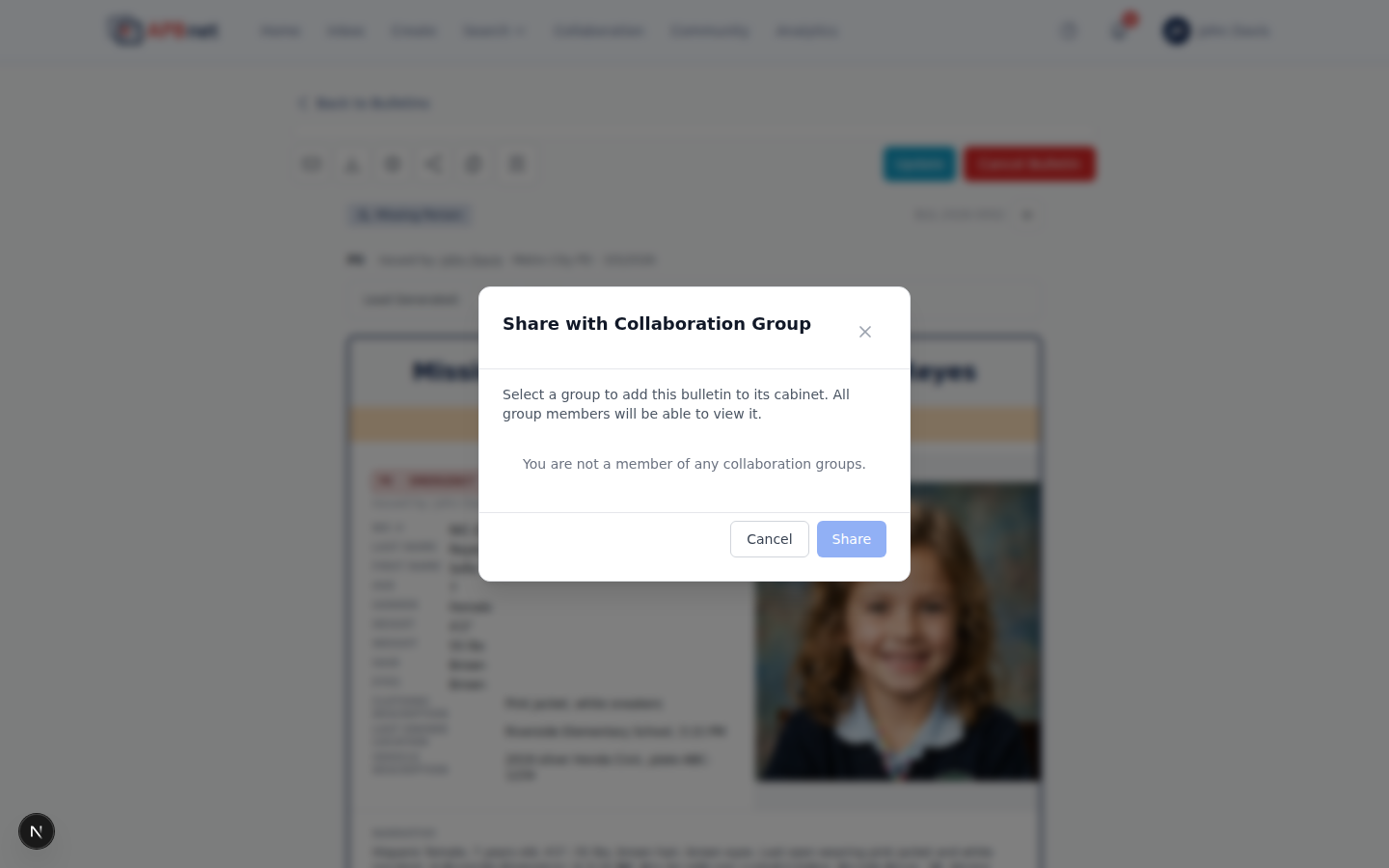
Bulletin detail with the Share to Group panel open — showing a list of available collaboration groups to select - 3
Select the group and add a note.
Choose the group from the list. Before sharing, add a note — context for your team about why this bulletin matters right now. A note like “suspect seen near Oak and 5th, possibly connected to the Tuesday break-in” is more useful than sharing a bulletin with no comment.

Share to Group panel with a group selected and a note typed in the comment field before sharing - 4
Click Share.
The bulletin and your note appear in the group feed. Members of the group are notified based on their notification preferences for that group.
- 5
Find bulletins shared with you by opening the group.
Open your Collaboration Group from the navigation. Shared bulletins appear in the group feed alongside any notes left by the person who shared them. Click any bulletin to open the full detail view.
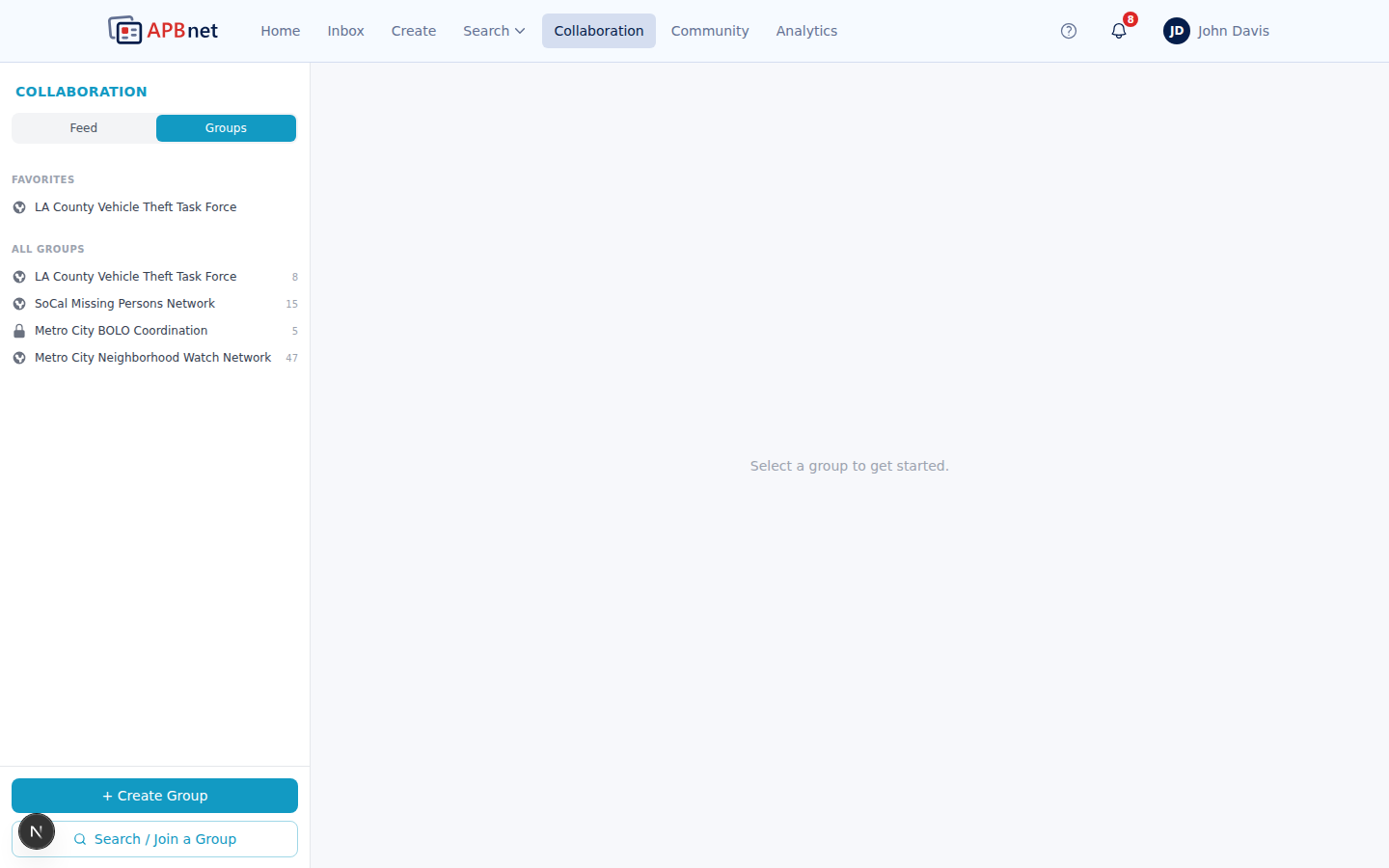
Collaboration Group feed showing shared bulletins with notes from team members, newest entries at the top
Keeping collaboration professional
Every comment in a Collaboration Group can be reported. If a note is unprofessional, inaccurate, or doesn't meet your agency's standards, use the report button rather than letting it stand. Reported comments are reviewed — and if a pattern emerges, the user is directed to support or additional training.
Tips
Always add a note when you share
A bulletin shared without context forces your team to read the whole thing to understand why you shared it. A single sentence — why it's relevant right now, what connects it to the current case — saves everyone time.
Use groups for shift change briefings
Set up a group for each shift. The outgoing shift leaves notes on developing situations — active BOLOs, ongoing stops, area concerns — and attaches the relevant bulletins. The incoming shift opens the group and is briefed without waiting for a verbal handoff.
Attach bulletins instead of copy-pasting details
Share the bulletin directly rather than copying subject details into a message. Your team gets the full structured record — photos, fields, distribution history — not a summary that may miss something.
Related guides
Saving & Finding Bookmarked Bulletins
Save bulletins to your personal Saved tab for quick individual access.
Read the guide →
Interested / Not Interested
Signal your own relevance response on bulletins shared into your groups.
Read the guide →
Understanding Your Inbox
How the inbox tabs work alongside collaboration groups.
Read the guide →